
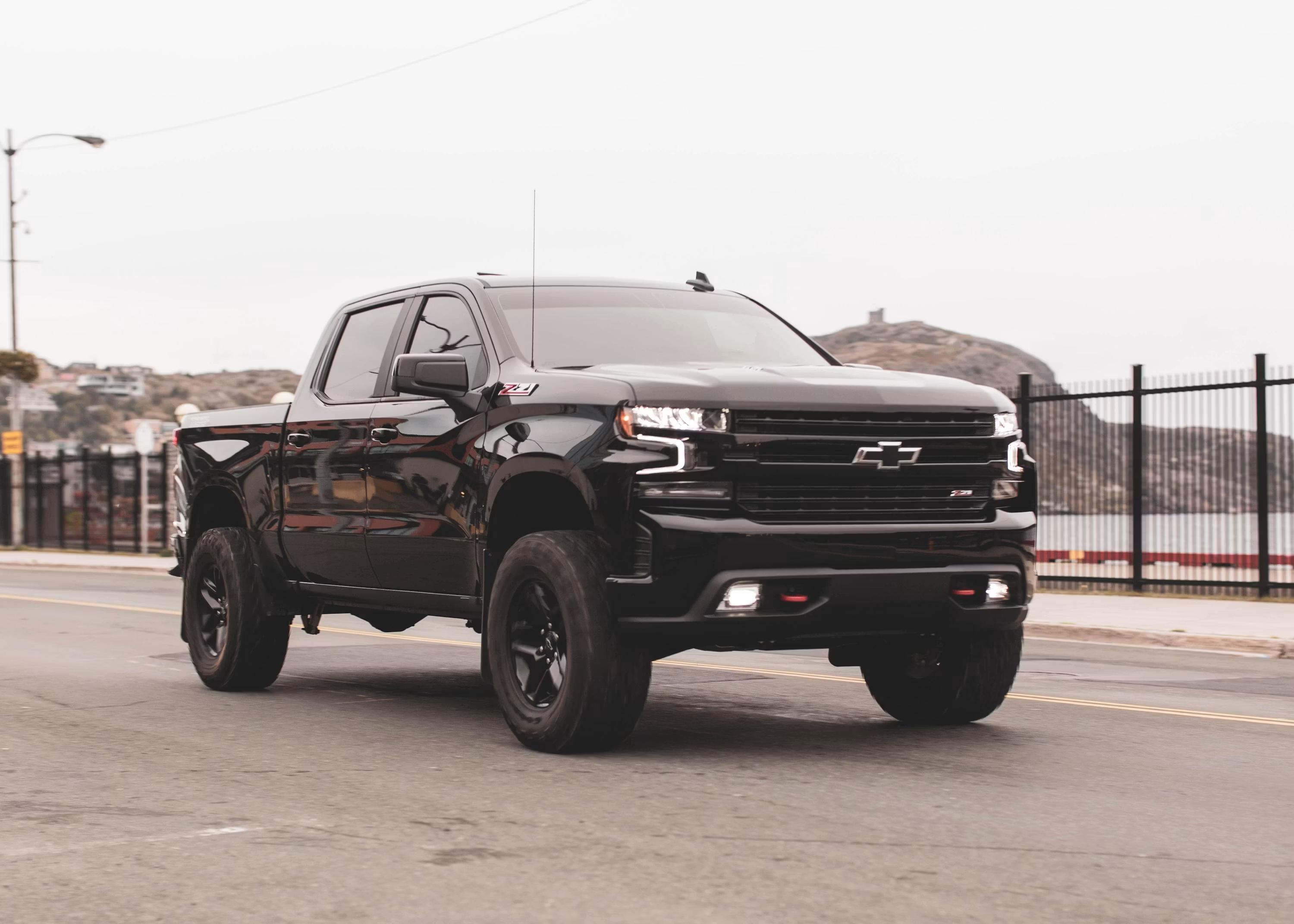
Alt text: Black Chevrolet Silverado pickup on a road, for a guide to the myChevrolet app not connecting to vehicle.
Caption: A Chevrolet pickup on the road. Photo by Jonathan Cooper on Unsplash.
If the myChevrolet app is not connecting to your vehicle, start with the boring checks first.
Most connection failures are easier to isolate when you separate app access, vehicle selection, account status, and remote commands.
This guide walks through a clean order that avoids deleting everything too early.
You will know what to retry, what to leave alone, and when Chevrolet or OnStar support should take over.
What You Should Have Working At The End
The goal is not to force one universal fix. It is to narrow the problem until the next step is obvious.
By the end, you should know whether the issue is more likely tied to the phone app, the signed-in account, the selected vehicle, connected-service eligibility, vehicle signal, or a Remote Commands feature.
Chevrolet’s myChevrolet app instructions describe app areas such as Vehicle Status, and Chevrolet’s Remote Commands support treats commands as their own feature area. OnStar also explains that vehicle app features can depend on eligible vehicles, equipment, connectivity, and service plans.
That makes a structured check more useful than repeated tapping.
Before You Start: Separate The Symptom
Do not start by reinstalling the app unless the basics already fail. First, name what is actually happening.
Common patterns include:
- The app opens, but the vehicle does not appear.
- The correct vehicle appears, but status does not refresh.
- Remote Commands fail while other app areas still load.
- The app shows a sign-in, account, or permission problem.
- The app loads slowly or behaves differently on cellular and Wi-Fi.
That difference matters. A missing vehicle points you toward account or vehicle association checks. A failed lock, unlock, or start command points you toward Remote Commands, eligibility, signal, or service-plan context.
If you can, park somewhere with a stable phone signal and enough time to test one change at a time. Quick guessing can make the pattern harder to explain later.
What You Need Before Troubleshooting
Use this short setup list before changing anything:
- Your phone with the latest available version of the myChevrolet app from the App Store or Google Play.
- The GM account you normally use with the vehicle.
- The vehicle you want to connect, selected in the app when possible.
- A stable phone data connection or Wi-Fi connection.
- Access to your Chevrolet or OnStar account details if you need to check plan or vehicle eligibility.
Chevrolet’s support pages for adding or removing a vehicle and linking accounts are especially useful when the app looks normal but the vehicle list is wrong.
Step 1: Update And Restart The App Cleanly
Start with the app itself because this is the lowest-risk check.
Open the App Store or Google Play listing for the myChevrolet app and install any available update. Then close the app fully, reopen it, and sign in again if prompted.
This does not guarantee a fix, but it removes one avoidable variable: an old app session or outdated build. If the app behaves differently after updating, test only the original symptom again before changing anything else.
If the app still cannot connect, keep moving through the order below instead of repeating the same retry.
Step 2: Confirm You Are In The Right GM Account
A connection problem can look like a vehicle problem when the account is the real mismatch.
Check that the email or GM account signed into the app is the one associated with the vehicle. Chevrolet’s account-linking support explains account linking in the GM account context, which makes it the right reference for identity-related issues.
This is especially worth checking if:
- You recently changed email addresses.
- Someone else in the household also uses the vehicle.
- The vehicle was recently purchased, transferred, or removed from another account.
- The app works on one phone but not another.
If the account is wrong, signing out and signing into the correct account may reveal the right vehicle. If the account is correct, continue to the vehicle list.
Step 3: Check Whether The Correct Vehicle Is Selected
If the myChevrolet app is not connecting to your vehicle, look at the vehicle list before assuming the vehicle is offline.
Chevrolet’s add/remove vehicle support covers the account-side idea that vehicles can be managed from the account and app environment. Use that as the basis for checking whether the right vehicle appears and is selected.
Look for these signs:
- The vehicle is missing from the account.
- An older or different Chevrolet vehicle is selected.
- The app shows a vehicle, but not the one you are trying to control.
- The vehicle was removed or added recently.
If the wrong vehicle is selected, switch to the correct one and test again. If the vehicle is missing, follow Chevrolet’s account and vehicle-management guidance before troubleshooting Remote Commands.
Step 4: Check Vehicle Status Before Remote Commands
Do not judge the whole app by one failed command.
Open a basic app area such as Vehicle Status if it is available for your vehicle and account. Chevrolet’s myChevrolet app instructions reference vehicle information areas, which makes status refresh a useful clue.
If Vehicle Status refreshes but Remote Commands fail, the app may still be communicating in some areas. If nothing refreshes, the issue may be broader than one command.
Use this practical split:
- Vehicle Status works, Remote Commands fail: focus on command eligibility, plan status, vehicle signal, and command history.
- Vehicle Status does not refresh: focus on account, vehicle selection, app session, phone connection, and support escalation.
- The app opens but shows stale information: avoid repeated command attempts until the status context is clearer.
This step gives you a cleaner support story if the problem continues.
Step 5: Review Remote Commands As Their Own Problem
Remote Commands deserve a separate check because they can fail even when the app opens.
Chevrolet’s Remote Commands support explains remote-command use and command history. Use that context to look at whether the specific command failed, timed out, or never appeared as available.
Check these points:
- Is the command available for your vehicle and account?
- Does command history show the attempt?
- Does the command fail repeatedly in the same place?
- Are other app areas still loading?
This matters because a failed lock, unlock, start, or stop request is not the same as the app being unable to load any vehicle information.
If Remote Commands remain unavailable or fail in a repeatable pattern, Chevrolet or OnStar support can review the account, vehicle, plan, and service context more directly.
Step 6: Check Connected-Service And Plan Context
Some connected-vehicle features depend on the vehicle, equipment, connectivity, and service plan.
OnStar’s vehicle app page and plan information are the safest references for this part of the check. If the app opens but connected features do not work, plan or eligibility context can matter.
This is not a reason to assume your vehicle is defective. It is a reason to confirm whether the feature you are trying to use is supported for your vehicle and active account.
A practical way to check:
- Review your OnStar or Chevrolet account status.
- Compare the feature you are trying to use with the plan or eligibility information available to you.
- Note whether the problem affects all connected features or only one command.
- Contact Chevrolet or OnStar support if the account view and app behavior do not match.
Step 7: Reinstall Only After Account And Vehicle Checks
Reinstalling can help with a local app problem, but it should not be the first move.
Before reinstalling, make sure you already checked app updates, sign-in, the selected vehicle, vehicle status, and Remote Commands. That order protects you from deleting the app when the issue is actually account-side or eligibility-related.
If you reinstall, do it cleanly:
- Confirm you know the correct GM account login.
- Remove the app from the phone.
- Restart the phone.
- Install the current app from the official App Store or Google Play listing.
- Sign in and test one symptom first.
If the same issue returns immediately, stop repeating reinstalls. Move to support with clear notes.
Troubleshooting By Symptom
The fastest way to waste time is to treat every app issue as the same issue. Use the visible symptom to choose the next check.
The vehicle does not appear in the app
Start with the signed-in GM account and Chevrolet’s add/remove vehicle guidance. A missing vehicle is a reason to check account association before Remote Commands.
Next step: confirm the account, check the vehicle list, and review Chevrolet’s account and vehicle-management support.
The app opens, but vehicle status will not refresh
Check phone connectivity and the selected vehicle first. Then compare the behavior with other app areas.
Next step: test again on a stable connection and note whether the issue affects status only or the whole app.
Remote Commands fail, but the app still loads
Treat this as a Remote Commands issue, not a full app failure. Review command availability, command history, account status, plan context, and vehicle signal.
Next step: use Chevrolet Remote Commands support and OnStar account or plan information as your reference points.
The app works on one phone but not another
That pattern can point toward app version, sign-in state, phone connection, or local app data.
Next step: compare app versions, confirm the same GM account, and avoid changing vehicle settings until the phone-side difference is clear.
The issue comes and goes
Intermittent behavior is harder to explain without notes. Record the time, location, connection type, app area, command attempted, and exact message shown.
Next step: bring that pattern to Chevrolet or OnStar support if the basic checks do not isolate the cause.
If The App Still Will Not Connect
If the app still will not connect after the clean checks, avoid looping through the same fixes.
Use one of these safer next moves:
- Try the same account on another phone, if you have access to one.
- Try the same phone on a stable Wi-Fi connection and then on cellular data.
- Compare Vehicle Status behavior with Remote Commands behavior.
- Save screenshots of any exact message shown in the app.
- Contact Chevrolet or OnStar support with the pattern you observed.
These alternatives do not assume one cause. They help separate phone-side, account-side, feature-specific, and support-side issues.
When To Contact Chevrolet Or OnStar Support
Contact support when the account and app checks do not explain the problem, or when the app behavior conflicts with your vehicle or plan information.
Useful notes to bring:
- The GM account email you are using.
- The vehicle shown in the app.
- The feature that fails, such as Vehicle Status or a specific Remote Command.
- The exact error message, if one appears.
- Whether the issue happens on Wi-Fi, cellular, or both.
- Whether the problem happens on another phone signed into the same account.
- The time and date of failed Remote Commands, if command history is available.
This gives support a clearer starting point. It also avoids vague reports like "the app does not work," which can hide whether the problem is account, app, vehicle, plan, or command-specific.
What Not To Assume
A myChevrolet app connection problem does not automatically prove a recall, vehicle defect, service-cost issue, or warranty outcome.
It also does not prove a live GM outage. Keep the troubleshooting focused on what you can verify: app version, account, vehicle selection, feature availability, plan context, signal, and repeatable error behavior.
That cautious approach is more useful for drivers because it keeps the next step practical.
Read More
If you are comparing this with other connected-car software issues, these TechNubo guides may help:
- Car Software Issues: How Bad Are They and When Should You Worry?
- Audi Connect Problems: Causes, Feedback, and Recalls Explained
- Mercedes A Class Connectivity Issues: Practical Checks Before Service
- Ford and Lincoln Digital Experience: Apps, Video, CarPlay, and What to Check
- Nissan Connect Infotainment System: How User-Friendly Is It?
FAQ
Why is the myChevrolet app not connecting to my vehicle?
Common checks include the app version, signed-in GM account, selected vehicle, vehicle association, phone connection, connected-service eligibility, and Remote Commands status. Start with the app and account before reinstalling.
Why does my vehicle not show in the myChevrolet app?
A missing vehicle can point to the signed-in account or vehicle association. Check that you are using the correct GM account and review Chevrolet’s add/remove vehicle support.
Why do Remote Commands fail when the app still opens?
Remote Commands can be a separate issue from general app access. Check command availability, command history, supported vehicle context, signal, and connected-service or plan eligibility.
Should I reinstall the myChevrolet app?
Reinstall after checking updates, sign-in, selected vehicle, vehicle status, and Remote Commands. Reinstalling too early can distract from account or eligibility issues.
When should I contact Chevrolet or OnStar support?
Contact support when the same issue repeats after basic checks, when vehicle or account information looks wrong, or when Remote Commands fail in a consistent pattern.