
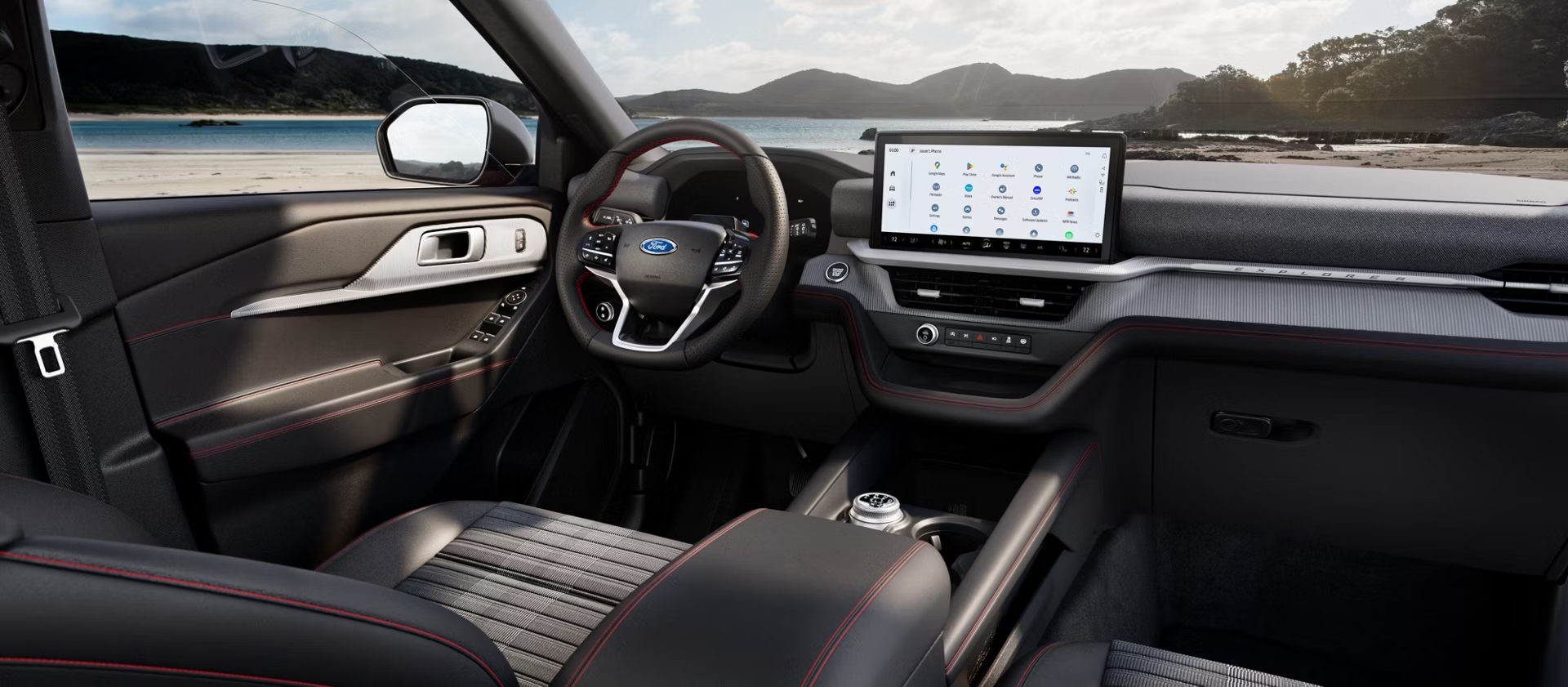
Ford Explorer vs Expedition infotainment screens is not just a size comparison.
The real question is how each SUV presents navigation, apps, phone projection, and driving information.
Explorer keeps the experience centered around the main touchscreen.
Expedition adds a wider dashboard display context that can change how the cabin feels.
The Fast Answer
The Explorer and Expedition follow Ford’s newer infotainment direction, but they do not present it the same way.
The Explorer is the cleaner center-screen example. Ford lists a 13.2-inch center display for Explorer technology, with Ford Digital Experience and wireless Apple CarPlay and Android Auto capability on the relevant technology page.
The Expedition gives shoppers a broader dashboard canvas. Ford’s Expedition technology page describes a 24-inch panoramic display along with a 13.2-inch center display, which makes the infotainment experience feel less like a single-screen decision and more like a whole-cabin layout decision.
That does not automatically make one system better for every driver. It means a buyer should compare how each SUV uses screen space, where key information appears, and how easy the setup feels during a real demo.
Why The Screen Layout Matters
A vehicle’s infotainment system is not only the software name on the brochure. It is also the screen position, display width, menu structure, phone connection behavior, and amount of visual information competing for attention.
That is why Explorer versus Expedition is a useful comparison. These two Ford SUVs can share parts of the same broader technology direction while giving the driver a different screen experience.
In the Explorer, the center display is the obvious place to focus. It is the screen buyers will likely use for maps, media, app access, settings, and phone projection.
In the Expedition, the panoramic display changes the feel of the dashboard. A shopper should look at how driving information, navigation context, and center-screen controls work together instead of judging only the center touchscreen.
Explorer: The Cleaner Center-Screen Reference Point
The Explorer layout is easier to understand at a glance because the center screen carries much of the infotainment workload.
That can be a good fit for buyers who want a familiar touchscreen-first setup. If you already think in terms of CarPlay, Android Auto, maps, music, voice control, and vehicle settings, the Explorer gives you a straightforward place to evaluate those tasks.
During a demo, do not stop at screen size. Check whether the most common tasks feel obvious from the driver’s seat:
- Start navigation and see where route information appears.
- Switch between native Ford features and phone projection.
- Try voice input in the setup the vehicle actually supports.
- Check how media controls appear while navigation is running.
- Look at whether the screen angle and height feel comfortable for repeated glances.
The Explorer’s advantage for many shoppers may be simplicity. The display layout is easier to judge quickly because there is one main center screen to evaluate.
Expedition: The Bigger Dashboard Canvas
The Expedition deserves a different kind of demo because its screen story is wider.
Ford describes the Expedition technology layout with a 24-inch panoramic display and a 13.2-inch center display. That combination can make the cabin feel more information-rich than the Explorer, especially for buyers who like a broad visual surface across the dashboard.
The key question is whether that extra display context helps your routine.
For some drivers, a wider dashboard display can make the vehicle feel more modern and easier to scan. For others, the deciding factor will still be the center screen: how quickly it responds, how the menus are arranged, and whether phone projection behaves the way they expect.
In the Expedition, test the relationship between the panoramic display and the center display. Ask where navigation cues appear, how much information is visible at once, and whether the setup feels useful or simply larger.
Google Built-In Is Not The Same Thing As Android Auto
Ford Digital Experience can support embedded Google services on supported vehicles, while Android Auto is phone projection from a compatible Android phone.
That distinction matters when comparing Explorer and Expedition infotainment screens. A native Google built-in setup can use integrated services such as Google Maps and Google Assistant where supported. Android Auto depends on a compatible phone, supported vehicle behavior, and a wired or wireless setup supported by that vehicle and device.
Apple CarPlay is a separate phone-projection experience for iPhone users. Ford’s pages can mention compatibility, but the exact experience still depends on the vehicle, trim, market, phone, account setup, and supported features.
The practical takeaway is simple: do not assume one label tells the whole story. Test the exact vehicle you are considering with the phone and accounts you actually use.
What To Test Before Choosing Explorer Or Expedition
A good Ford SUV infotainment demo should be more specific than tapping through a few menus in the showroom.
Start with navigation. Try a destination, change the route view, and notice whether the information lands where you expect it. In the Expedition, pay attention to how the panoramic display changes the experience. In the Explorer, focus on how cleanly the center display handles the same task.
Then test phone projection. If you use iPhone, check Apple CarPlay behavior. If you use Android, check Android Auto behavior. Do this with the connection method supported by the vehicle and your phone, and make sure the salesperson is showing the same trim or package you are considering.
Next, look at apps and accounts. Ford Digital Experience can involve connected features and app access, but availability can vary. Ask which services require sign-in, which features need connectivity, and what may change after trial periods or package changes.
Finally, test repeated tasks. Change audio while navigation is active. Move between native maps and phone projection. Try voice control. Adjust climate or vehicle settings if they appear on screen. A system that looks impressive in a photo still has to feel comfortable in normal use.
Common Mistakes When Comparing The Screens
The first mistake is treating the largest display as the automatic winner. A bigger screen can be useful, but layout, placement, software flow, and daily tasks matter just as much.
The second mistake is assuming every Ford model has the same infotainment behavior. Ford’s technology pages are model-specific for a reason. Display sizes, supported features, connectivity details, and app behavior can vary by vehicle and configuration.
The third mistake is comparing native Google services and Android Auto as if they are identical. Google built-in is an integrated vehicle experience where supported. Android Auto is a phone-projection experience.
The fourth mistake is ignoring the passenger and family use case. Expedition buyers may care more about the whole cabin experience, while Explorer buyers may prioritize a simpler driver-centered interface.
The final mistake is not checking cost and account details. Connected services, app access, data needs, and post-trial availability should be confirmed for the exact vehicle before purchase.
Privacy, Connectivity, And Cost Questions
Infotainment systems increasingly depend on accounts, data connections, app permissions, and cloud services. That is useful when everything is configured well, but it also makes the buying decision more than a screen-size comparison.
Ask what happens when the vehicle is not signed in. Ask which features work without a phone. Ask which features need a connected-services plan, trial, subscription, or data connection. Ask whether app availability changes by market or vehicle setup.
These questions are not reasons to avoid the technology. They are the right way to understand what you are buying.
For a shopper choosing between Explorer and Expedition, the best infotainment system is the one that matches the actual routine: commuting, family trips, phone ecosystem, navigation habits, passenger needs, and tolerance for account setup.
So, Which Ford SUV Has The Better Infotainment Fit?
Choose Explorer if you want the simpler screen story to evaluate. Its center-display layout makes it easier to focus on the main infotainment tasks without judging a wider dashboard arrangement.
Choose Expedition if the broader display environment is part of the appeal. Its panoramic display plus center display can make the cabin feel more expansive and information-rich, but it deserves a more careful in-person demo.
The smarter comparison is not Explorer screen versus Expedition screen in isolation. It is Explorer workflow versus Expedition workflow.
If the system feels clear during navigation, phone projection, media changes, account setup, and repeated daily tasks, that matters more than a spec-sheet win.
Sources
- Ford Explorer technology
- Ford Expedition technology
- Ford Digital Experience
- Google built-in for cars
- Android Auto
Read More
- Ford and Lincoln Digital Experience: Apps, Video, CarPlay, and What to Check
- BMW iDrive vs. CarPlay vs. Android Auto
- Audi MMI Infotainment Explained: What Changed, What Works, and What Drivers Should Check
- Car Software Issues: How Bad Are They and When Should You Worry?
FAQ
Are Ford Explorer and Expedition infotainment screens the same?
No. Ford’s technology pages describe different display layouts. Explorer is centered around a 13.2-inch center display, while Expedition adds a 24-inch panoramic display plus a 13.2-inch center display.
Does the Expedition panoramic display replace the center touchscreen?
No. Ford describes the Expedition setup with both a panoramic display and a 13.2-inch center display. Buyers should test how the two screens work together during navigation, media, and settings use.
Is Google built-in the same as Android Auto in Ford SUVs?
No. Google built-in refers to integrated Google services where supported. Android Auto is phone projection from a compatible Android phone using a supported wired or wireless setup.
Should I choose Expedition just because it has more screen space?
Not automatically. More display area can be useful, but the better fit depends on visibility, menu flow, phone projection, account setup, passenger needs, and daily driving tasks.
What should I test during a Ford infotainment demo?
Test navigation, media controls, voice input, Apple CarPlay or Android Auto, account sign-in, app availability, connectivity requirements, and how the screens behave during repeated everyday tasks.