
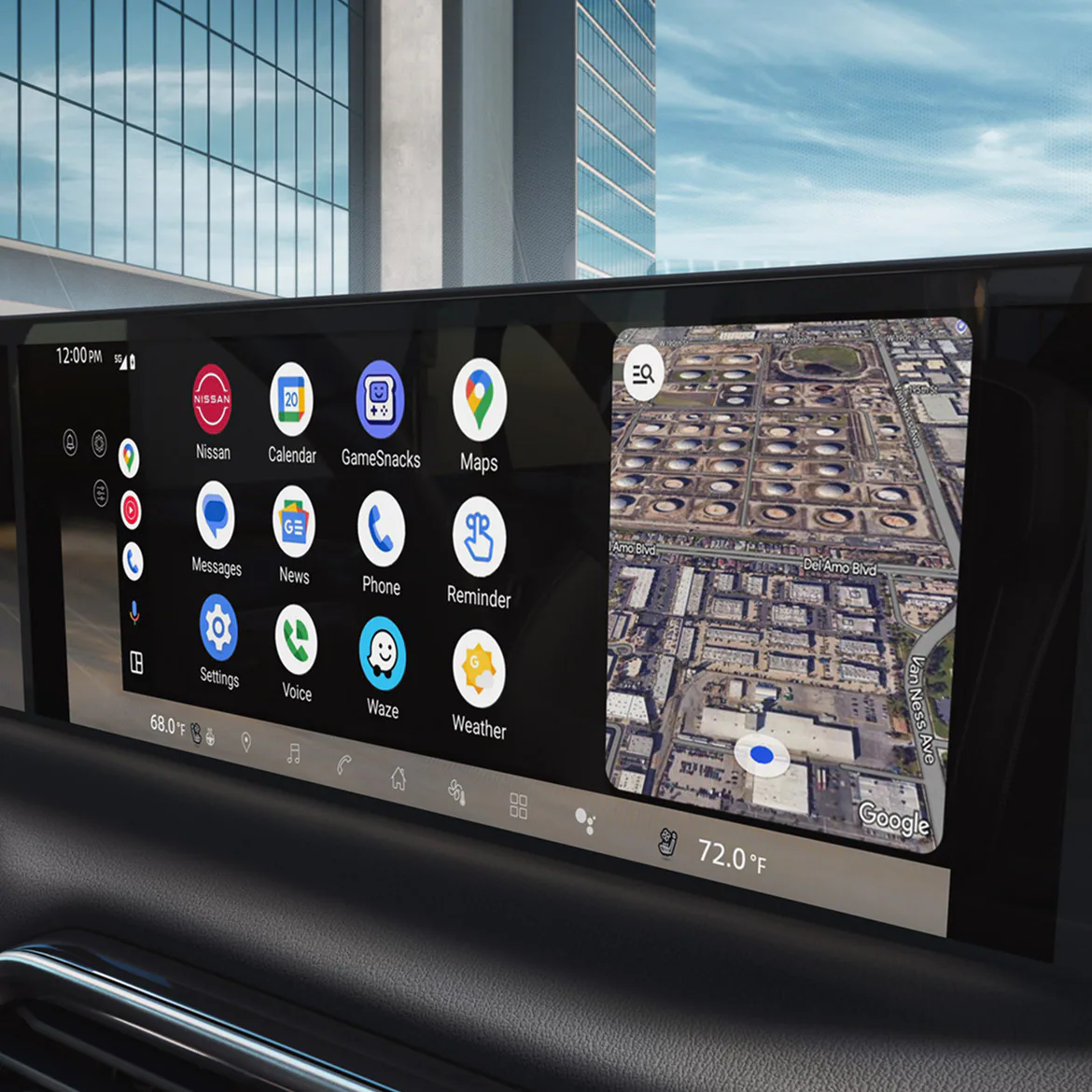
The Nissan Connect infotainment system can feel easy for daily use, but equipment matters.
A base screen, a newer Google built-in setup, and phone projection can feel very different.
That matters when calls, maps, audio, and settings become part of every drive.
Here is how to evaluate NissanConnect usability before you rely on it every day.
The Short Answer: NissanConnect Is Friendly For Basics, But Not Identical In Every Nissan
For everyday tasks, NissanConnect can be user-friendly when the screen is responsive, phone pairing is stable, and the menus match what the driver needs most often. Its strongest moments are usually the basics: audio, calls, Bluetooth, smartphone integration, navigation access, and common connected features.
The catch is that NissanConnect is not one identical experience across every Nissan vehicle. Nissan’s own feature pages state that availability varies by vehicle. Model year, trim, screen, software generation, phone, and connected-service package can all change how easy the system feels.
So the best question is not whether NissanConnect is good in the abstract. It is whether the exact vehicle makes your common tasks feel quick, predictable, and easy to repeat.
Sources used for the main feature and availability context:
- NissanConnect overview: https://www.nissanusa.com/owners/connect.html
- NissanConnect features and apps: https://www.nissanusa.com/owners/connect/features-apps.html
- NissanConnect packages: https://www.nissanusa.com/owners/connect/packages.html
- NissanConnect support: https://www.nissanusa.com/owners/support/help-nissanconnect.html
Why The Nissan Connect Infotainment System Matters In Daily Driving
Infotainment usability is not just about screen size or the number of icons. It affects small moments that repeat constantly.
If the system makes it easy to start navigation, answer a call, switch audio sources, or return to the home screen, the vehicle feels calmer. If the same tasks take too many taps, or depend on a feature the vehicle does not include, the experience can feel more complicated than the spec sheet suggests.
This is especially important for drivers who rely on their phone in the car. Apple CarPlay and Android Auto can make maps, calls, messages, and media feel familiar, but they still depend on a compatible phone and a compatible vehicle setup. Nissan also offers Google built-in on select or equipped vehicles, which is different from using Android Auto through a phone.
That is why the smartest evaluation is practical. Test the tasks you will actually use, in the vehicle you are actually considering.
How NissanConnect Works Across Menus, Phone Projection, And Connected Features
NissanConnect can include several layers of technology. The exact mix depends on the vehicle.
The first layer is the vehicle’s native infotainment interface. This is where you may find audio controls, Bluetooth, vehicle settings, navigation functions, connected-service menus, and system preferences.
The second layer is phone projection. Apple CarPlay brings an iPhone-focused interface into compatible vehicles. Android Auto does the same for compatible Android phones and vehicles. These systems can feel easier because the driver already knows the phone ecosystem, but availability and wired or wireless behavior can vary.
The third layer is connected services. Some NissanConnect Services features can depend on account setup, enrollment, subscription or trial status, cellular/GPS coverage, package availability, and the specific vehicle. That does not make the system bad; it simply means connected features should be judged separately from basic screen controls.
The fourth layer, on select Nissan vehicles, is Google built-in. Nissan describes Google built-in as direct vehicle integration for services such as Google Maps, Google Assistant, and Google Play where equipped. That is not the same thing as Android Auto, which relies on a compatible Android phone connected to a compatible vehicle.
What Usually Feels Easy
The friendliest parts of NissanConnect are usually the tasks with clear labels, familiar phone behavior, or dedicated shortcuts.
Bluetooth calling is a good example. Once a phone is paired correctly, basic call handling can be straightforward because the task is familiar: choose a contact, answer a call, or route audio through the car.
Audio switching is another useful test. A good daily interface lets you move between radio, Bluetooth audio, phone projection, and other sources without feeling lost.
Navigation can also feel simple when the vehicle supports the way you prefer to drive. Some drivers will prefer built-in navigation or Google built-in where equipped. Others will prefer Apple Maps, Google Maps, or Waze through CarPlay or Android Auto when supported.
The most user-friendly setup is the one that lets you reach your preferred map and audio source without thinking about the interface every time.
Where NissanConnect Can Feel Less Friendly
Friction usually appears when a driver expects every NissanConnect system to behave the same way.
One vehicle may support a feature that another does not. One trim may include a larger or newer screen while another uses a simpler setup. One phone connection may be wired while another vehicle or phone combination may support wireless use. Some connected features may need a package, account, trial, or subscription.
That variation can make NissanConnect feel inconsistent if the buyer does not check the exact vehicle. It can also make online advice confusing, because a tip written for one model year or trim may not apply cleanly to another.
Before judging the system, separate three questions:
- Does this exact vehicle include the feature?
- Does my phone support the connection method I want?
- Does the feature require setup, enrollment, coverage, or a paid package?
Those questions keep the evaluation grounded instead of turning it into a guess about the entire Nissan lineup.
A Practical Test-Drive Check For NissanConnect Usability
Before buying or relying on a Nissan vehicle daily, test the infotainment system the same way you plan to use it.
Start with phone pairing. Connect your phone, confirm that calls route through the vehicle, and check whether contact access and audio behave as expected. If the vehicle supports CarPlay or Android Auto, test the exact connection method available in that vehicle.
Next, open maps. Try the navigation option you plan to use most: built-in navigation, CarPlay, Android Auto, or Google built-in where equipped. Look for how quickly you can start a destination, cancel a route, and return to audio.
Then test audio switching. Move between radio, Bluetooth audio, and phone projection if available. The goal is not to explore every menu; it is to see whether the common path makes sense.
After that, check settings you might use while parked. Look for display brightness, sound settings, paired-device management, and system information. If these are buried or confusing, that friction may matter over time.
Finally, ask what is included on that exact vehicle. For connected services, confirm whether the feature depends on account setup, trial status, package status, subscription, or coverage.
Symptom-To-Next-Check: When The System Feels Confusing
If the screen is blank or not responding, treat it as a vehicle-specific support question first. Check the owner or support guidance for that model instead of assuming one online fix applies to every Nissan.
If the phone reacts but the Nissan screen does not, check the connection method. Depending on the setup, a cable, port, phone setting, vehicle compatibility limit, or projection setting may be part of the issue.
If audio works but the projected map or app view does not appear, separate Bluetooth audio from CarPlay or Android Auto. Audio playback alone does not prove that full phone projection is active.
If connected services load inconsistently, separate screen usability from service availability. Account status, package status, cellular/GPS coverage, enrollment, or server-side service conditions can affect connected features.
If the problem appears only sometimes, record the pattern before contacting support. Useful notes include the vehicle, model year, trim if known, phone model, connection method, feature attempted, and what appeared on the screen.
Common Mistakes When Judging NissanConnect
The first mistake is judging every NissanConnect system from one vehicle. A Rogue, Altima, Pathfinder, Ariya, or any other Nissan can have different equipment depending on year and trim. A review of one vehicle can be useful context, but it should not become a universal rule.
The second mistake is mixing up NissanConnect Services, the MyNISSAN app, the in-car touchscreen, CarPlay, Android Auto, and Google built-in. These features can interact, but they are not the same thing.
The third mistake is assuming wireless phone projection is standard everywhere. Nissan lists wireless variants on its feature pages, but the safer approach is to use where-equipped language unless a specific vehicle source confirms the exact setup.
The fourth mistake is ignoring subscription and setup details. A feature can be easy to use after enrollment, but unavailable if the vehicle, package, account, or service status does not support it.
The fifth mistake is treating a troubleshooting symptom as a usability verdict. A connection problem, app issue, coverage issue, or account issue may affect the experience, but it does not prove that the whole infotainment system is poorly designed.
Cost, Privacy, And Connected-Service Context
NissanConnect usability is partly about the screen and partly about the ecosystem around it.
For basic infotainment tasks, the main question is whether the interface feels clear and predictable. For connected features, the question expands: what package is active, what account is used, what data connection is available, and what terms apply?
Nissan’s support and package pages describe service and package dependencies, which is why shoppers should avoid assuming every connected feature is included for the life of the vehicle. Some features may depend on trial status, subscription status, enrollment, compatible equipment, or coverage.
Privacy deserves the same calm check. Connected services can involve account login, app access, location-related functions, and service terms. A practical buyer should review the vehicle’s NissanConnect settings and current Nissan service information before relying on remote or connected features.
That context does not make NissanConnect unfriendly. It simply means the connected-services side needs more care than basic touchscreen controls.
So, Is NissanConnect User-Friendly?
For many daily tasks, yes, the Nissan Connect infotainment system can be user-friendly. It is strongest when the driver sticks to common actions, uses a compatible phone setup, and understands which features belong to the exact vehicle.
It becomes less simple when buyers expect every Nissan to have the same screen, same wireless behavior, same Google built-in support, same connected-service package, or same subscription rules.
The fairest verdict is this: NissanConnect is approachable for basics, but the user experience depends heavily on equipment. If you are shopping, test the exact vehicle. If you already own one, separate touchscreen usability from phone compatibility, account setup, and connected-service status.
That approach gives you a clearer answer than asking whether NissanConnect is good or bad in the abstract.
Related Articles
Read more on TechNubo:
- Is Nissan Connect Worth It in 2026? Honest Review Guide
- Nissan Connect App Not Working: Causes and Fixes
- Connection Problems To Nissan Connect Services And Software Updates
- BMW iDrive vs. CarPlay vs. Android Auto
FAQ
Is the Nissan Connect infotainment system easy to use?
It can be easy for basic tasks such as calls, audio, Bluetooth, maps, and common settings. The experience depends on the vehicle, trim, model year, phone, and feature package.
Does every NissanConnect system include Apple CarPlay and Android Auto?
No public guide should assume that every Nissan vehicle has the same phone-projection setup. Check the exact vehicle’s feature list and Nissan’s current support information.
Is Google built-in the same as Android Auto?
No. Google built-in is direct vehicle integration on select or equipped vehicles. Android Auto uses a compatible Android phone connected to a compatible vehicle.
Do NissanConnect features require a subscription?
Some connected services can depend on package, trial, subscription, account, vehicle equipment, enrollment, and coverage. Basic infotainment features and connected services should be evaluated separately.
What should I test before buying a Nissan with NissanConnect?
Pair your phone, test calls, open your preferred maps, switch audio sources, check common settings, and confirm which connected features are included on that exact vehicle.