
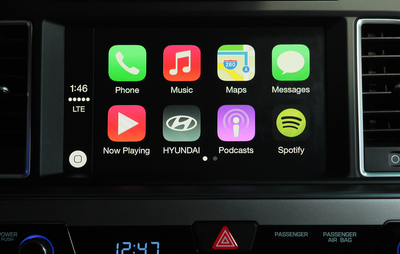
Hyundai CarPlay problems feel urgent because the screen gives you very little context.
One attempt may show nothing. Another may flash briefly, play audio, or only wake the phone.
The useful move is not endless retrying. It is matching the visible symptom to the next clean check.
This guide helps you narrow the problem without changing several phone and vehicle settings at once.
Start With What You Can See
Before deleting pairings or digging through menus, name the failure in plain language. A vague note like "CarPlay is broken" is hard to act on. A specific symptom gives you a cleaner next step.
Use three simple observations:
- What does the iPhone do?
- What does the Hyundai screen do?
- What happens to audio or calls?
Those answers matter because CarPlay can fail in different-looking ways. The phone may react while the dashboard stays unchanged. The screen may react briefly and return. Audio may work while the expected CarPlay view never appears.
None of those symptoms proves one exact cause by itself. They simply tell you where to look next.
Match The Symptom To The Next Check
A practical troubleshooting flow starts with the symptom, then changes one visible condition at a time. Use the sections below as a way to avoid random retries.
If Nothing Reacts
If the iPhone and Hyundai screen both appear unchanged, begin with the connection method. For a wired attempt, reseat the cable and try one clean reconnect. If you are using an adapter or hub, simplify the setup and test the direct connection path available to you.
For a wireless attempt, pause the repeated retries and start a fresh connection attempt from both sides. Keep the phone awake during the attempt and watch for any prompt, permission request, or vehicle response.
The limit: if nothing changes after a clean reconnect, do not keep repeating the same attempt. Move to a different observable test.
If The Phone Reacts But The Hyundai Screen Does Not
A phone reaction is useful, but it is not the same as CarPlay appearing on the vehicle display. Watch whether the phone only charges, shows a prompt, changes audio state, or indicates a connection attempt.
Next, repeat the same connection method once while watching the Hyundai screen first. If the vehicle screen never changes, note that difference. It separates a phone-side response from a dashboard display result.
The limit: avoid assuming the phone response means the vehicle accepted CarPlay. Treat it as one clue, not the answer.
If The Hyundai Screen Reacts Briefly Then Returns
A brief screen reaction is worth recording because the display responded during the attempt. The next check is repeatability. Try the same method again after restarting the phone and ending the current vehicle session, then watch whether the brief reaction appears the same way.
If the reaction repeats, note exactly when it happens: after plugging in, after unlocking the phone, after selecting a connection option, or after a few seconds of loading.
The limit: a flash or brief return does not prove a specific failed component. It only shows that the attempt reached a visible response point.
If Audio Works But The CarPlay View Does Not Appear
Audio behavior and the CarPlay display should be described separately. If calls or music work but the CarPlay view does not appear, write that down as an audio-only or partial-response symptom.
Next, test whether the same audio behavior happens with the same connection method after a clean restart. Then try the other available connection method if your vehicle and phone setup supports it.
The limit: working audio does not finish the troubleshooting. It only tells you that one part of the phone-vehicle experience is responding.
If CarPlay Works Sometimes
Intermittent problems need pattern tracking more than rapid changes. Watch for repeatable conditions: same cable, same parking spot, same phone state, same recent update, same passenger phone nearby, or the same startup timing.
Next, choose one condition to simplify. For example, test the same phone and same connection method twice in a row before changing anything else. If the result changes, record what changed around the attempt.
The limit: intermittent behavior is easy to misread. Change one condition at a time or the pattern disappears.
Keep Wired And Wireless Tests Separate
Do not mix wired and wireless attempts into one mental bucket. They may look similar from the driver’s seat, but they give you different observations.
For wired attempts, focus on the physical connection, whether the phone reacts, and whether the Hyundai screen changes.
For wireless attempts, focus on pairing behavior, prompts, repeatability, and whether the screen starts to load before dropping back.
The payoff is cleaner evidence. If wired fails in one way and wireless fails in another, support or service staff get a clearer starting point.
Restart Before Rebuilding The Setup
A restart is a low-disruption early check before deleting pairings, changing several settings, or rebuilding the whole setup.
Restart the phone. End the current vehicle session. Then try one clean connection attempt using the same method that failed before.
This keeps the test fair. If CarPlay behaves differently after a restart, you have learned something without rewriting the entire setup. If it behaves the same, you can move on with a better note.
Check The iPhone Side Without Menu Hunting
The iPhone side matters, but this is where many people change too much too quickly. Keep the check broad and reversible.
Look for CarPlay-related prompts, allowed connection choices, restrictions that may affect vehicle connection, and whether the phone is ready for the connection attempt. Use Apple’s current iPhone guidance when you need the exact path for your iOS version.
Do not copy a random menu path from an old forum post. Interface wording changes, and a wrong path wastes time.
Check The Hyundai Screen Separately
The Hyundai screen deserves its own observation. Do not judge the whole attempt only by what the phone does.
Watch whether the vehicle display stays unchanged, briefly reacts, shows a connection area, changes audio state, or returns to the previous screen. Those are different symptoms.
For model-specific controls, use the owner’s manual, Hyundai support material, or the infotainment guidance for your vehicle. That keeps the check aligned with the system in front of you.
Try Another Compatible Phone Only As A Pattern Test
If another compatible iPhone is available, it can be a useful pattern test. Keep the goal narrow: compare visible behavior, not declare a final cause.
If the second phone behaves the same way, the pattern may be outside the original phone. If it behaves differently, the original phone setup becomes more important to inspect.
Either result is useful, but neither result should be treated as a complete diagnosis by itself.
What To Write Down Before Asking For Help
Good notes can shorten the next conversation. Before contacting support or a service advisor, collect the facts that are easy to see.
Write down:
- The connection method you tested.
- What the iPhone showed.
- What the Hyundai screen showed.
- Whether audio or calls worked.
- Whether the behavior repeats.
- The last change that made any difference.
This is more useful than saying CarPlay works "sometimes." It gives the next person a pattern to evaluate.
A Simple Hyundai CarPlay Troubleshooting Flow
Use this order when you want a clean path:
- Name the visible symptom.
- Test the same connection method once cleanly.
- Restart before deleting pairings or changing several settings.
- Separate phone behavior from Hyundai screen behavior.
- Compare wired and wireless attempts separately when both are available.
- Record repeatable patterns.
- Use official owner or support guidance for model-specific steps.
- Escalate with notes when the same problem keeps returning.
This order does not promise one universal fix. It helps you stop guessing and move from symptom to next check with less noise.
Read More
- Volkswagen Infotainment Not Working: Reasons And Fixes
- Ford Connected Vehicle Features Not Working
- Highway Driving Assist (HDA)
- The Essential Guide to Kia Advanced Driver Assistance Systems (ADAS)
FAQ
Why is Hyundai CarPlay not working even when my phone reacts?
A phone reaction can mean several things. Watch whether the Hyundai screen also changes before treating the attempt as a CarPlay connection.
Does working Bluetooth mean CarPlay is working too?
No. Bluetooth audio or calls should be noted separately from whether the CarPlay view appears on the Hyundai screen.
Should I delete all pairings first?
Start with lower-disruption checks first. A clean restart and one controlled reconnect can give you useful information before larger setup changes.
What should I try if the Hyundai screen flashes and returns?
Repeat the same connection method once after a clean restart and record when the brief reaction appears. Then compare that pattern with another connection method if available.
When should I stop troubleshooting Hyundai CarPlay myself?
Stop when the same symptom repeats after clean, simple checks. Bring clear notes about phone behavior, screen behavior, audio behavior, and repeatability.