
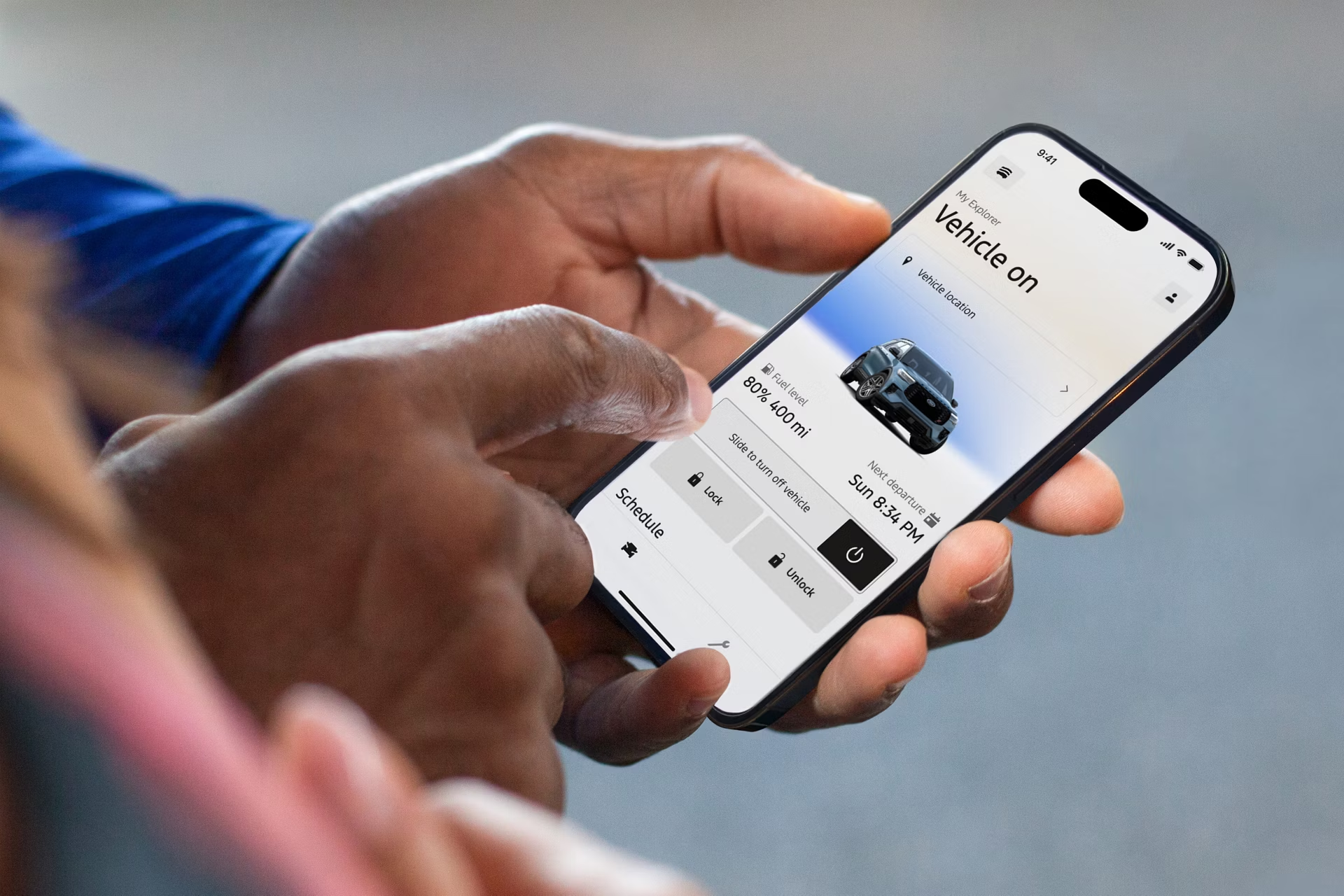
Ford connected vehicle features can fail for reasons that are not obvious from the app.
Vehicle status may stay old.
Remote start, lock, unlock, or other commands may fail even when your phone looks connected.
Use this order: app, account, modem activation, vehicle settings, coverage, and vehicle state.
Quick Answer: Why Ford Connected Vehicle Features Stop Working
Ford connected services depend on several pieces working together: the Ford app, your Ford account, the selected vehicle, the vehicle modem, connectivity settings, service availability, cellular communication, and the vehicle’s current condition.
Ford describes connected services as app- and vehicle-based features that can support remote access and vehicle information when the vehicle and service are set up correctly. Source: Ford Connected Services.
That is why a connected-feature problem can look simple on your phone while the actual break sits elsewhere. Start by naming the symptom:
- The Ford app does not show the vehicle.
- Vehicle status is old or missing.
- Remote start does not work.
- Lock or unlock commands fail.
- Connected services appear unavailable.
- Modem activation is incomplete.
Once you know the symptom, the next step becomes much clearer.
Check The Ford App And Account First
Start with the checks that do not change the vehicle.
Open the Ford app and confirm you are signed in with the account that has the vehicle added. If you use more than one email address, this is an easy place to get stuck. A vehicle can look missing or disconnected simply because the app is open under a different account.
Next, make sure the correct vehicle is selected. This matters if you have owned, rented, tested, or previously added more than one Ford vehicle.
Then close and reopen the app. If the app still shows stale information, check whether your phone has a stable internet connection. The phone needs its own working connection before the app can show updated vehicle data or send a command.
If sign-in is part of the issue, handle account recovery carefully. Do not rush through password, passkey, or two-factor changes unless you know which recovery options are active.
Confirm The Vehicle Modem Is Activated
Connected vehicle features also need the vehicle side of the setup to be active. Ford’s modem activation support explains how owners can activate a vehicle modem using the Ford app. Source: Ford modem activation support.
If modem activation is unfinished, the problem may not behave like a normal app issue. The app can be installed, your account can be valid, and your phone can be online, while the vehicle still is not fully ready for connected services.
Check the Ford app for setup prompts, activation messages, or vehicle authorization steps. If the app asks you to complete activation, finish that process before moving into deeper troubleshooting.
A useful rule: do not treat a connected-feature failure as a hardware problem until the basic activation path has been checked.
Review Vehicle Connectivity Settings In SYNC
Some connected behavior depends on the vehicle’s own connectivity settings. Ford provides support for changing vehicle connectivity settings in Ford vehicles. Source: Ford vehicle connectivity settings support.
Use the vehicle screen to review the connectivity or data-sharing settings available for your model and software version. Do not force menu steps from a different model year, trim, market, or SYNC version if they do not match your vehicle.
The goal is simple: make sure the vehicle is not configured in a way that blocks the connected feature you are trying to use.
If settings were changed recently, treat that as a strong clue. A privacy, connectivity, or data-sharing change can affect what the app can read or command from outside the vehicle.
If Remote Start Does Not Work
Remote start deserves its own check because it depends on both app communication and vehicle readiness.
Ford has a dedicated support page for remote start not working in the Ford app. Use that as the source of truth for Ford-specific remote start troubleshooting. Source: Ford app remote start troubleshooting.
Before assuming the app is broken, check the basics:
- The vehicle supports remote start.
- The vehicle is properly added in the Ford app.
- The modem and connected setup are complete.
- The vehicle is in a state that allows remote start.
- The phone and vehicle can communicate through available service coverage.
Remote start can fail even when other app screens still load. Test one symptom at a time instead of treating every connected feature as the same failure.
If Vehicle Status Is Not Updating
Old vehicle status usually points to a communication gap. The app may be showing the last information it received instead of a fresh update.
Check whether the vehicle has been parked somewhere with weak cellular coverage, such as a garage, underground structure, or remote area. Connected services need the vehicle to communicate, not only the phone.
Then see whether the app updates after the vehicle is moved or driven. If status begins updating again after the vehicle has better coverage, the problem was likely the communication path rather than the app screen itself.
If status still does not update, return to the setup path: account, selected vehicle, modem activation, and vehicle connectivity settings.
If Lock, Unlock, Or Other Commands Fail
Remote commands can be misleading because the app may accept your tap before the vehicle confirms the action.
If a command fails, wait a moment before sending the same command again. Then check whether other connected features work. If vehicle status updates but lock or unlock fails, the issue may be specific to that command or the vehicle’s current state. If nothing updates, the broader communication path is more likely involved.
This distinction saves time. A single failed command is not the same as a fully disconnected vehicle.
Do Not Start With Risky Reset Advice
It is tempting to search for a dramatic reset. That is not the right first step for consumer troubleshooting.
Do not begin with battery disconnects, module resets, OBD procedures, or dealer-level diagnostics as general fixes. Those steps can create new problems when used without the right context.
Use this safer order first:
- Confirm the Ford app account and selected vehicle.
- Check phone connectivity and app behavior.
- Confirm modem activation.
- Review vehicle connectivity settings.
- Separate remote start from status-update problems.
- Consider vehicle location, coverage, and current vehicle state.
- Contact Ford support or a dealer when the setup path is complete and the issue continues.
This keeps the troubleshooting practical without turning a connected-service issue into a repair procedure.
When To Contact Ford Support Or A Dealer
Contact Ford support or a dealer when the vehicle is added to the correct account, modem activation has been completed, connectivity settings look correct, the phone has a stable connection, and the same connected feature still fails repeatedly.
You should also escalate if the Ford app shows a specific message about account access, eligibility, activation, or vehicle service support.
Before contacting support, collect the useful details:
- Vehicle model and model year.
- The Ford app feature that fails.
- Whether vehicle status updates.
- Whether remote start, lock, or unlock fails.
- Whether modem activation was completed.
- Whether the problem happens in more than one parking location.
- Any exact app message shown on screen.
Specific details help support separate an app, account, setup, coverage, vehicle-state, or service-availability problem.
Read More
For more practical consumer technology walkthroughs, visit TechNubo Guides.
If the issue involves account access or sign-in protection, read Set Up Passkeys And 2-Step Verification Without Lockout.
For another connected-car and vehicle technology read, see Volkswagen Golf GTI Technology And Driving Experience.
FAQ
Why are my Ford connected vehicle features not working?
They can stop working when the app, account, selected vehicle, modem activation, connectivity settings, service availability, coverage, or vehicle state is not aligned. Start with app and account checks, then confirm modem activation and vehicle connectivity settings.
Why is the Ford app not connecting to my vehicle?
The vehicle may not be selected under the right account, modem activation may be incomplete, the vehicle may have limited connectivity, or the in-vehicle connectivity settings may need review.
Why does Ford app remote start fail?
Remote start can fail when the feature is not set up, the vehicle is not in a ready state, the app cannot communicate with the vehicle, or the vehicle does not support the requested remote feature. Ford’s remote start support page is the best source for Ford-specific checks.
Why is my vehicle status not updating in the Ford app?
Vehicle status may stay old when the vehicle has not recently communicated with the service. Check phone connectivity, vehicle coverage, modem activation, and vehicle connectivity settings before assuming the app itself is the only issue.
Should I reset the vehicle to fix connected services?
Do not begin with battery disconnects, module resets, OBD procedures, or dealer-level diagnostics as general consumer fixes. Work through the app, account, modem, settings, coverage, and vehicle-state checks first, then contact Ford support or a dealer if the problem continues.