
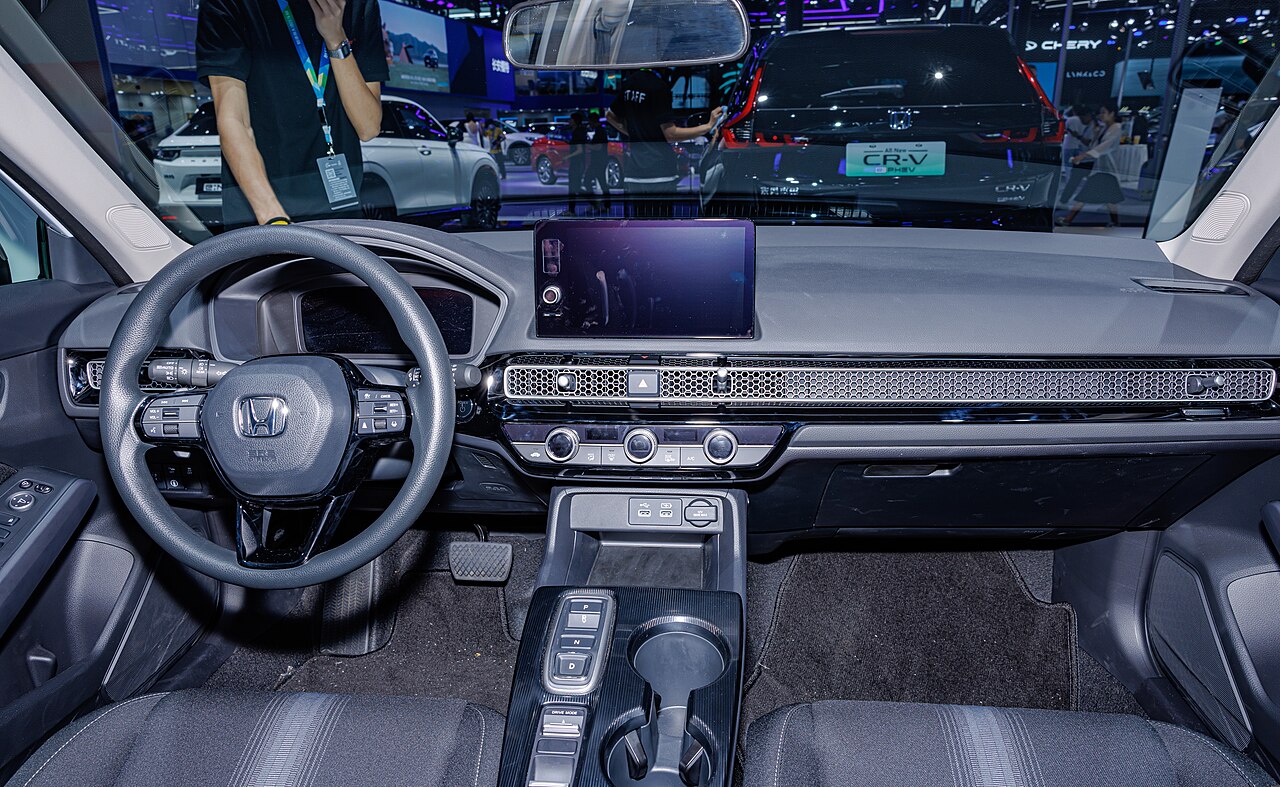
Honda smartphone connection not working can make a simple drive feel like a guessing game.
Start by separating the symptom from the frustration.
This guide covers CarPlay, Android Auto, Bluetooth, USB, wireless setup, and saved phone profiles.
Work through it while parked, then stop once the pattern is clear enough to explain.
What this guide should help you do
By the end, you should have a clearer answer to three questions:
- Is the problem with charging, Bluetooth audio, phone projection, or the vehicle screen?
- Does the connection fail every time, or only with one cable, one phone, or one startup sequence?
- Is this still a setup problem, or is it time to check model-specific Honda support guidance?
The article does not promise one universal Honda fix. Honda models, infotainment generations, phone operating systems, ports, and cable behavior can vary. The goal is to reduce guesswork before you reset profiles or contact support.
Before you start: make the test clean
Do the checks while parked and give yourself a few quiet minutes. Connection problems become harder to read when several variables change at once.
Start with one phone, one cable if you are testing a wired connection, and one Honda vehicle profile. Avoid changing phone settings, vehicle settings, cables, and apps in the same attempt.
If the screen shows an error, write down the exact wording. If the phone reacts but the Honda screen does not, that is useful information. If Bluetooth audio works but CarPlay or Android Auto does not, treat those as different connection paths.
What you need before troubleshooting
You do not need special tools for the first checks. You need a controlled setup:
- Your phone with enough battery to test without power-saving confusion.
- The cable you normally use, plus another known-good cable if wired connection is involved.
- Access to the Honda infotainment screen while the vehicle is safely parked.
- A few minutes to restart the phone and vehicle system cleanly.
- Official owner or support guidance for your exact Honda model if basic checks do not explain the failure.
If you are using phone projection, remember that Bluetooth, USB charging, and CarPlay or Android Auto are related but not identical. A phone can charge without projecting. Bluetooth audio can work while the projection interface still fails.
First, identify the connection type
Before changing anything, name the connection you are trying to fix.
If you want Apple CarPlay or Android Auto on the Honda screen, that is phone projection. If you only want calls or audio, that may be Bluetooth. If the phone only charges, the vehicle may not be receiving a projection session at all.
This distinction matters because each symptom points to a different next check.
| What you see | What it usually tells you to check next |
|---|---|
| Phone charges, but no CarPlay or Android Auto appears | Cable capability, selected USB port, phone prompt, or projection setup |
| Bluetooth calls work, but no projection screen appears | Treat Bluetooth and projection as separate paths |
| Honda screen reacts briefly, then returns to home | Restart cleanly and remove stale phone or vehicle profiles if needed |
| Audio works, but the app view never appears | Check whether you are in Bluetooth audio instead of phone projection |
| It works sometimes, then fails later | Look for a repeatable trigger such as cable movement, startup order, or saved profiles |
Check the simple wired setup first
If your Honda connection uses a cable, start with the physical connection. It is the easiest part to test without changing settings.
Unplug the phone and reconnect it once. Watch both screens. The phone may react first, while the Honda screen may take longer to show a projection option.
If nothing changes, try a different cable that you know handles data, not only charging. A cable that can charge a phone is not automatically a good cable for phone projection.
If your Honda has more than one USB port, use the port described for smartphone connection in the vehicle guidance. Do not assume every port behaves the same way across trims and model years.
A useful result here is not only success. If one cable charges but never projects, while another cable starts the session, you have learned something concrete.
Separate Bluetooth from CarPlay and Android Auto
Bluetooth is often part of the experience, but it is not the same as a full phone-projection session.
If calls or music work over Bluetooth, that does not prove CarPlay or Android Auto should appear. It only shows that one wireless path is functioning.
Open the Honda phone or connection area and check whether the vehicle is trying to use Bluetooth audio, phone projection, or a saved device profile. Keep the wording broad unless your own screen gives a specific label.
If you have been pairing and deleting repeatedly, pause before doing more. Repeated attempts can leave you unsure which profile or prompt is controlling the next connection.
Restart the attempt cleanly
A clean restart is more useful than ten rushed reconnects.
Disconnect the phone. Close the connection attempt. Restart the phone. Turn the vehicle off safely, wait briefly, then start a fresh connection attempt while parked.
When the system comes back, connect the phone once and watch the sequence:
- Does the phone show a prompt or permission request?
- Does the Honda screen recognize the device?
- Does it stop at charging only?
- Does Bluetooth connect before projection starts?
- Does the same failure happen at the same step?
This turns a vague complaint into a pattern you can act on.
Remove stale saved profiles carefully
If the connection used to work and now fails, a stale saved phone or vehicle profile can be worth checking.
Use this step carefully because deleting a saved profile means you may need to pair or authorize the phone again. Do it only after simpler cable, port, restart, and connection-type checks.
Remove the phone from the vehicle’s saved-device list, then remove the vehicle from the phone’s saved car or Bluetooth list. Reconnect from the beginning and accept only prompts you understand.
If the phone connects cleanly after that, the old profile may have been part of the problem. If the same failure returns, keep testing the symptom rather than repeating the reset endlessly.
Check phone and vehicle compatibility context
Phone-projection support depends on the phone, the vehicle system, the connection method, and the software environment. That does not mean every failure is a compatibility problem, but it is part of the context.
If one phone works and another does not, compare the result without jumping to conclusions. The difference may involve the phone, cable, saved profile, operating system state, or permissions.
If no phone works in the same Honda with the same connection method, the vehicle side deserves more attention. If your phone fails in multiple vehicles, the phone side deserves more attention.
Use official Apple CarPlay, Android Auto, Honda owner or support, and USB guidance for your exact setup when you need model-specific or device-specific limits.
When the Honda screen stays blank
A blank or unresponsive screen is different from a projection app failing to load.
First, confirm whether the rest of the infotainment system responds. If the screen itself is not responding, focus on the vehicle display state before treating it as a phone problem.
If the infotainment screen works but phone projection does not appear, return to the basics: connection type, cable, port, phone prompt, saved profiles, and clean restart.
Do not keep changing phone settings if the vehicle screen never reacts to the connection. The next useful detail is whether the Honda system sees the phone at all.
When the phone reacts but the Honda screen does not
This pattern is easy to misread: the phone charges, vibrates, or shows a connection sign, but the Honda display stays unchanged.
In that case, avoid assuming the connection is complete. Charging only proves power. It does not prove the vehicle has started a CarPlay or Android Auto session.
Try a known-good data cable for wired setup. Check the correct smartphone connection port for your model. Then reconnect once and watch for phone prompts or Honda-screen changes.
If the phone keeps reacting and the vehicle keeps ignoring projection, record that pattern before escalating.
When the connection works only sometimes
Intermittent problems need pattern-finding, not constant resets.
Test one variable at a time. For example, use the same phone and vehicle but change the cable. Or use the same cable and vehicle but test another compatible phone. Do not change both at once.
Look for repeatable triggers:
- It fails only after the phone was already connected to another device.
- It fails only with one cable.
- It fails only when Bluetooth connects first.
- It fails only after a phone software update.
- It fails only when the vehicle starts before the phone is unlocked.
A repeatable pattern is more useful than a long list of disconnected attempts.
When to contact Honda support or service
Contact Honda support, your dealer, or another qualified service channel when basic checks do not isolate the issue.
Bring concise notes instead of a vague description. Useful details include:
- Honda model and trim if relevant.
- Phone model and operating system version.
- Whether the issue affects CarPlay, Android Auto, Bluetooth, USB charging, or all of them.
- Whether another cable or another phone changes the result.
- Any exact message shown on the phone or Honda screen.
- Whether the problem is constant or intermittent.
Do not frame your notes as a guaranteed repair diagnosis. Frame them as a repeatable connection pattern that support can evaluate against model-specific guidance.
Alternatives if you need navigation or audio today
If phone projection still fails and you need a practical workaround, use a simpler connection path while you continue troubleshooting.
Bluetooth audio may be enough for calls or music. A phone mount may help with navigation when used safely and legally in your area. Built-in navigation or radio can also cover a short trip without solving the phone-projection issue immediately.
These alternatives are not fixes. They are temporary ways to avoid unsafe fiddling while driving.
Related articles
- 2026 Honda CR-V Hybrid: SUV Hybrid Tech and Safety Systems
- Honda Prologue EV: GM Platform, Google Built-In, and Charging Tech
- Honda Gold Wing Tech: Infotainment, DCT, and Touring Features Explained
- Toyota App Not Connecting to Car: Causes and Fixes
- Car Software Issues: How Bad Are They and When Should You Worry?
FAQ
Why is my Honda smartphone connection not working even though the phone charges?
Charging only shows that the phone is receiving power. Phone projection may still need a compatible data connection, the correct port, a prompt, or a clean saved profile.
Why does Bluetooth work but Apple CarPlay or Android Auto does not?
Bluetooth audio and phone projection are separate connection paths. Calls or music can work while the vehicle still fails to start a CarPlay or Android Auto session.
Should I delete my phone from the Honda system?
Try simpler checks first: cable, port, restart, connection type, and prompts. If the issue continues, removing stale phone and vehicle profiles can be a reasonable reset step.
Is a new cable worth trying?
Yes, especially for wired projection. A cable can charge a phone without reliably carrying the data needed for CarPlay or Android Auto.
When should I stop troubleshooting and ask for help?
Stop when you have a repeatable pattern but basic checks do not solve it. Bring support clear notes about the phone, vehicle, cable, connection type, and exact symptoms.