
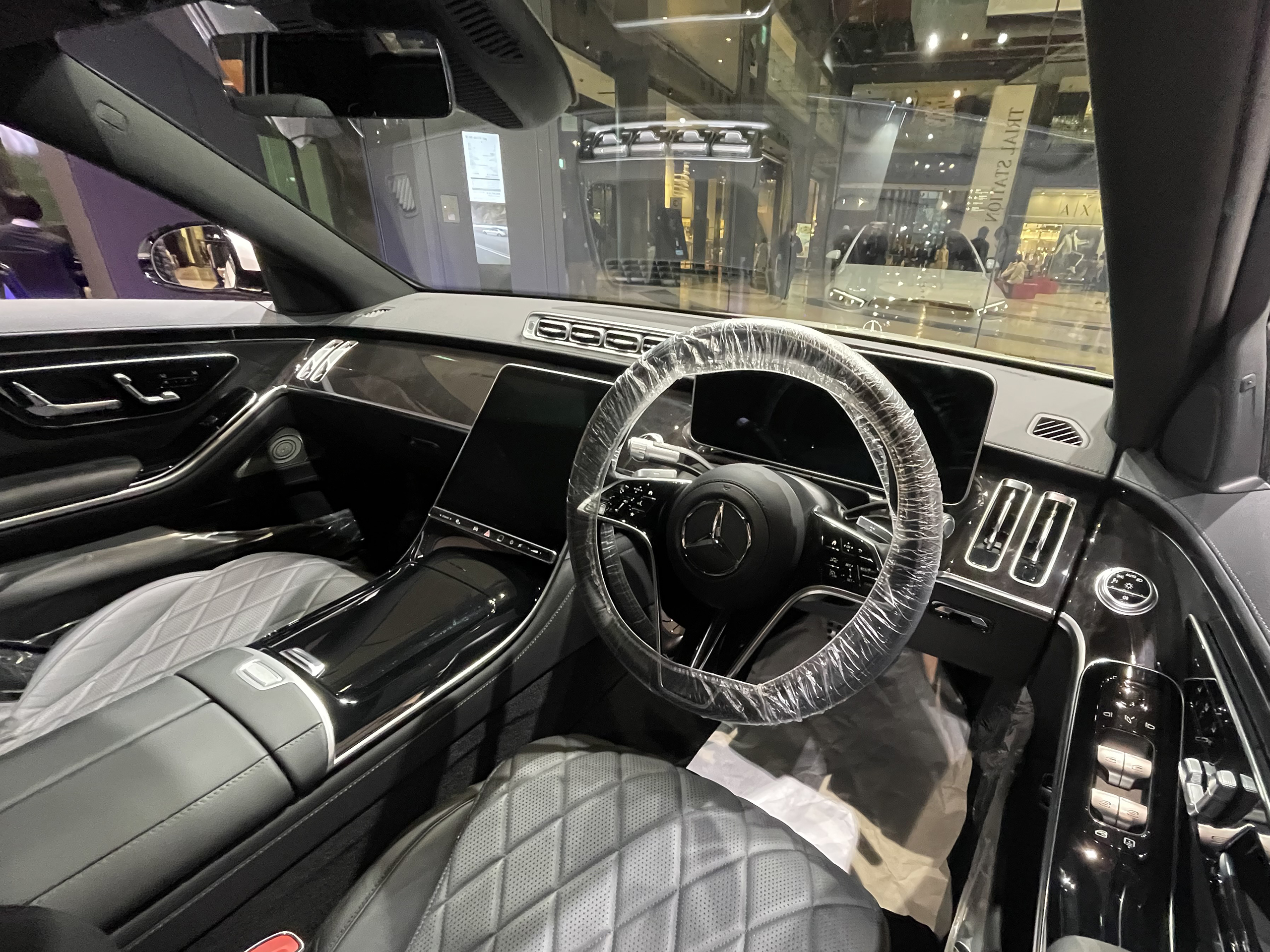
MBUX can make a Mercedes-Benz feel modern before the car even moves.
The screen, voice assistant, phone projection, and app features all shape that first impression.
The catch is simple: not every Mercedes-Benz has the same setup.
This review explains what MBUX does well, where it can frustrate drivers, and what to check before relying on it.
Fast answer: what MBUX is
MBUX means Mercedes-Benz User Experience. It is the Mercedes-Benz infotainment and user-interface system used to handle media, navigation, phone features, voice interaction, vehicle settings, and connected services where the vehicle supports them.
The best way to judge MBUX is not by screen size alone. A good setup depends on the exact Mercedes-Benz model, trim, options, software state, phone compatibility, account setup, active services, and region.
At its best, MBUX feels integrated. The car display, voice assistant, Mercedes-Benz app, Apple CarPlay, Android Auto, navigation, audio, and digital extras can work together instead of feeling like separate systems.
At its weakest, MBUX can feel inconsistent if a buyer assumes every advertised feature applies to every vehicle. Before buying a used Mercedes-Benz, or relying on a feature during daily driving, check the exact car rather than the badge.
Why MBUX matters in daily driving
Infotainment is no longer just a radio menu. In a modern Mercedes-Benz, the interface can affect how quickly you start navigation, answer calls, change audio, use supported phone apps, find vehicle settings, and understand connected-service status.
That matters because small interface delays become daily friction. A clear screen layout, responsive touch controls, useful voice commands, and stable phone projection can make short trips easier. Confusing menus or unavailable connected features can make the same car feel more complicated than it should.
MBUX also matters when shopping. Two Mercedes-Benz vehicles can carry similar branding while offering different screens, equipment, service eligibility, phone-projection behavior, or app features. The right question is not only, "Does it have MBUX?" It is, "Which MBUX features does this exact vehicle support?"
How MBUX works with the car, phone, and app
MBUX sits between the driver and several systems. Depending on the vehicle, it may handle touchscreen controls, voice interaction, media, navigation, cabin-related settings, online services, Digital Extras, and phone projection.
The in-car display is only one layer. The Mercedes-Benz app can add remote and ownership features for eligible vehicles, such as vehicle status, remote lock or unlock, service activation, and digital upgrades where supported. Those features can depend on account setup, service activation, payment or renewal status, vehicle eligibility, and regional availability.
Phone projection is another layer. Apple CarPlay brings compatible iPhone apps and controls to supported vehicles. Android Auto does the same for compatible Android phones and cars. Both systems have their own phone, app, cable, wireless, country, and compatibility requirements, so they should not be treated as guaranteed parts of every MBUX vehicle.
That layered design is powerful, but it explains why one owner may describe MBUX as seamless while another sees missing features. The car, phone, account, service package, software, and region all matter.
What MBUX does well
MBUX is strongest when it reduces the distance between common tasks. Touchscreen controls can make media and navigation feel direct. Voice interaction can help when a command is simpler than tapping through menus. Phone projection can let drivers keep familiar Apple or Android apps close without treating the car as a separate digital world.
The system also benefits from being tied to the vehicle. Unlike a phone-only setup, MBUX can connect infotainment with supported vehicle functions and ownership services. For a driver who uses navigation, streaming audio, phone calls, app-connected features, and vehicle settings often, that integration can feel more premium than a basic display.
The real advantage is not one headline feature. It is the way MBUX can combine the car interface, connected services, and phone ecosystem when the exact vehicle is equipped and configured for them.
Where MBUX can frustrate drivers
The most common frustration is expectation mismatch. A driver may see Mercedes-Benz marketing, watch a video from a different model, or test a newer vehicle, then expect the same behavior in another car.
That is risky. MBUX features can vary by model, equipment, market, service status, account setup, phone, and software. Wireless Apple CarPlay or Android Auto support on one Mercedes-Benz page does not prove every MBUX-equipped vehicle has the same connection method.
Another frustration is menu confidence. If a feature is missing, disabled, expired, unsupported, or simply located elsewhere in a specific model, it can be hard to tell the difference from the driver seat. That is why a model-specific manual and official support path matter.
A third frustration is service dependency. Some connected features are not just buttons in the car. They may require the Mercedes-Benz app, account pairing, Digital Extras, service activation, eligible hardware, and ongoing availability.
Practical checks before you rely on MBUX
Start with the exact vehicle. Check the model, model year, trim, option packages, region, and current software context. Do not assume a feature is present because another Mercedes-Benz has it.
Then check the phone side. For Apple CarPlay, confirm that the iPhone and vehicle are compatible and that setup follows Apple’s current guidance. For Android Auto, confirm that the phone, car, connection method, app availability, country, and account requirements fit Google’s current Android Auto guidance.
Next, check the account and services. If the feature depends on the Mercedes-Benz app, Digital Extras, online music, map updates, live traffic, remote functions, or store-based upgrades, confirm that the vehicle is eligible and that the service is active.
Finally, check the owner guidance for the specific Mercedes-Benz. A model-specific manual is more useful than general memory when menu names, screens, and supported features vary.
Symptom-to-next-check guide
If the MBUX screen is blank or does not respond, treat that as a vehicle-interface symptom first. Note whether audio, physical controls, the instrument cluster, or phone connection still work, then consult the model-specific owner guidance or Mercedes-Benz support path for that vehicle.
If Apple CarPlay or Android Auto partly loads, separate the phone issue from the car issue. Check whether the phone reacts, whether the vehicle display reacts, whether the connection is wired or wireless where supported, and whether the same problem repeats after a clean reconnect attempt.
If audio works but the projected phone view does not appear, do not assume the whole system has failed. That can point to a phone-projection, app, permission, cable, wireless, or compatibility issue rather than a general audio problem.
If a connected service appears in the app but not in the car, check account pairing, service activation, vehicle eligibility, and renewal status before treating it as an infotainment defect.
If the problem is intermittent, write down the pattern. Useful notes include the phone model, cable or wireless method, app being used, whether the vehicle was just started, whether another phone behaves differently, and whether the issue happens in the same place or after the same action.
These checks do not promise a fix. They help you describe the problem clearly and avoid chasing unrelated settings.
Common mistakes to avoid
The first mistake is judging MBUX from a different Mercedes-Benz model. A screen shown in one vehicle does not prove the same layout, feature list, or connection behavior in another.
The second mistake is treating CarPlay, Android Auto, and MBUX as the same thing. MBUX is the Mercedes-Benz interface. CarPlay and Android Auto are phone-projection systems that work in compatible vehicles under their own requirements.
The third mistake is assuming every connected feature is permanent once seen. Some services and Digital Extras can depend on eligibility, account setup, service activation, renewal, or regional availability.
The fourth mistake is troubleshooting too many things at once. If you change the phone, cable, wireless method, app, account, and vehicle settings together, you may lose the pattern that would have helped support identify the issue.
The fifth mistake is using generic advice instead of model-specific guidance. Mercedes-Benz owner manuals exist because vehicle behavior and menus can vary.
Privacy, security, and cost context
MBUX sits inside a connected ownership experience, so treat account access carefully. Use the official Mercedes-Benz app flow, keep account credentials private, and review which services are active for the vehicle.
Cost also deserves attention. Connected features, Digital Extras, online services, and app-based functions may involve eligibility, activation, renewal, or payment context. The practical move is to check the exact vehicle and account status before assuming a feature is included long term.
For phone projection, remember that Apple CarPlay and Android Auto also depend on phone settings, compatible apps, supported regions, and platform rules. The car display is only part of the system.
MBUX vs Apple CarPlay vs Android Auto
MBUX is not simply competing with CarPlay and Android Auto. It often works beside them.
Use MBUX when you want vehicle-integrated functions, Mercedes-Benz settings, supported connected services, or features tied to the car itself. Use Apple CarPlay or Android Auto when your priority is familiar phone apps for navigation, calls, messages, audio, and supported app categories.
The best setup depends on the task. A driver who prefers Apple Maps, Google Maps, Spotify, messages, or phone-native voice controls may spend more time in CarPlay or Android Auto. A driver changing vehicle settings, checking Mercedes-Benz services, or using built-in features may spend more time in MBUX.
That is why the question should not be, "Which one wins?" A better question is, "Which interface handles this job with the least friction in this exact vehicle?"
What to check before buying a used Mercedes-Benz with MBUX
Before buying, ask to test the exact features you care about. Do not rely only on listing language.
Pair your phone if the seller allows it. Try navigation, calls, audio, messaging, and the connection method you expect to use. Check whether Apple CarPlay or Android Auto behaves as you need, including wired or wireless behavior where supported.
Open the Mercedes-Benz app context if relevant. Confirm whether the vehicle can be paired, whether key connected services are active, and whether any Digital Extras or renewals matter to your ownership plan.
Check the model-specific manual or official owner resources for the vehicle. If a feature is important enough to affect the purchase, it is important enough to verify against official guidance.
Also ask what happens after delivery. A short test drive may show the screen working, but it may not answer whether a connected service renews, whether a previous account must be removed, or whether every feature in the listing is active.
When to contact support or service
Contact official support or a qualified service path when a problem is repeatable, affects the vehicle interface broadly, or cannot be narrowed down through basic compatibility and account checks.
Bring useful notes instead of a vague complaint. Include the vehicle model and year, phone model, connection method, app or feature involved, whether the problem is constant or intermittent, what changed recently, and what you already tested.
Avoid asking for a guaranteed repair based only on a symptom. A blank screen, failed projection session, inactive service, or missing menu can have different causes depending on the vehicle and setup. Clear notes help the support path start in the right place.
Sources consulted
- Mercedes-Benz USA GLA SUV: https://www.mbusa.com/en/vehicles/class/gla/suv
- Mercedes-Benz USA Mercedes-Benz app: https://www.mbusa.com/en/mercedes-benz-app
- Mercedes-Benz USA Owners Manuals: https://www.mbusa.com/en/owners/manuals
- Apple CarPlay: https://www.apple.com/ios/carplay/
- Apple Support, Use CarPlay with your iPhone: https://support.apple.com/en-us/108415
- Android Auto: https://www.android.com/auto/
- Wikimedia Commons image file: https://commons.wikimedia.org/wiki/File:Mercedes-Benz_S_500_4MATIC_long_(V223)_interior.jpg
_interior.jpg)
Related articles
- BMW iDrive vs. CarPlay vs. Android Auto
- Kia EV9 Infotainment Review: Top Of The Class
- Nissan Connect Infotainment System: How User-Friendly Is It?
- Ford and Lincoln Digital Experience: Apps, Video, CarPlay, and What to Check
- VW’s rebooted MIB4 driver interface tested: does it work?
FAQ
What is MBUX in a Mercedes-Benz?
MBUX means Mercedes-Benz User Experience. It is the Mercedes-Benz infotainment and user-interface system for supported media, navigation, voice, vehicle, phone, and connected-service features.
Is MBUX better than Apple CarPlay or Android Auto?
It depends on the task. MBUX is better for vehicle-integrated functions. CarPlay and Android Auto can be better for familiar phone apps in compatible vehicles.
Do all Mercedes-Benz vehicles with MBUX have the same features?
No. Features can vary by model, trim, equipment, region, software, phone, account setup, and active services.
What should I check before buying a used Mercedes-Benz for MBUX features?
Check the exact vehicle, phone compatibility, connection method, app pairing, service status, Digital Extras, owner manual, and the features you will actually use.
Does the Mercedes-Benz app replace the MBUX screen?
No. The app complements the ownership experience for eligible vehicles and services. The in-car MBUX screen remains the main vehicle interface.
Last reviewed: June 12, 2026.