
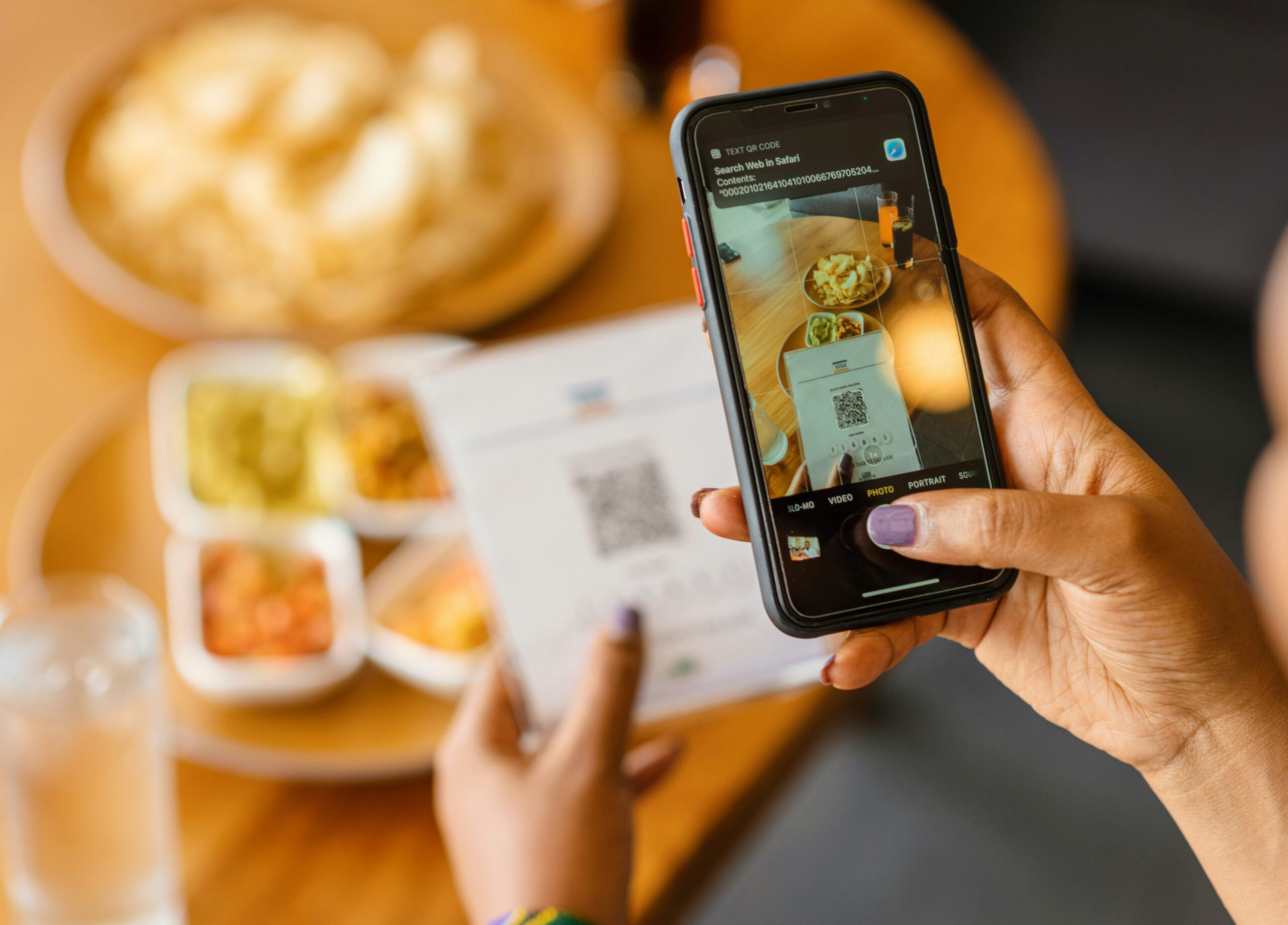
QR code scams work because scanning feels quick, normal, and almost automatic.
The safer habit is simple: pause before you tap the link that appears.
Your phone can scan QR codes without installing a random scanner app.
This guide shows how to scan safely on iPhone and Android, what to check, and what to do if something feels wrong.
What You Should Be Able To Do After This
By the end, you should be able to scan a QR code without treating the code itself as trustworthy.
The goal is not to avoid every QR code. They are common on menus, parking meters, posters, product packaging, event tickets, and sign-in pages. The goal is to slow the risky part: opening the destination.
A QR code is only a shortcut to information. If that shortcut points to a bad page, the phone may still display it neatly. Your best protection is checking the preview, the context, and the page before entering payment details, passwords, security codes, or personal information.
Before You Start: Know What A Safe Scan Looks Like
A normal QR scan usually has two stages.
First, your camera or scanner recognizes the code. Then your phone shows a link, app action, contact card, Wi-Fi prompt, or other preview.
That preview matters. Do not treat the printed code, sticker, sign, or email as proof that the destination is safe. A sticker can be placed over another code. A printed code can be copied. A message can make a code look urgent.
Use the same judgment you would use before tapping a link in a text message or email. If the request is surprising, rushed, or asks for sensitive information, slow down.
What You Need
You only need a few basic things:
- An iPhone or Android phone with a working camera.
- Enough light for the camera to read the code clearly.
- A moment to read the link preview before opening it.
- A browser you trust, rather than an unknown QR scanner app.
- A second way to reach the company or service if the QR code seems suspicious.
If a QR code demands that you install an unfamiliar scanner, that is a reason to stop. Modern phones usually handle QR codes through the camera or built-in scanning tools.
How To Scan Safely On iPhone
Open the Camera app and point it at the QR code. Keep the code inside the frame until a preview appears.
Before tapping, read the preview. Look for the destination domain, not just the button shape or the page title. A familiar brand name inside a long or strange address is not the same as the brand’s real website.
If the code is on a bill, parking sign, flyer, menu, or public poster, check the physical code too. Look for a sticker placed over another sticker, a damaged label, or a code that looks newer than the surrounding sign.
If the preview appears to open a payment, login, file download, or account page, take one extra step. Visit the service through its known app or by typing the address yourself when possible.
For a code you did not request, such as one sent in a message, treat it like any other suspicious link. The code format does not make the destination safer.
How To Scan Safely On Android
Open your camera or the phone’s built-in scanning option and point it at the QR code. Wait for the phone to show the destination preview.
Read the preview before tapping. If the link is shortened, misspelled, unusually long, or unrelated to the place where you found the code, do not open it.
If the code is in a store, restaurant, office, or public area, compare it with the surrounding context. A menu code should not ask for a bank login. A parking code should not push you into an unrelated download. A delivery notice should not ask for more information than the situation reasonably needs.
If your phone asks whether to open the link in a browser or an app, choose the route you recognize. Do not install a new app just because a QR code tells you to.
Step By Step: A Safer QR Code Routine
Use this routine whenever the code could lead to payment, login, account access, delivery tracking, identity details, or a download.
1. Check where the code came from
Ask whether the code belongs in that location or message.
A QR code on a restaurant table may be normal. A QR code in an unexpected text about a failed delivery deserves more caution. A QR code on a public payment sign should be inspected before use because physical labels can be tampered with.
2. Inspect the code before scanning
Look for signs that the code was added later, covered, or altered. This is especially useful on parking meters, public posters, building notices, and payment signs.
You do not need to become a forensic expert. You are only checking whether the code looks out of place.
3. Scan with the built-in camera or trusted scanner
Use the phone’s camera or a scanner you already trust. Avoid downloading a scanner from a pop-up, message, or page reached through the QR code itself.
A scam can start before the destination page if it pushes you into installing something unnecessary.
4. Read the preview link
Before tapping, pause on the preview.
Look for spelling changes, strange subdomains, extra words, and unrelated domains. For example, a page can display a company name while the actual address points somewhere else.
If you cannot understand where the link is going, do not open it on a phone that is signed into important accounts.
5. Open only if the request matches the context
A menu code should show a menu. A ticket code should relate to the event. A product code should connect to product information, warranty details, or a known brand page.
Be more careful when the page asks for payment, passwords, one-time codes, Social Security numbers, full card details, or identity documents.
6. Use a safer path for sensitive tasks
If the QR code leads to a login, payment, or urgent account warning, back out and use a known path instead.
Open the company’s app yourself. Type the website address manually. Use a saved bookmark. Call the number printed on a card, bill, or official document you already trust.
7. Stop if the page creates pressure
Many risky pages try to rush you. They may warn about account closure, missed delivery fees, unpaid tolls, limited-time refunds, or urgent verification.
Do not let urgency replace checking. Close the page and approach the task from a known app or website.
What To Do If The Scan Opens Something Suspicious
If you scanned a QR code but did not type anything, install anything, or approve anything, close the page. In many cases, simply opening a page is less risky than giving it information.
If you entered a password, change it from the real website or app. If you reused that password elsewhere, change it there too.
If you entered card or banking details, contact the bank or card provider through the number on the card or inside the banking app. Do not use a phone number from the suspicious page.
If you downloaded an app or file, remove it and review your phone for unfamiliar apps, profiles, permissions, or browser notifications. Use your phone’s normal security settings and app store tools rather than instructions from the suspicious page.
If you gave away a one-time code, treat it as sensitive. Open the real account from a known path, review recent activity, change the password if needed, and turn on stronger sign-in protection where available.
For a broader recovery checklist, read TechNubo’s guide on what to do after clicking a suspicious link on your phone.
Troubleshooting: When The QR Code Or Page Does Not Feel Right
The preview is a shortened link
Short links are not automatically bad, but they hide the final destination. If the code is asking for payment, login, or account information, use a known app or typed address instead.
The page looks like a familiar brand but the address looks odd
Trust the address more than the logo. A copied logo, familiar color, or realistic page title does not prove the site is legitimate.
Close it and reach the company through its app, bookmark, or website you type yourself.
The code is on top of another sticker
Do not scan it for payment or login tasks. Use another machine, ask staff, or access the service through a known app or website.
The page asks for information that does not match the situation
A menu does not need your bank password. A delivery update usually should not need a full card number just to show tracking. A simple sign-in should not ask for unrelated identity details.
When the request feels bigger than the task, stop.
The page says you must act immediately
Urgency is a reason to slow down. Close the page, open the real app or website, and check whether the issue exists there.
Safer Alternatives To Scanning A QR Code
You do not always need the code.
For restaurants, ask for a printed menu or type the restaurant’s website if it is clearly displayed. For parking, use the city, venue, or parking provider’s known app when available. For shipping notices, open the carrier’s app or website directly instead of using a code from a message.
For account warnings, start from the app or site you already use. For product information, search the product or brand from a browser instead of trusting a random sticker.
The safer path may take thirty extra seconds, but it removes the code as the only bridge between you and the destination.
Related Articles
If the QR code arrived through a message or led to a suspicious page, these guides are useful next steps:
- How to Spot Package Delivery Scam Texts Before You Tap
- What to Do After Clicking a Suspicious Link on Your Phone
- How to Make Your Google Account Safer in 20 Minutes
FAQ
Are QR codes dangerous by themselves?
A QR code is not dangerous just because it exists. The risk is what it opens and what the page asks you to do next.
Is it safe to scan QR codes with my phone camera?
Using the built-in camera is usually the cleanest approach. The important step is reading the preview before opening the destination.
Should I install a QR scanner app?
Most people do not need a separate scanner app. If a code or page pressures you to install one, treat that as a warning sign.
What should I check before paying through a QR code?
Check the physical code, the preview link, the page address, and whether the payment request matches the place or service you intended to use.
What if I already entered information after scanning a QR code?
Close the page, use the real app or website, change exposed passwords, contact your bank for payment details, and review account activity.