
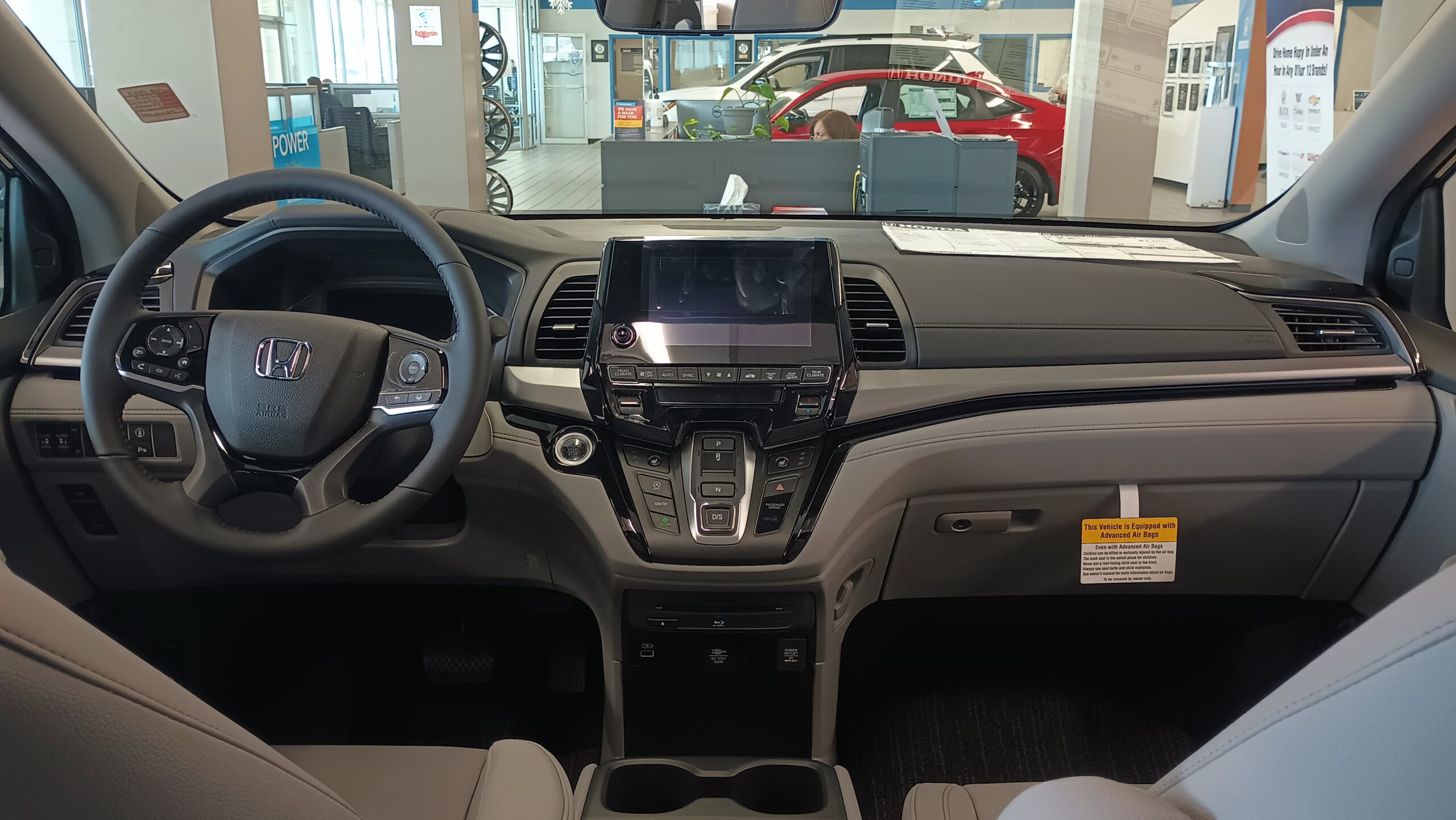
HondaLink not working can feel confusing because the problem is not always inside the car.
Sometimes the app, phone, account, vehicle, subscription, or connection state is the real clue.
The useful move is to slow down and match the symptom to the next clean check.
This guide walks through practical fixes without promising that every HondaLink issue has the same cause.
HondaLink features can vary by vehicle, market, equipment, account status, subscription, phone setup, and app version. Honda’s own HondaLink listings describe connected features and app-based requirements, while Honda also provides a compatibility page for checking supported vehicles and services. Start there before assuming something is broken: HondaLink on Google Play, HondaLink on the App Store, and HondaLink compatibility.
What You Should Get From This Guide
By the end, you should be able to separate a phone-side problem from an account, feature-availability, or vehicle-selection problem. You should also have better notes if you need to contact Honda support or a dealer.
This is not a promise that every remote command, status update, or charging-data problem can be solved at home. It is a practical order of checks that helps you avoid repeating the same failed action without learning anything.
Before You Start
Do not begin by deleting everything or changing several settings at once. That makes it harder to know what helped.
First, write down the exact symptom. Is HondaLink stuck on a loading screen? Does it sign you out? Does the vehicle show stale status? Are remote commands unavailable? Does the app open normally but show the wrong vehicle? Does charging data fail to appear for an electrified Honda?
Then check whether the feature should exist for your vehicle and account. Some HondaLink functions depend on vehicle compatibility, connected-services availability, account status, phone setup, and subscription context. The safest starting points are Honda’s compatibility information and the official app listings linked above.
What You Need
You need the phone that normally runs HondaLink, your Honda account credentials, access to the vehicle when possible, and a stable internet connection.
You should also know which Honda vehicle is attached to the account. If more than one vehicle appears, note which one is selected before testing anything else.
For phone-side app behavior, use the general app troubleshooting guidance from your phone platform. Apple explains basic iPhone app troubleshooting steps such as closing, updating, deleting, and redownloading an app, while Android Help covers restarting, updating, and app-specific checks for Android devices: Apple Support app troubleshooting and Android Help app troubleshooting.
Step 1: Identify The Exact HondaLink Failure
The first useful fix is naming the failure clearly.
If HondaLink will not open, treat it as a phone-app problem first. If the app opens but the vehicle status is old, treat it as a sync or account-context problem. If remote commands are missing or unavailable, treat it as a feature-availability or service-status question before assuming the vehicle has a fault.
Use simple notes like these:
- The app crashes before sign-in.
- The app opens but keeps loading vehicle status.
- The app shows the wrong vehicle.
- Remote commands are visible but do not complete.
- Remote commands are not visible at all.
- Charging or EV-related data does not appear.
That one sentence prevents random troubleshooting. It tells you which branch to test next.
Step 2: Restart The App And Phone Cleanly
If HondaLink is frozen, slow, crashing, or refusing to load, start with the phone side.
Close the HondaLink app fully, reopen it, and try again once. If the same symptom returns, restart the phone and test on a stable connection. This is especially useful when the app works briefly, then stops loading or shows partial information.
Do not repeat the same failed remote command five times in a row. If the visible result does not change after a clean restart, move to the next check.
For general phone-app behavior, follow the platform guidance from Apple Support or Android Help, depending on your device.
Step 3: Update HondaLink Before Reinstalling It
An outdated app can cause avoidable problems, especially after a phone OS update or an app-side change.
Check whether HondaLink has an available update in your app store. Use the official listing for your phone platform rather than a third-party download page: HondaLink on Google Play or HondaLink on the App Store.
After updating, open HondaLink again and check the same symptom you wrote down earlier. If the app now opens, signs in, or refreshes correctly, stop there. You have a useful result.
If updating does not change anything, reinstalling can be reasonable for app-launch, sign-in loop, or corrupted app-state symptoms. Use your phone platform’s normal app troubleshooting process, then sign back in carefully.
Step 4: Check Account Sign-In And Vehicle Selection
HondaLink can look broken when the app is signed into the wrong account or pointed at the wrong vehicle.
After signing in, confirm that the expected Honda appears in the app. If more than one vehicle is listed, switch attention to the exact vehicle you are troubleshooting. Then compare the symptom again.
If the app shows no vehicle, the wrong vehicle, or missing connected-service context, avoid making broad assumptions. The issue may involve account setup, vehicle association, or feature availability. That is where Honda’s own compatibility and app-support context matter most.
Use Honda’s compatibility page when the question is whether a feature should be available for that vehicle: HondaLink compatibility.
Step 5: Match Common Symptoms To The Next Check
A blank or stuck HondaLink screen usually points back to the app, phone connection, or sign-in state. Restart the app, restart the phone, confirm internet access, and check for an app update before changing vehicle-related assumptions.
A partial load, such as the app opening but vehicle status not refreshing, deserves a narrower test. Confirm the selected vehicle, wait for one clean refresh attempt, then compare whether other app areas load normally.
If remote commands are visible but do not complete, write down the command, the time, the phone connection type, and the message shown. Do not turn that into a claim about a vehicle fault without support guidance.
If remote commands are not visible at all, treat availability as the first question. HondaLink functions can depend on vehicle compatibility, equipment, account status, subscription context, and app version, so check the official HondaLink listing and compatibility page before escalating.
If charging or EV-related data is missing, keep the same approach. Confirm that the vehicle and feature context match what Honda lists for your vehicle, then record the exact missing data rather than describing it as a total HondaLink failure.
Step 6: Test One Variable At A Time
Changing five things at once makes a HondaLink problem harder to solve.
Use one clean test at a time. For example, update the app, then test the original symptom once. If nothing changes, restart the phone, then test once. If nothing changes again, confirm account and vehicle selection, then test once.
This keeps your notes useful. It also prevents a common trap: assuming the last thing you touched fixed the problem when the app may simply have refreshed later.
Step 7: Know When The Issue Is Probably Not A Quick App Fix
Some HondaLink problems are not solved by repeated app restarts.
Escalate when the same symptom remains after app restart, phone restart, app update, account check, vehicle-selection check, and compatibility review. Escalate sooner if the app suggests contacting Honda support or if the issue affects a feature you rely on regularly.
Bring useful notes instead of a vague complaint. Include your phone model, phone OS version if available, HondaLink app version if visible, vehicle model and year, selected vehicle in the app, exact symptom, approximate time, and any message shown.
Keep the claim narrow: "Remote command appears but does not complete" is more useful than "HondaLink is broken."
Alternatives If HondaLink Still Does Not Work
If HondaLink remains unreliable, use the vehicle’s built-in controls for immediate needs where possible. For infotainment or phone-projection issues, it may help to separate HondaLink from broader phone connection problems.
For example, if your issue is mainly smartphone projection or in-car infotainment behavior, these related TechNubo guides may be more relevant than repeating HondaLink app checks.
Related Articles
- What Is HondaLink And Is It Better Than CarPlay?
- The Honda Infotainment System: Everything You Need to Know
- Honda Smartphone Connection Not Working? Start With These Practical Checks
- Honda Prologue EV: GM Platform, Google Built-In, and Charging Tech
FAQ
Why is HondaLink not working on my phone?
HondaLink may fail because of app state, phone connection, sign-in, app version, account setup, vehicle selection, compatibility, or service availability. Start with the symptom you can see, then test one variable at a time.
Should I delete and reinstall HondaLink first?
Not first. Restart the app, restart the phone, check for updates, and confirm your account and vehicle selection before reinstalling. Reinstalling is more useful when the app itself keeps crashing, looping, or failing to open.
Why are HondaLink remote commands missing?
Missing remote commands may relate to vehicle compatibility, equipment, account status, subscription context, app version, or market availability. Check Honda’s official compatibility information before assuming the app is malfunctioning.
Why does HondaLink show old vehicle status?
Old vehicle status can come from refresh, connection, account, vehicle-selection, or service-context problems. Note the exact time shown, try one clean refresh after phone/app checks, and escalate with details if it repeats.
When should I contact Honda support or a dealer?
Contact support when the same repeatable symptom remains after app, phone, update, account, vehicle-selection, and compatibility checks. Bring precise notes so the support conversation starts with evidence instead of guesswork.
Bottom Line
HondaLink troubleshooting works best when you do not treat every symptom as the same failure.
Start with the phone app, confirm the account and vehicle, check whether the feature should exist, and test one variable at a time. If the same repeatable problem remains, your notes will make the next support conversation clearer and more useful.