
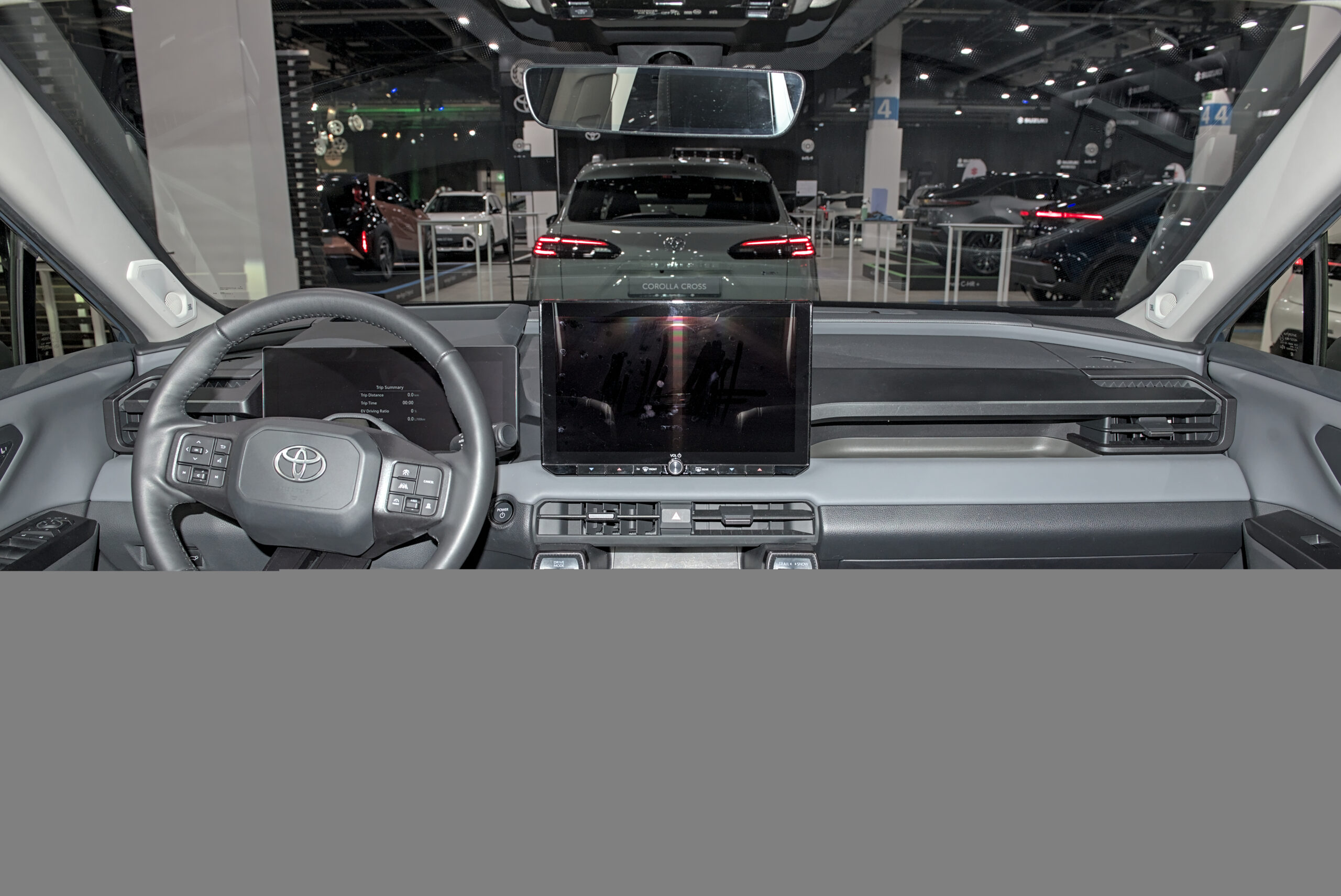
If the Toyota App is not connecting to your car, do not troubleshoot every car feature at once.
The app, Remote Connect, Bluetooth, Android Auto, and CarPlay can fail for different reasons.
Start by matching the symptom to the account, service, signal, phone, or dashboard layer.
That order keeps the fix practical and prevents Bluetooth, dashboard projection, and connected-services problems from being mixed together.
What this guide helps you do
This guide helps you narrow a Toyota App connection problem into one of five areas:
- The Toyota App or phone is not loading correctly.
- The Toyota account is not tied to the right vehicle.
- Remote Connect or another Toyota Connected Services feature is not active for that vehicle.
- The car cannot reach the network or GPS conditions needed for some connected features.
- The issue is actually Android Auto, Apple CarPlay, or Bluetooth rather than Toyota App.
Toyota describes the Toyota App as the place for connected ownership features, while Remote Connect is the connected service used for supported remote features such as vehicle status and remote commands on eligible vehicles. Toyota also explains that connected-services availability can depend on the vehicle, trial or paid subscription status, and plan eligibility: Toyota App, Remote Connect, and Connected Services plans.
Before you start troubleshooting
Park safely before changing app, account, or dashboard settings. Some checks are simple, but they still need your attention.
Have these ready:
- Your phone with the Toyota App installed.
- Your Toyota account sign-in details.
- The vehicle nearby, if possible.
- A stable phone internet connection.
- Time to check one layer at a time.
Do not start with factory resets, service appointments, or repeated remote-start attempts. A cleaner first pass is to separate app access, account setup, connected-services status, vehicle signal, and dashboard pairing.
What the Toyota App needs to connect
A Toyota App not connecting to car issue becomes easier to diagnose when you separate three questions: does the app open, is the vehicle tied to your account, and do Remote Connect features work?
For the Toyota App and supported connected services, the practical requirements are:
- The Toyota App is installed and updated from a trusted app store.
- The phone has working internet.
- You are signed in with the Toyota account tied to the vehicle.
- The vehicle is added or registered in the Toyota App where required.
- Remote Connect features are supported by that vehicle and active through a trial or paid subscription when required.
- The vehicle has the cellular, 4G, and GPS conditions needed for connected services.
The Toyota App listings on Google Play and the Apple App Store describe Toyota App availability and connected-service behavior. The Google Play listing also notes that connected services can vary by vehicle, subscription, region, market, cellular connection, 4G network availability, and GPS signal.
Step-by-step: fix the Toyota App connection path
1. Name the exact symptom first
Before changing settings, describe what is failing:
- The Toyota App will not open or sign in.
- The vehicle does not appear in the app.
- Vehicle status is old or missing.
- Remote lock, unlock, start, or locate commands fail.
- The dashboard will not show Android Auto or Apple CarPlay.
- Bluetooth audio works, but Toyota App features do not.
This one sentence matters because each symptom points to a different layer. A missing vehicle is usually not the same problem as a stale vehicle-status screen. A dashboard projection problem is not the same as a Remote Connect problem.
2. Check the phone and app first
Start with the phone because it is the lowest-friction layer.
Close and reopen the Toyota App. Confirm the phone has mobile data or Wi-Fi. Then check the app store for an available Toyota App update.
If the app will not load, sign in, or refresh on a working internet connection, keep troubleshooting focused on the phone, app, and account before moving to the vehicle.
3. Confirm you are using the right Toyota account
If the app opens but the car is missing, check the account before checking the car.
Sign out only if you can sign back in. Then confirm you are using the Toyota account that should be associated with the vehicle. Household vehicles, previous owners, dealer setup, and multiple email addresses can all make this step more confusing than it looks.
The payoff is simple: if the wrong account is active, signal strength and dashboard settings will not solve the missing-vehicle problem.
4. Check whether the vehicle is added in the Toyota App
If the Toyota App opens but does not show your vehicle, focus on enrollment or vehicle association.
Use Toyota’s app and connected-services flow to add or manage the vehicle where available. Keep this broad because Toyota App screens can change over time and may vary by vehicle and account state.
If the vehicle was recently purchased, transferred, or added to a different Toyota account, the practical next step is account and vehicle association support rather than repeated app restarts.
5. Separate Toyota App from Remote Connect
The Toyota App can be installed and working while a specific Remote Connect feature is unavailable.
Remote Connect is Toyota’s connected service for supported remote features, and Toyota says registration or activation is handled through the Toyota App for eligible vehicles. Toyota also frames Remote Connect use around supported vehicles and active trial or paid subscription status.
So if the app opens and the vehicle appears, but remote commands fail, check these points next:
- Does the vehicle support the Remote Connect feature you are trying to use?
- Is the connected service active for the vehicle?
- Is the trial or paid subscription active where required?
- Does the command fail only in certain locations?
- Does vehicle status update, or is every connected feature stale?
This keeps you from treating a service-status issue like a broken phone pairing issue.
6. Consider vehicle signal and location
Some Toyota connected features depend on vehicle network and GPS conditions. The Google Play Toyota App listing notes that service can depend on 4G network availability, cellular connection, and GPS signal.
If the app worked recently but vehicle status is stale now, ask what changed around the car:
- Is the vehicle parked in an underground garage?
- Is it in an area with weak cellular coverage?
- Has it been parked and unused for a while?
- Does the issue improve after the vehicle is moved to a clearer signal area?
Do not overread one failed command. One location-based failure is different from the app never showing the car at all.
7. Treat Android Auto and CarPlay as a separate branch
If your real problem is that the Toyota screen will not show Android Auto or Apple CarPlay, you are no longer troubleshooting Toyota App first.
For Android Auto, Google tells users to check car/display compatibility, phone requirements, USB cable or wireless setup, and Android Auto settings: Android Auto Help.
For CarPlay, Apple points users toward supported regions and vehicles, current iOS, wired or wireless connection checks, Siri, restrictions, forgetting the car, and vehicle firmware context: Apple CarPlay Support.
That branch can affect the dashboard experience even when Toyota App and Remote Connect are fine.
Quick symptom-to-next-check map
Use this section when you need a fast starting point.
The app screen is blank or will not load
Start with the phone and Toyota App. Check that the phone has internet, close and reopen the app, and look for an available app update from the app store.
If the app still does not load on a working connection, the next useful check is account access. Confirm you can sign in before you spend time changing vehicle or dashboard settings.
The app loads, but only part of the account appears
Focus on account and vehicle association. A partial app experience can mean the app itself is reachable, but the vehicle is not correctly tied to the Toyota account you are using.
Check whether the expected vehicle appears. If it does not, treat this as an enrollment or account-linking issue before checking Bluetooth, USB cables, or dashboard projection.
The vehicle appears, but connected features do not respond
Focus on Remote Connect status, feature support, and vehicle signal. The vehicle being visible in the app does not guarantee every remote feature is supported, active, or reachable at that moment.
Look for a pattern. A command that fails only in one parking location points to a different next step than a command that never works from any phone.
Audio works, but the Toyota screen does not show Android Auto or CarPlay
Switch branches. Bluetooth audio can work while Android Auto or CarPlay does not appear, because those are separate phone-to-dashboard experiences.
Use Google’s Android Auto guidance or Apple’s CarPlay guidance for that path. Do not use Bluetooth audio alone as proof that Toyota App or Remote Connect is broken.
The problem is inconsistent
Change one variable at a time. Try a clean app reopen, a different location with better vehicle signal, or the same account on another phone if available.
Write down what changed and what stayed the same. That record is often more useful than a long list of settings changed in one sitting.
Troubleshooting by symptom
The Toyota App opens, but the vehicle is missing
Focus on account and vehicle association.
Check whether you are signed into the expected Toyota account. Then review whether the vehicle has been added or registered in the Toyota App flow. If the car is used, recently transferred, or tied to another household account, support may need account-level details.
Do not spend the first hour changing Bluetooth settings. Bluetooth does not prove that the Toyota account is linked to the car.
Vehicle status is old or does not refresh
Focus on app refresh, connected-services status, and vehicle signal.
Make sure the phone has internet and the app is current. Then check whether other connected features are stale too. If every connected feature is stale, the issue may sit closer to service activation, vehicle network conditions, or vehicle-side communication than to a single app screen.
A useful note for support is the last time the vehicle status updated, where the vehicle was parked, and whether the issue follows the vehicle or the phone.
Remote lock, unlock, start, or locate fails
Focus on Remote Connect eligibility and active service.
Toyota describes Remote Connect as a connected service for supported remote features on select vehicles. If the vehicle appears in the app but a remote command fails, check whether that specific feature is supported and active for your vehicle and plan.
Also watch for pattern. A command that fails in one parking structure but works elsewhere suggests a different problem than a command that never works on any phone.
The app works, but Android Auto or CarPlay does not show
Focus on phone projection, not Toyota App.
Use Google’s Android Auto guidance for Android phones and Apple’s CarPlay guidance for iPhone. Check compatibility, cable or wireless connection method, phone software, permissions, and the car’s projection setup.
If Bluetooth audio works but CarPlay or Android Auto does not appear, that does not automatically prove Toyota App or Remote Connect is broken. Bluetooth audio, dashboard projection, and connected-services commands are separate layers.
The problem is intermittent
Focus on the repeatable pattern.
Change one variable at a time: location, phone connection method, app refresh, account sign-in, or dashboard projection setup. Avoid changing all of them in one session, because that makes the result harder to interpret.
Write down the vehicle location, phone model, app version, connection type, and exact symptom. These notes make support conversations much more productive.
Alternative paths if Toyota App is not the issue
Sometimes the best fix is to stop troubleshooting Toyota App and move to the layer that is actually failing.
If the Toyota App opens and your vehicle appears, but remote commands fail, use Toyota Remote Connect and Connected Services information as your next path. Check whether the feature is supported, active, and tied to the correct account.
If the dashboard screen is the problem, use the Android Auto or Apple CarPlay support path instead. That means checking phone compatibility, software, wired or wireless connection behavior, and projection settings rather than Toyota account enrollment.
If only Bluetooth audio is working or failing, keep it separate from Toyota App. Bluetooth can affect calls and audio without proving anything about Remote Connect, vehicle status, or app account setup.
If the vehicle is used, recently transferred, or shared across household accounts, account support may be more productive than repeated app resets. The issue may be who the vehicle is attached to, not whether the phone can see the car.
When to contact Toyota support or a dealer
Escalate when the simple checks point to account, vehicle eligibility, enrollment, service activation, or persistent connected-services failure.
Bring practical details instead of a broad complaint:
- The Toyota account email you are using.
- Whether the vehicle appears in the Toyota App.
- Which connected feature fails.
- Whether vehicle status updates.
- Whether the issue happens on Wi-Fi, mobile data, or both.
- Whether another phone on the same account behaves differently.
- The vehicle location pattern when the issue happens.
Avoid asking support to solve "the phone not connecting to the car" as one general problem. Say whether the issue is Toyota App sign-in, missing vehicle, stale vehicle status, Remote Connect commands, Android Auto, Apple CarPlay, or Bluetooth.
What not to assume
Do not assume Toyota has a broad outage just because your app is failing. Do not assume a recall, warranty outcome, or repair cost from an app symptom alone. Do not assume app-store reviews prove your vehicle has the same issue.
Those shortcuts can send troubleshooting in the wrong direction. The safer approach is to identify the failed layer, document the pattern, and escalate with details when the account or connected-service path does not resolve cleanly.
Related articles
If you are comparing Toyota’s connected-car behavior with other vehicle software issues, these TechNubo guides may help:
- My Chevrolet App Not Connecting to Vehicle? Practical Checks That Help
- Car Software Issues: How Bad Are They and When Should You Worry?
- Audi Connect Problems: Causes, Feedback, and Recalls Explained
- Mercedes A Class Connectivity Issues: Practical Checks Before Service
FAQ
Why is my Toyota App not connecting to my car?
Common causes include phone or app loading issues, signing into the wrong Toyota account, the vehicle not being added correctly, inactive connected services, unsupported Remote Connect features, or weak vehicle cellular/GPS conditions.
Does Remote Connect require a subscription?
Toyota describes Remote Connect around eligible vehicles and active trial or paid subscription status. Check Toyota’s current Connected Services plan information for your vehicle before assuming the feature is included.
Why does my Toyota App show old vehicle status?
Old vehicle status can point to app refresh issues, connected-services status, or vehicle communication conditions. Check phone internet first, then look at whether all connected features are stale and whether the vehicle has clear cellular and GPS conditions.
Is Toyota App the same as Bluetooth, Android Auto, or Apple CarPlay?
No. Toyota App and Remote Connect are connected-services tools. Bluetooth, Android Auto, and Apple CarPlay are phone-to-vehicle or dashboard-projection layers. One can fail while another still works.
When should I contact Toyota support?
Contact Toyota support or a dealer when the correct account is signed in, the vehicle should be eligible, the service should be active, and the same Toyota App or Remote Connect problem keeps happening with a clear pattern.