
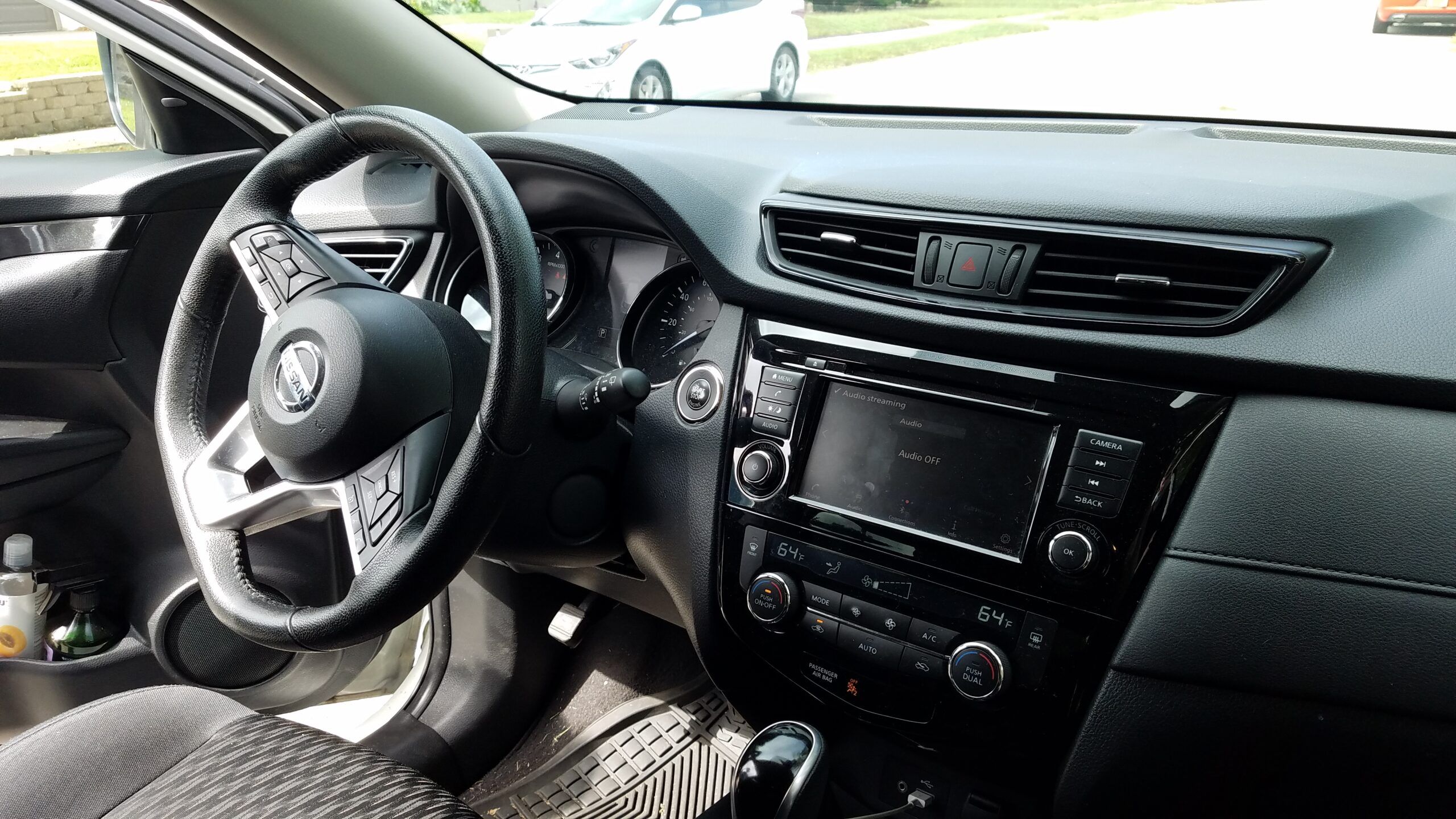
Nissan Connect app not working issues usually come from a few practical places.
The app may fail to open, sign in, refresh vehicle status, send commands, or show notifications.
The cleanest fix path is to separate phone, account, subscription, and vehicle-connection causes.
Work through the checks below in order so each step actually teaches you something.
What this guide helps you do
This guide helps you narrow down why the Nissan Connect, MyNISSAN, or NissanConnect EV Services experience is not behaving as expected.
By the end, you should have a clearer answer to three questions:
- Is the problem mainly with the phone app?
- Is it tied to your Nissan account, VIN, or service access?
- Is it more likely related to vehicle signal, feature eligibility, or support follow-up?
The goal is not to promise that every remote feature can be restored from a phone. The goal is to help you test the common causes in a practical order and avoid repeating the same failed action.
Before you start
Start by naming the exact symptom. A blank app screen, failed sign-in, stale vehicle status, missing vehicle, failed remote command, and missing notification are different problems.
Write down what you see before changing settings. Useful notes include the time, phone model, app name, vehicle model year if known, feature attempted, and any message shown in the app.
Also separate the app from the vehicle. If the app opens normally but one remote feature fails, the issue may involve account access, service availability, vehicle conditions, wireless signal, or feature support rather than the app itself.
What you need
Before testing, have these basics ready:
- Your phone with the Nissan app installed.
- A stable internet connection on the phone.
- Your Nissan account sign-in details.
- The VIN or vehicle already associated with your account.
- Access to the vehicle when checking status or remote features.
- A few minutes between repeated remote command attempts.
If you use more than one Nissan app, confirm which one matches your vehicle and region. Nissan app listings include MyNISSAN, NissanConnect Services, and NissanConnect EV Services for supported use cases.
Quick symptom map
Use this table to choose the next clean check.
| What you see | What to check next |
|---|---|
| App will not open | Update the app, restart the phone, then try again on a stable connection. |
| App opens but sign-in fails | Check account credentials and avoid repeated rapid retries. |
| Vehicle is missing | Review whether the correct account and VIN are being used. |
| Vehicle status is stale | Check phone connection, vehicle signal context, and whether the vehicle has recently communicated. |
| Remote command does not complete | Check whether the feature is supported and active for your vehicle and service setup. |
| Notifications do not arrive | Review app notification permission and account notification settings. |
| Only one feature fails | Focus on that feature instead of reinstalling the app immediately. |
This map keeps the troubleshooting focused. If only notifications fail, you do not need to treat the whole app as broken. If the vehicle is missing, remote-start testing should wait until the account and VIN context makes sense.
Step 1: Confirm the app and phone connection
Start with the simplest split: can the phone use the internet reliably outside the Nissan app?
Open another trusted app or website. If the phone connection is unstable, fix that first. A remote vehicle app depends on the phone reaching Nissan services before it can show account or vehicle data.
Then close and reopen the Nissan app. If the screen was frozen or partly loaded, a clean restart can separate a temporary app session problem from a deeper account or vehicle issue.
Avoid tapping the same command repeatedly while the app is still loading. Repeated attempts can make it harder to tell whether the first request failed, timed out, or is still processing.
Step 2: Check for app updates
If the Nissan Connect app is not working after a restart, check the app store listing for updates.
Use the official store page for the app you have installed. For many U.S. owners, that may mean the MyNISSAN listing on Google Play or the relevant Nissan app listing for iPhone. EV owners may also encounter NissanConnect EV Services depending on vehicle support.
Updating the app is a clean test because it does not change your vehicle, subscription, or account setup. It simply helps rule out an older app build before you move into account and vehicle checks.
Step 3: Check sign-in before reinstalling
If the app opens but account data looks wrong, review the sign-in state.
A stale session can look like missing vehicle data, failed loading, or repeated account prompts. Before reinstalling the app, try signing out and signing back in with the account tied to your vehicle.
If more than one Nissan account is used in your household, slow down here. The right password with the wrong account can still leave the expected vehicle missing.
Step 4: Confirm the vehicle and VIN context
A Nissan Connect app problem is sometimes an account-to-vehicle problem.
If the vehicle does not appear, or the wrong vehicle appears, focus on the account and VIN relationship before testing remote features. The app cannot reliably control or display a vehicle that is not properly associated with the account in use.
This can be especially confusing with a used vehicle. A previous owner, dealer setup, or account transition can leave the app experience unclear. In that situation, Nissan support or owner resources are a better next step than repeated app resets.
Step 5: Separate all-app failure from one-feature failure
If nothing in the app works, keep troubleshooting the app, account, connection, and vehicle association.
If only one feature fails, narrow the problem. Remote start, lock commands, vehicle location, charging information, and status updates may depend on different support conditions, vehicle equipment, service enrollment, and signal context.
Nissan USA describes connected services and remote services as feature-based offerings. That matters because an app can be installed correctly while a specific function is not available for every vehicle, trim, subscription, or region.
Step 6: Review service eligibility and subscription context
If the app signs in and shows the vehicle but remote services still fail, review whether the feature is available and active for your vehicle.
Do not assume every Nissan with an infotainment screen has the same connected-service package. App store listings and Nissan support pages can describe the app broadly, but your actual access depends on the vehicle and service setup.
A practical test is to focus on one feature at a time. If vehicle status updates but remote commands do not, the app is not completely broken. The next question is why that command is unavailable or not completing.
Step 7: Give vehicle status time to refresh
Vehicle status can appear stale even when the app itself opens normally.
That does not automatically prove the app is defective. The vehicle may need a usable signal path, a recent communication event, and a supported service state before the app can display fresh information.
If the status is old, note the timestamp or last update shown. Then check again after the vehicle has been driven or accessed normally. That gives support a clearer pattern than simply saying the app is not updating.
Step 8: Check notifications separately
Notification problems deserve their own check because they can fail while the rest of the app still works.
If alerts are missing, review whether notifications are allowed for the Nissan app on the phone. Also check whether the app account has the relevant notification options enabled.
Keep this separate from remote command testing. A notification permission issue does not necessarily explain a failed lock, start, charge, or vehicle-status request.
Step 9: Reinstall only after saving the useful details
Reinstalling can help clear local app data, but it should not be the first move if you have not captured the symptom.
Before uninstalling, save the useful details: which app you used, whether sign-in worked, whether the vehicle appeared, which feature failed, and whether the issue changed on Wi-Fi versus cellular data.
After reinstalling, sign in again with the account tied to the vehicle. If the same symptom returns immediately, you have stronger evidence that the problem is not just a corrupted local app session.
Step 10: Know when the app is not the whole problem
Some Nissan Connect problems are not solved entirely inside the phone app.
If a remote command repeatedly fails while the app opens normally and the vehicle appears, the next useful step is to review service eligibility, account setup, vehicle signal context, and owner-support guidance for your vehicle.
If you contact support, bring concise notes rather than a long story. Include the app name, phone model, vehicle model year if known, VIN context, feature attempted, time of failure, and any message shown. That makes the conversation more productive without assuming a specific repair outcome.
If you use NissanConnect EV Services
EV owners may see a different app experience than owners using MyNISSAN or NissanConnect Services.
If your issue involves charging status, climate settings, or EV-specific information, make sure you are using the app experience intended for your vehicle. Then apply the same troubleshooting logic: phone connection first, account and vehicle association next, feature eligibility after that.
This keeps the troubleshooting grounded. The app name matters, but the bigger question is still whether the phone, account, service setup, and vehicle context are aligned.
What not to do
Do not assume a failed app command proves a vehicle defect.
Do not keep sending the same remote command rapidly if the app is timing out.
Do not chase unrelated settings before confirming the exact symptom.
Do not assume another Nissan owner’s fix applies to your model, trim, region, subscription, or app version.
Do not remove useful evidence before contacting support. A screenshot, timestamp, or exact message can be more helpful than a vague description.
Sources
- Nissan USA: NissanConnect support
- Nissan USA: Remote services
- MyNISSAN on Google Play
- NissanConnect Services on Google Play
- NissanConnect EV Services on the App Store
Read more
- Connection problems to Nissan Connect Services and to software updates
- Is Nissan Connect Worth It in 2026? Honest Review Guide
- How to review app permissions on iPhone and Android
- Ford Connected Vehicle Features Not Working
FAQ
Why is my Nissan Connect app not working?
Common causes include phone connection problems, an outdated app, sign-in issues, vehicle-account mismatch, service eligibility limits, vehicle signal context, or notification permissions.
Why does my Nissan vehicle status not update in the app?
A stale status can happen when the app opens but the vehicle has not recently communicated in a way the app can display. Note the last update time and test again after normal vehicle use.
Why do remote commands fail when the app still opens?
That usually means the app itself is not the only thing to check. Review whether the vehicle appears under the right account, whether the feature is supported, and whether the service setup is active.
Should I delete and reinstall the Nissan app?
Reinstalling can help with local app problems, but save the symptom, app name, account context, and any message first. That evidence is useful if the same issue returns.
Is MyNISSAN the same as NissanConnect EV Services?
Not always. Nissan lists different app experiences for different supported use cases. Use the app that matches your vehicle and region, then troubleshoot phone, account, service, and vehicle context in order.