
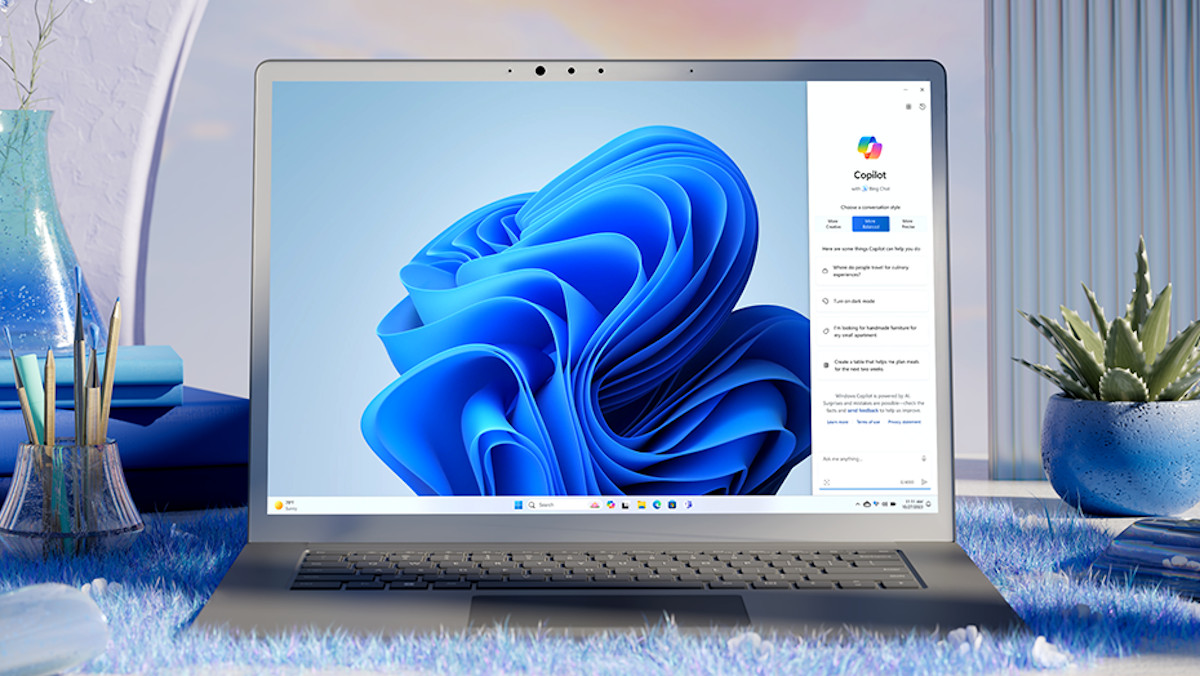
Copilot on Windows can make PC settings feel less buried.
That does not mean every answer should become an automatic change.
The useful habit is simple: ask, compare, then change settings yourself when the path makes sense.
This guide shows where Copilot helps, where it has limits, and how to use it without losing control of your PC.
The Outcome: Use Copilot as a Settings Guide, Not a Settings Authority
Copilot is most useful when you treat it as a guide for finding, understanding, or comparing settings. It can help turn a vague problem into a cleaner next step, especially when you do not know the exact Windows wording to search for.
For example, a question like "How do I make my screen easier to read?" can help you think about display scale, text size, contrast, brightness, or accessibility options. The important part is that you still review the actual Windows Settings screen before changing anything.
That distinction keeps the workflow practical. Copilot can help you understand the route. Windows Settings remains the place where you confirm what is available on your device, account, and version.
Microsoft’s own documentation around Copilot and Microsoft 365 also points to a broader rule: Copilot experiences depend on setup, account context, enabled services, and privacy controls. In other words, the answer you see can depend on the environment around the feature, not only on the wording of your question.
Sources: Microsoft 365 Copilot setup, Microsoft 365 privacy controls, and connected experiences in Microsoft 365.
Before You Start: Know What You Are Trying To Change
Start with the setting, not the tool. Copilot is easier to use when your question names the result you want.
Instead of asking, "What should I change on my PC?", ask something closer to the actual outcome:
- "How can I make Windows text larger?"
- "Where do I check app permissions?"
- "How do I reduce notifications while working?"
- "What Windows settings affect battery life?"
- "Where can I review privacy options for Microsoft 365 connected experiences?"
This keeps the answer grounded. A broad question can produce a broad answer. A specific question gives you a better chance of getting a path you can check against the Settings app.
It also protects you from changing unrelated options. PC settings often sit near each other, and similar names can mean different things. Reading the actual Settings page before you click is part of the method.
Requirements: What You Need For A Clean Check
You do not need a complicated setup to use Copilot as a settings helper. You need a careful process.
Use this checklist before relying on an answer:
- A Windows PC where you can open the Settings app.
- A Copilot experience available to your account or device.
- The exact setting goal you want to investigate.
- Enough time to compare Copilot’s answer with what Windows actually shows.
- Admin access only when the setting itself requires it.
- Awareness that work, school, or managed devices may restrict some controls.
If your question touches Microsoft 365, privacy, or connected experiences, account and organization settings matter. Microsoft documents privacy controls for Microsoft 365 Apps and explains that connected experiences can provide cloud-backed features in Office apps.
That matters because a Copilot answer about a Microsoft 365-related setting may not apply the same way to every account. A personal PC, a work laptop, and a managed school device can expose different controls.
Step By Step: How To Use Copilot For Windows PC Settings
1. Ask For The Setting Path, Not Just The Fix
A useful first prompt is direct:
"Where should I look in Windows Settings to change text size?"
This asks Copilot for a route. It does not ask Copilot to decide for you. When you get the answer, open Windows Settings and compare the path with what appears on your screen.
If the wording does not match, search within Settings using the key term from the answer, such as "text size," "notifications," "privacy," or "battery."
2. Ask What The Setting Changes
Before changing anything, ask a second question:
"What does this setting affect, and what should I check before changing it?"
This is where Copilot can be helpful as a plain-language explainer. It may summarize the likely effect of a setting, which gives you a better reason to slow down before clicking.
Then read the Windows setting description yourself. If the two explanations disagree, use the wording in Windows Settings as the stronger signal for that PC.
3. Change One Setting At A Time
Make only one change, then observe the result.
This is especially useful for display, notification, permission, accessibility, battery, and privacy settings. If you change several options together, it becomes harder to know which one caused the result.
A simple test cycle works well:
- Note the current setting.
- Make one change.
- Check whether the problem improved.
- Keep the change only if the result is clear.
- Reverse it if the result is worse or confusing.
This is not slower in practice. It prevents the common problem of changing too much and then not knowing how to undo it.
4. Use Copilot To Compare Nearby Options
Some settings look similar. Copilot can help you compare the words before you decide.
For example, you might ask:
"What is the difference between app permissions and privacy settings in Windows?"
Or:
"How are notification settings different from focus settings?"
Use the answer as orientation. Then inspect the actual Windows pages. The final decision should come from the option shown on your PC, not from a generic summary alone.
5. Treat Microsoft 365 And Windows Settings Separately
Do not mix Microsoft 365 controls with general Windows controls.
Microsoft’s documentation covers privacy controls for Microsoft 365 Apps and connected experiences in Microsoft 365. Those controls can affect cloud-backed Office experiences, optional connected features, and related privacy choices inside that ecosystem.
That is different from a general Windows setting such as display scale, sound output, Bluetooth, notifications, or app permissions. The two areas may feel connected because they live on the same PC, but they are not the same control surface.
When the issue involves Word, Excel, PowerPoint, Outlook, OneDrive, or Microsoft 365 Copilot, look for Microsoft 365-specific controls. When the issue involves the device itself, start in Windows Settings.
What Copilot Can Do With PC Settings
Copilot can help with three practical jobs.
First, it can translate a problem into likely settings language. If you describe "everything looks too small," it can point you toward text size, scaling, or display options. That is useful when you know the problem but not the menu name.
Second, it can explain what a setting is generally for. This helps when Windows uses short labels and you want more context before changing anything.
Third, it can help you build a troubleshooting order. If notifications, permissions, privacy controls, and app-specific options all seem relevant, Copilot can help you decide what to inspect first.
The best use is guided navigation. Ask Copilot to narrow the search, then use Windows Settings and Microsoft’s support information to make the actual decision.
What Copilot Cannot Safely Replace
Copilot should not replace your own review of a setting.
It also should not replace official instructions when the setting affects privacy, account access, work data, school data, billing, security, or device management. Those areas depend heavily on account type, organization policy, and the exact product involved.
A Copilot answer may describe a setting that is named differently on your device. It may also describe a feature that is not enabled for your account. That does not make the answer useless, but it means you need to compare it with what your PC actually shows.
Use extra caution with prompts that ask Copilot to make broad choices for you, such as:
- "Which privacy settings should I turn off?"
- "What security settings should I disable?"
- "How do I remove all restrictions from this PC?"
- "What should I change to make this work faster?"
Those questions are too broad for a single reliable answer. Break them into smaller goals and verify each setting.
Troubleshooting: When Copilot’s Answer Does Not Match Your PC
The setting name is close, but not exact
Search Windows Settings for the main keyword instead of following the wording literally. Use terms like "display," "text," "privacy," "notifications," "camera," "microphone," "battery," or "permissions."
Windows labels can vary by version, device, account, and installed features. The keyword is often more useful than the full path.
The setting is missing
Check whether the device is managed by work or school. Managed PCs may hide or restrict some options. Also consider whether the feature depends on hardware, account type, region, app version, or enabled services.
For Microsoft 365-related controls, use Microsoft’s documentation as the reference point. Privacy and connected-experience controls can depend on the Microsoft 365 environment.
Copilot gives a broad answer
Ask for a narrower one. Add the setting category, the app, and the result you want.
For example:
"On a Windows PC, where should I check app access to the camera before joining a video call?"
That is more useful than "Fix my camera."
The answer suggests changing several things
Do not apply the whole list at once. Pick the lowest-risk setting that directly matches your symptom, then test it.
If you are unsure, start by reading the current setting descriptions and taking notes. A small pause is better than undoing a confusing chain of changes later.
The issue involves Microsoft 365 Copilot
Separate three layers: the Windows device, the Microsoft 365 app, and the account or organization setup. Microsoft’s setup documentation for Microsoft 365 Copilot shows that Copilot readiness is tied to the Microsoft 365 environment, not just a local PC switch.
That means a Windows setting may not solve a Microsoft 365 Copilot availability issue. The answer may be in licensing, app setup, privacy controls, connected experiences, or organization policy.
Alternatives: When To Skip Copilot And Use Another Route
Copilot is not always the shortest path.
Use Windows Settings search when you already know the setting name. It is direct and avoids extra explanation.
Use Microsoft Support when the question involves official product behavior, privacy controls, connected experiences, Microsoft 365 Copilot setup, or account-specific requirements.
Use your organization’s IT support when the device is managed. A work or school policy can override what a general help answer suggests.
Use app settings when the issue lives inside one app. For example, a Microsoft 365 app setting may not be controlled from the same place as a Windows display or notification setting.
Use device manufacturer support when the setting depends on hardware, drivers, firmware, or a preinstalled control panel.
A Safe Prompt Pattern For PC Settings
Use this pattern when you want help without overcommitting:
"On a Windows PC, I want to [specific outcome]. Which Settings area should I check, what does that setting usually affect, and what should I verify before changing it?"
Here are a few examples:
- "On a Windows PC, I want text to be easier to read. Which Settings area should I check, what does that setting usually affect, and what should I verify before changing it?"
- "On a Windows PC, I want fewer interruptions while working. Which Settings area should I check, what does that setting usually affect, and what should I verify before changing it?"
- "On a Windows PC, I want to review app access to my location. Which Settings area should I check, what does that setting usually affect, and what should I verify before changing it?"
This prompt works because it asks for context, not blind action. It also leaves room for you to compare the answer with the actual setting on your PC.
Related Articles
If you are reviewing PC settings because of privacy, account safety, or device access, these guides are useful next steps:
- How to Stop Apps From Tracking Your Location
- OneDrive Is Full: How to Find What Is Using Space
- Passkeys vs Password Managers: What You Should Use in 2026
FAQ
Can Copilot change Windows settings for me?
Use Copilot as a guide first. Ask where to look, what a setting means, and what to verify. Then review the actual Windows Settings screen before changing anything.
Why does Copilot mention a setting I cannot find?
The setting may have a different label, may depend on your Windows version, or may be restricted by device management. Search Settings by keyword and check whether the PC is managed by work or school.
Are Microsoft 365 Copilot settings the same as Windows settings?
No. Microsoft 365 Copilot setup, privacy controls, and connected experiences relate to the Microsoft 365 environment. General PC settings such as display, notifications, and device permissions live in Windows settings areas.
Should I follow Copilot's privacy advice automatically?
No. Privacy choices depend on the account, app, device, and feature. Use Microsoft’s privacy and connected-experiences documentation for Microsoft 365 questions, and review each setting before changing it.
What is the safest way to test a settings change?
Change one setting at a time, observe the result, and keep a note of what you changed. If the result is unclear or worse, reverse that one change before trying another.