
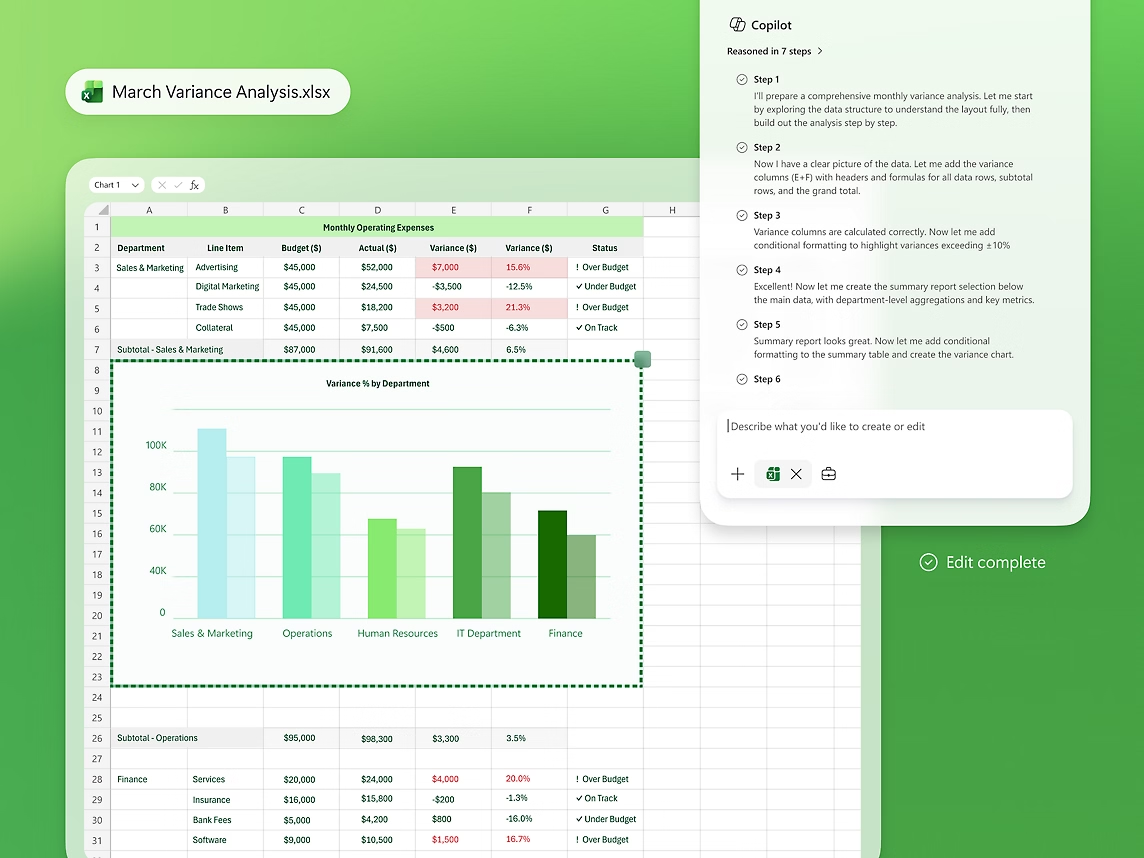
Copilot in Microsoft 365 can feel useful in one app and distracting in another.
The right control depends on your account, license, app settings, and whether your organization manages Microsoft 365 for you.
This guide shows the practical places to check before you start changing random settings.
You will leave with a cleaner answer: remove Copilot where possible, limit connected experiences, or ask the right admin.
What You Can Control
If you use Microsoft 365 at work or school, Copilot is usually not just a local button inside Word, Excel, PowerPoint, Outlook, or Teams. Microsoft documents Copilot setup as an organization-level process that can involve eligible users, licensing, and admin configuration.
That means there are two different questions:
- Can you personally hide, avoid, or limit Copilot in a specific app?
- Does your organization need to remove or change Copilot access for your account?
For personal control, the useful checks are app preferences, connected experiences, account privacy settings, and whether you are signed in with the account that has Copilot access. For managed work accounts, the durable answer may sit with your Microsoft 365 administrator.
The goal is not to chase every Copilot icon. The goal is to understand which layer controls the behavior you are seeing.
Before You Start
First, identify the account and app involved. Copilot behavior can vary between Microsoft 365 apps, between personal and work accounts, and between web, desktop, and mobile versions.
Make a quick note of:
- The app where Copilot appears, such as Word, Excel, PowerPoint, Outlook, or Teams.
- Whether you are using a personal Microsoft account, a work account, or a school account.
- Whether Copilot appears as a sidebar, button, prompt, ribbon item, or chat-style panel.
- Whether the app is installed locally or running in a browser.
- Whether your device is managed by an employer or school.
This matters because removing a visible prompt is different from removing service access. A button can disappear in one interface while the account still has Copilot eligibility elsewhere.
Requirements
You do not need special tools for the first checks. You need access to the Microsoft 365 app where Copilot appears and enough account permission to view privacy or connected-experience settings.
If you are using a managed work or school account, you may also need your Microsoft 365 admin to review licensing or organization settings. Microsoft’s Copilot setup documentation is written for that administrator side of the problem: https://learn.microsoft.com/en-us/copilot/microsoft-365/microsoft-365-copilot-setup
For privacy and connected-experience controls, Microsoft’s own documentation is the best reference point:
- Microsoft privacy controls for Microsoft 365 Apps: https://learn.microsoft.com/en-us/microsoft-365-apps/privacy/manage-privacy-controls
- Microsoft connected experiences in Microsoft 365: https://support.microsoft.com/en-us/office/connected-experiences-in-microsoft-365-8d2c04f7-6428-4e6e-ac58-5828d4da5b7c
Step 1: Check Whether Copilot Is Account-Enabled
Start with the simplest clue: sign-in state.
Open the Microsoft 365 app where Copilot appears and confirm which account is active. If you use both a personal account and a work account, make sure you are not testing the wrong profile.
If Copilot only appears when your work or school account is active, that points toward an organization-managed setting or license. If it appears only in one app or one browser profile, the control may be local to that app, profile, or session.
Do not assume that uninstalling and reinstalling the app will remove Copilot access. If access is attached to the account, the same behavior can return after sign-in.
Step 2: Look For App-Level Copilot Controls
Some Microsoft 365 experiences expose Copilot through a panel, ribbon button, compose helper, or prompt area. If your goal is to reduce distraction, first check whether the current app lets you close the panel, collapse the experience, or disable related suggestions inside that app’s settings.
Use the app’s own settings search when available. Search for terms such as:
- Copilot
- connected experiences
- privacy
- intelligent services
- optional connected experiences
If the app gives you a clear Copilot-specific toggle, use it and restart the app before judging the result. If it only offers broader connected-experience controls, read the wording carefully before changing anything, because those settings can affect more than Copilot.
Step 3: Review Connected Experiences
Microsoft describes connected experiences in Microsoft 365 as features that use cloud-backed services to provide extra functionality. Copilot sits in a broader Microsoft 365 environment where cloud services, account access, and connected features can matter.
If you want less cloud-assisted behavior in Office apps, review connected-experience settings in the Microsoft 365 app you are using. The exact interface can vary by app, account type, platform, and organization policy, so use Microsoft’s current privacy-control documentation as the reference rather than relying on a memorized menu path.
The practical question is this: are you trying to turn off Copilot itself, or are you trying to reduce connected features that feed intelligent assistance across Microsoft 365?
Those are related goals, but they are not always controlled by one switch.
Step 4: Check Organization Policy If You Use Work Or School Microsoft 365
If your Microsoft 365 account is managed by an employer or school, local settings may not be the final control point. Microsoft’s setup guidance for Copilot in Microsoft 365 is aimed at administrators, which is a useful signal: access can depend on organizational setup and user assignment.
Ask your admin or IT help desk a specific question:
"Can you confirm whether Microsoft 365 Copilot is assigned to my account, and whether our organization allows me to disable or hide it in the apps I use?"
That question is better than "How do I remove Copilot?" because it separates account entitlement from app display. It also gives IT enough context to check the right admin area without guessing which button you mean.
Step 5: Test One App At A Time
After you change a setting, test one app before changing another. For example, check Word first, then Excel, then PowerPoint or Outlook.
A clean test looks like this:
- Close the Copilot panel or change the relevant setting.
- Fully close the Microsoft 365 app.
- Reopen the app with the same account.
- Check whether Copilot appears automatically, remains available by button, or disappears from the current view.
- Repeat in only one other app before drawing a conclusion.
This avoids a common mistake: changing three settings at once, seeing a different result, and not knowing which control mattered.
What If Copilot Still Appears?
If Copilot still appears after you change local settings, do not keep repeating the same toggle. Match the symptom to the next useful check.
If Copilot appears only in one Microsoft 365 app, review that app’s settings and sign-in state again. The app may have its own interface behavior.
If Copilot appears across several apps with the same work or school account, ask your administrator to check account access and organization policy.
If a connected-experience setting is unavailable or greyed out, your organization may manage that setting. In that case, record what you see and ask IT rather than trying to override it locally.
If Copilot disappears in desktop apps but remains in a web app, test the browser profile and account session separately. You may be signed in differently on the web.
What Not To Change Randomly
Avoid broad changes that create new problems without proving they affect Copilot.
Do not remove your Microsoft 365 apps just to test Copilot visibility. Do not delete account data unless you already know what will be removed. Do not turn off every privacy or cloud feature without reading what else depends on it.
Connected-experience controls can affect more than one feature. A careful change is better than a dramatic one, especially on a work device.
Alternatives If You Cannot Turn It Off Locally
If you cannot remove Copilot from the account or app, you still have practical options.
You can close or ignore the Copilot panel in apps where it is optional. You can use web or desktop versions that are less intrusive for your workflow, if your organization allows both. You can ask IT whether Copilot access can be removed from your account or whether app-level visibility can be changed by policy.
For shared or managed devices, use organization guidance first. Admin-managed Microsoft 365 environments are designed to keep settings consistent, so a local workaround may not last.
Read More
If you are also managing Copilot on Windows, read: What Copilot on Windows Can and Cannot Do With Your PC Settings.
For broader privacy habits, read: How to Stop Apps From Tracking Your Location.
If Microsoft 365 storage is part of your account cleanup, read: OneDrive Is Full: How to Find What Is Using Space.
FAQ
Can I completely turn off Copilot in Microsoft 365 apps?
Sometimes you can reduce or hide Copilot in a specific app, but complete removal may depend on account licensing and organization settings, especially for work or school accounts.
Why does Copilot come back after I restart an Office app?
If Copilot access is attached to your Microsoft 365 account, local app changes may not remove the underlying access. Check the active account and ask your administrator if the account is managed.
Are connected experiences the same thing as Copilot?
No. Connected experiences are a broader Microsoft 365 category. Changing those settings may affect cloud-backed features beyond Copilot, so read Microsoft’s wording before turning them off.
What should I ask my IT admin?
Ask whether Microsoft 365 Copilot is assigned to your account and whether your organization allows users to disable, hide, or limit it in specific Microsoft 365 apps.
Should I uninstall Microsoft 365 to remove Copilot?
Uninstalling is usually not the clean first step. Check account access, app settings, connected-experience controls, and admin policy before making disruptive changes.