
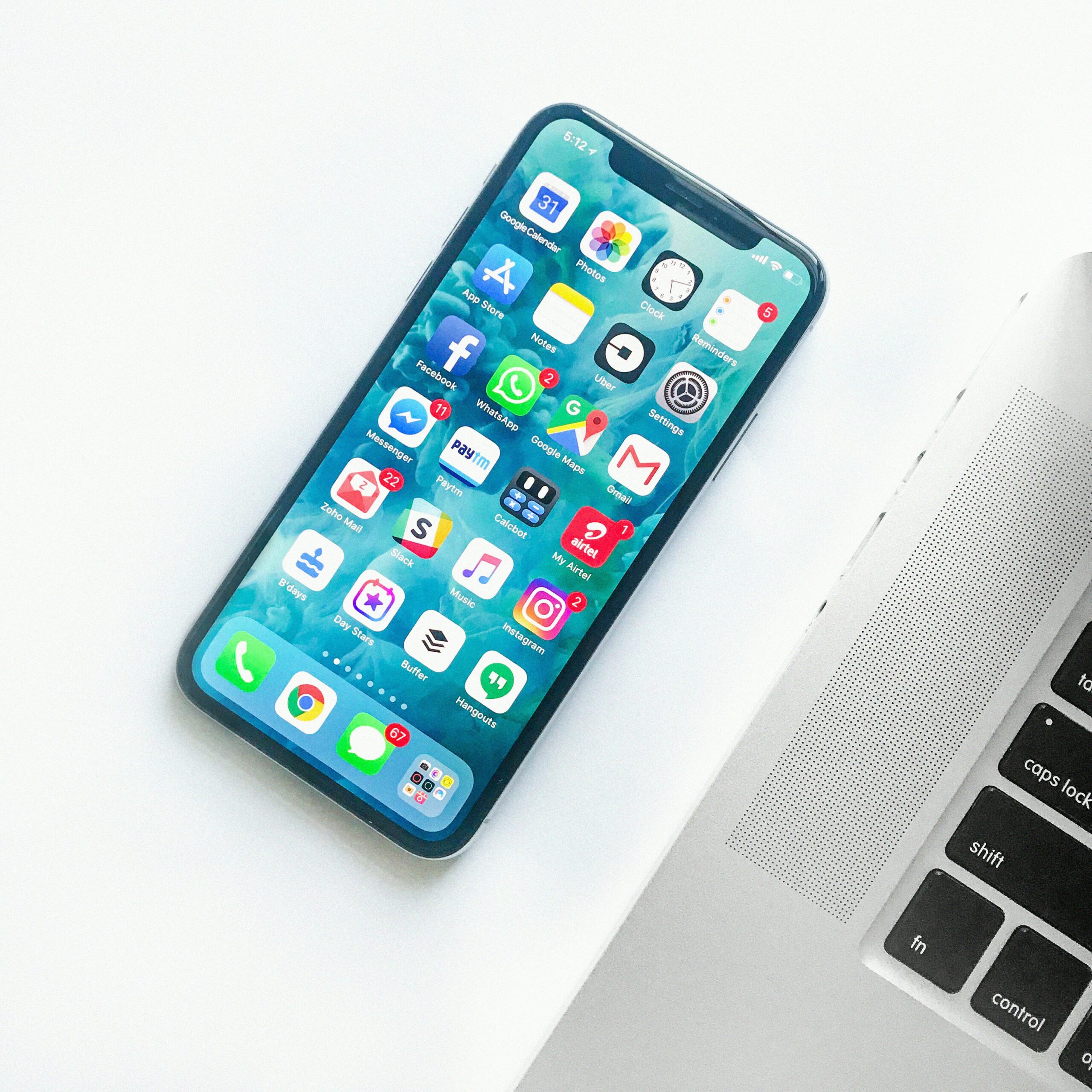
Switching from iPhone to Android is easier when you slow down before the first transfer screen.
The goal is not to move everything blindly. It is to protect the data you would actually miss.
Start with a backup, use Google’s transfer flow, handle iMessage separately, then verify before erasing the iPhone.
This guide walks through the order that keeps the move practical and avoids common surprises.
The Outcome You Want
A good iPhone to Android switch should leave you with your essential contacts, calendar items, photos, videos, messages, apps where available, and account access on the new phone.
It should also leave your old iPhone untouched until you have checked the new Android phone. That last part matters. A transfer can copy a lot, but it should not be treated as a promise that every app, subscription, local file, or account setting moved exactly as before.
Google’s Android switching guidance supports moving data during setup, especially when you connect the phones with a cable. Apple also provides separate steps for turning off iMessage and moving copies of iCloud Photos to Google Photos. Treat those as separate jobs, not one magic button.
Before You Start
Keep both phones charged and nearby. Connect them to reliable Wi-Fi. Leave enough time to finish setup without rushing.
Update the iPhone if you can, because older software can make account prompts and app behavior less predictable. Sign in to the Google Account you plan to use on Android. If you already use Gmail, Google Photos, Google Calendar, or Google Contacts, use the same account unless you have a specific reason not to.
Do not erase, trade in, or factory reset the iPhone before you inspect the Android phone. Keep the iPhone available for two-factor authentication, app logins, banking apps, photos, and message checks.
Also decide how you want to handle photos. If your iPhone stores originals in iCloud, the transfer from the physical phone may not represent everything in your iCloud Photos library. In that case, Apple’s iCloud Photos transfer option and Google Photos import guidance are worth using alongside the phone setup process.
Requirements
You need the old iPhone, the new Android phone, your Apple ID password, your Google Account password, and access to any two-factor authentication method you use.
A cable is strongly recommended when your Android phone offers that option. Google’s Android Help says you can copy data from an iPhone to a new Android phone, and its switching flow can use a cable or wireless setup depending on the device and setup path. Cable transfer is usually the cleaner first choice because it reduces the number of variables during setup.
You may also need a USB-C to Lightning cable, a USB-C to USB-C cable with an adapter, or the cable that came with one of the phones. The exact cable depends on your iPhone model and Android phone.
For iCloud Photos, you need enough Google storage if you plan to move a large photo library. For WhatsApp, follow the transfer prompts shown during Android setup or WhatsApp’s supported transfer flow, because chat migration is more sensitive than copying ordinary files.
Step By Step: Move From iPhone to Android
1. Back Up The iPhone First
Before touching the new Android phone, make a current iPhone backup. Use iCloud Backup or a computer backup, depending on how you normally protect your phone.
This is your fallback. If an app login fails, a file is missing, or you later realize a photo was not copied, the old iPhone backup gives you another path to recover.
2. Turn Off iMessage Before The SIM Move
If you are moving your phone number away from iPhone, turn off iMessage and FaceTime before you remove the SIM or stop using the iPhone.
Apple’s support guidance explains that iMessage should be turned off when switching to a non-Apple phone. If you no longer have the iPhone, Apple also provides a web tool to deregister iMessage from your phone number.
This prevents your number from staying tied to iMessage after the switch. It is one of the most important non-transfer steps because message delivery problems can feel like missing data even when the Android phone is working normally.
3. Start Android Setup And Choose To Copy Data
Turn on the new Android phone and follow the setup prompts. When the phone asks whether you want to copy apps and data, choose the transfer option.
If the phone offers cable transfer, connect the iPhone and Android phone when prompted. Keep both screens unlocked and watch for permission prompts on the iPhone. If the setup flow offers wireless transfer instead, keep both phones close and leave them connected to power.
Use the official on-screen setup flow rather than trying to drag files manually at first. It is designed to handle common categories such as contacts, photos, videos, calendar data, messages, and supported apps where available.
4. Choose What To Copy Carefully
When Android shows a list of data categories, review it before continuing. Copy the things you would miss most: contacts, messages, photos, videos, calendar entries, and supported app data where available.
Do not assume every app will move with its full history. Some apps require a fresh login. Some keep their data in their own cloud accounts. Paid apps, in-app purchases, local-only app data, and app-specific settings may not transfer the same way ordinary photos or contacts do.
This is why the old iPhone stays untouched until the end.
5. Handle Photos That Live In iCloud
If your photos are stored in iCloud Photos, check whether your full library is really on the iPhone or mostly in iCloud.
Apple provides a way to request a transfer of a copy of iCloud Photos and videos to Google Photos in supported situations. Google Photos also has guidance for importing from iCloud. This process is separate from the phone-to-phone setup transfer, and it does not mean iCloud and Google Photos will keep syncing forever.
After the transfer, open Google Photos on Android and check recent photos, older albums, and videos. Do this before deleting anything from the iPhone or iCloud.
6. Move WhatsApp With Its Own Transfer Flow
Do not treat WhatsApp like a normal photo folder. If you use WhatsApp, follow the supported transfer process shown during Android setup or in WhatsApp’s migration flow.
Keep the same phone number available during the move. Avoid setting up WhatsApp casually on the Android phone before you have followed the migration prompts, because chat history transfer can depend on the order of setup.
After WhatsApp opens on Android, check recent chats, important groups, and media before wiping the iPhone.
7. Reinstall And Sign In To Important Apps
Once Android setup finishes, open your most important apps one by one. Start with email, banking, password manager, authenticator, messaging, photos, maps, cloud storage, and work or school apps.
Some apps will simply ask you to sign in. Others may require device approval, SMS verification, an authenticator code, or an email confirmation. Keep the iPhone nearby until these checks are done.
If your password manager or passkeys are tied to Apple services, plan extra time for account recovery and new sign-ins on Android.
8. Verify Before You Erase The iPhone
Now inspect the new phone like a real user, not like a setup checklist.
Check contacts, recent calls, text conversations, photos, videos, calendar events, notes, files, WhatsApp chats, and any app that holds important personal data. Send a test SMS to someone who does not use iMessage. Ask someone to text your number back.
Only erase the iPhone after the Android phone has the data you need and your main accounts are working.
Troubleshooting Common Problems
The Android Phone Does Not See The iPhone
Start clean. Disconnect the cable, unlock both phones, restart both devices, and try the setup step again.
If you are using a cable, check that it supports data transfer and is not only a charging cable. If you are using an adapter, make sure it is seated firmly. If wireless setup is the only option, keep the phones close and connected to stable Wi-Fi.
If setup has already finished and you skipped the copy step, Google’s Android Help explains ways to copy data later, but the most complete path is often during initial setup.
Messages Are Missing Or Texts Still Go To iMessage
First, confirm that iMessage and FaceTime are off on the iPhone. If you no longer have the iPhone, use Apple’s deregister iMessage page.
Then test with someone who uses SMS or RCS rather than iMessage. The goal is to confirm that your phone number now receives ordinary mobile messages on Android.
Photos Look Incomplete
Open the Photos app on the iPhone and check whether iCloud Photos is enabled. If many originals are in iCloud, use the iCloud Photos to Google Photos transfer path instead of assuming the phone-to-phone copy captured everything.
On Android, check Google Photos for older dates, videos, screenshots, and albums. Also check whether the app is still processing the library before deciding something is missing.
WhatsApp Chats Did Not Appear
Stop before creating more new chat history. Check whether you followed the supported WhatsApp transfer path during setup and whether the Android phone is using the same phone number.
If the migration option was skipped, review the current official transfer guidance before resetting anything. Chat history is important enough to handle deliberately.
An Important App Has No Data
Open the same app on the iPhone and look for export, backup, sync, or account settings. Many apps store data in their own account rather than in the phone transfer system.
If the app controls money, health, work, school, identity, or two-factor access, do not delete it from the iPhone until the Android version is fully working.
Alternatives If You Do Not Want A Full Transfer
You do not have to copy everything. A smaller switch can be cleaner if the iPhone is cluttered or the new Android phone is meant to be a fresh start.
One option is to sync only cloud services: Google Contacts, Google Calendar, Gmail, Google Photos, OneDrive, Dropbox, or the apps you already trust. Another option is to move only the essentials during setup, then reinstall apps manually.
You can also keep the iPhone on Wi-Fi for a few days as a reference device. That gives you time to check old notes, app settings, photos, and account prompts without keeping it as your main phone.
The safest approach is the one that matches your data. If photos and messages matter most, focus there. If accounts and authentication matter most, keep the old iPhone available until every login is stable.
Related Articles
- How to Find a Lost iPhone or Android Phone Before It Is Too Late
- How to Check Whether Your Photos Are Really Backed Up
- How to Share a Wi-Fi Password Between iPhone and Android
FAQ
Can I switch from iPhone to Android without losing photos?
Yes, but verify the result before deleting anything. Use Android’s setup transfer for phone data, and use the iCloud Photos to Google Photos path if your library mainly lives in iCloud.
Should I use a cable or wireless transfer?
Use a cable when the Android setup flow offers it. Wireless transfer can work, but a cable usually removes Wi-Fi quality as a variable during the first setup.
Do I need to turn off iMessage before switching?
Yes. Apple recommends turning off iMessage when moving to a non-Apple phone, and it provides a deregistration tool if you no longer have the iPhone.
Will all my iPhone apps transfer to Android?
No. Supported apps may appear during setup, but some apps require manual installation, fresh sign-in, separate cloud sync, or a new Android version.
When is it safe to erase the old iPhone?
Erase it only after you have checked contacts, messages, photos, videos, WhatsApp, important apps, and account access on the Android phone.