
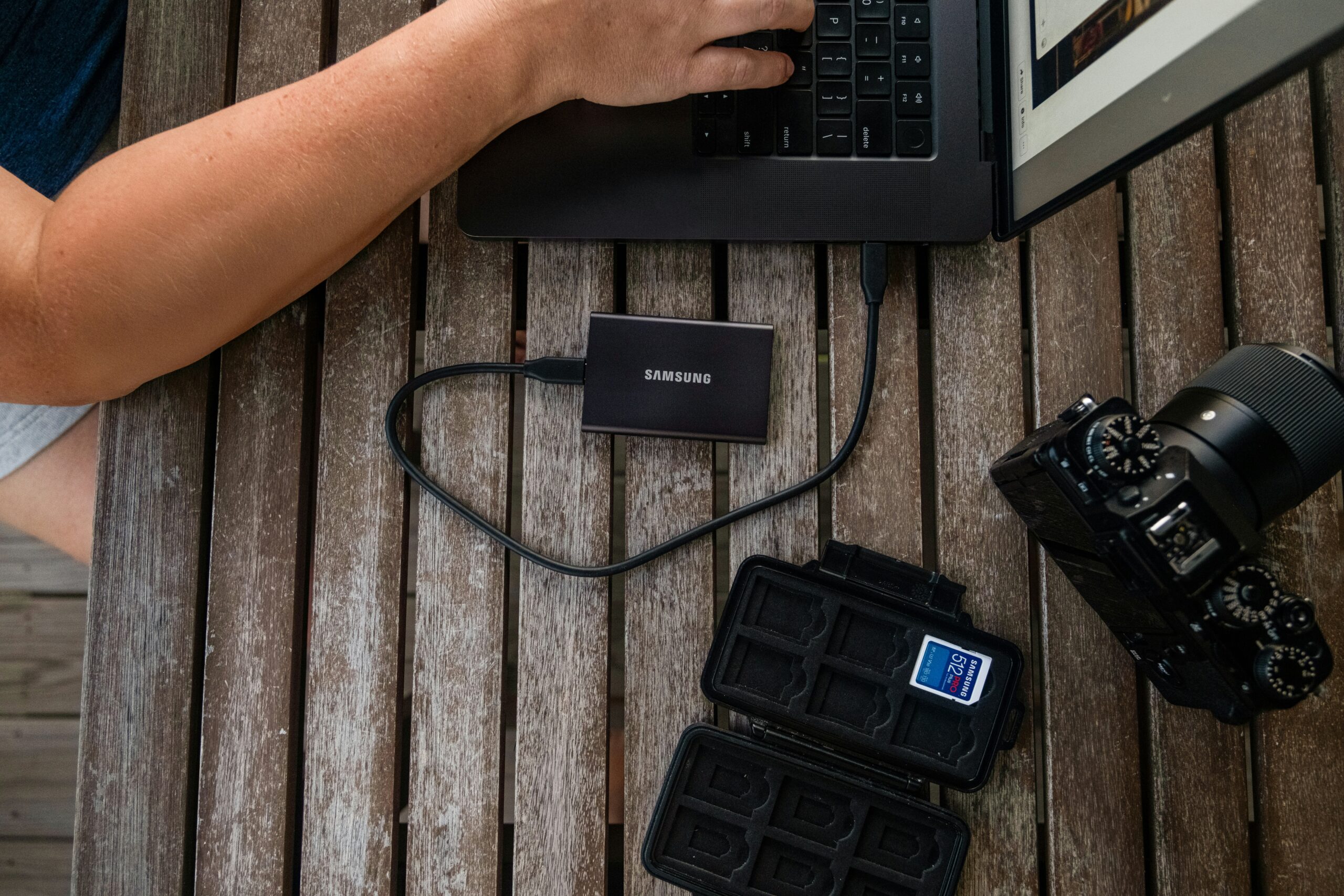
Before you delete a photo, trade in a phone, or wipe a laptop, check whether your photos are really backed up.
The risky part is that sync and backup can look similar when everything appears normal.
This guide gives you a repeatable way to prove your photos exist somewhere else before the originals disappear.
Use it with any photo app, cloud drive, external drive, or computer folder you already rely on.
The Outcome: Proof That Your Photos Exist Somewhere Else
By the end, you should know three things: where your photos are stored, whether recent photos finished uploading or copying, and whether you can access them without depending on the original device.
That last point matters. A backup is more convincing when you can view the photo from another place, such as a browser, another phone, a computer, or an external drive connected to a different machine.
The goal is not to memorize every setting in every photo service. The goal is to create a simple evidence trail before you take a permanent action.
Before You Start: Do Not Delete Anything Yet
Do not delete originals, clear storage, reset a device, cancel a cloud plan, or format a memory card until the checks below are complete.
Also avoid testing with only one favorite photo. Pick a small sample that represents what you actually care about: a recent photo, an older photo, a video, a screenshot, and one item from an album or folder you expect to keep.
If you are checking a family member’s phone, slow down even more. Make sure you understand which account, cloud service, computer folder, or drive is supposed to hold the backup.
What You Need
You need access to the device that holds the original photos, the account or storage location where the backup should live, and a second way to view that backup.
That second way can be another phone, a browser on a computer, a cloud storage website, a desktop app, or an external drive connected to a different computer.
You also need a small list of test photos. Write down or remember the rough date, album, file name, or visible subject for each test item. That makes it easier to compare what is on the original device with what exists in the backup location.
Step-by-Step: How to Check Whether Your Photos Are Backed Up
1. Identify the Main Place Your Photos Should Be Backed Up
Start by naming the backup destination. It may be a cloud photo library, a cloud drive folder, a computer backup, a network drive, or an external drive.
Do not assume that a phone, tablet, and laptop all use the same account. If more than one account is signed in, identify the account that is supposed to contain the photo library.
A practical clue is the most recent photo. If today’s or this week’s photos appear in the backup destination, you are closer to proving the setup works. If only older photos appear, the backup may be incomplete or paused.
2. Check The App Or Service Status First
Open the photo app, cloud drive, or backup software you use and look for its backup, upload, sync, or storage status area.
You are looking for plain evidence: completed, waiting, paused, out of storage, offline, uploading, or unable to sync. The exact wording depends on the service, so treat the status as a clue rather than a final answer.
If it says upload is still running, keep the device powered, connected, and online before judging the backup. Videos and large libraries can take longer than a quick glance suggests.
3. Confirm Recent Photos From A Second Device Or Browser
Now check the backup destination from somewhere other than the original device. Use a browser, another phone, a tablet, or a computer.
Find the same recent photo you selected as a test item. Open it, not just the thumbnail. If possible, check whether the image displays clearly and whether the date or album context matches what you expected.
This step is important because a local phone gallery can show photos that have not fully reached the cloud or external backup yet.
4. Compare A Small Sample, Not The Whole Library
Checking every photo is usually unrealistic. A better approach is to compare a meaningful sample.
Look for one recent photo, one older photo, one video, one screenshot, and one photo inside an album or folder. If those appear correctly in the backup location, you have stronger evidence that the system is working across different types of items.
If the sample fails, do not delete anything. The failure tells you where to look next.
5. Test Access Without The Original Device Doing The Work
A useful backup should not depend only on the original device’s local gallery.
Temporarily put the original device aside and access the backup from the second device or browser. If you can find and open your test photos there, the backup is more credible.
For external drives, connect the drive to another computer when possible. For cloud storage, sign in through the service’s website or another trusted device.
6. Check Whether Albums, Edits, And Metadata Matter To You
Some people only need the image files. Others care about albums, edits, favorites, dates, captions, or folder structure.
Check one edited photo, one album, and one video if those details matter. The backup may preserve the photo but not every organizational detail in the exact way your phone shows it.
This is not automatically a failure. It simply tells you what the backup is actually preserving.
7. Make One Fresh Test Photo
Take a new test photo that you do not care about. Give the device time to upload or copy it, then search for that item in the backup destination.
This is the cleanest way to check whether backup is working now, not just whether old photos were backed up weeks ago.
If the fresh photo appears from a second device or browser, you have a stronger signal that the current setup is active.
8. Only Then Decide What To Delete Or Move
If your test sample appears in the backup destination, opens properly, and includes the recent test photo, you can make a more informed decision.
Still, treat deletion as a separate decision. For important libraries, keeping more than one backup location is safer than relying on a single account, device, or drive.
Troubleshooting: What Your Result Means
The backup says it is still uploading
Leave the device connected to power and a reliable network. Avoid changing settings or deleting files while the upload is still in progress.
After the status changes, repeat the second-device check with the same sample photos.
Recent photos are missing, but older photos are there
This often points to a current backup problem rather than a completely empty backup. Check whether the device is online, storage is full, upload is paused, or the wrong account is open.
Then create a fresh test photo and watch whether it reaches the backup destination.
Photos appear on the phone but not in the browser
That means the phone may be showing local copies. Do not delete originals yet.
Check the account, backup destination, and upload status. If the service has a web view or desktop view, use that as the place where you prove the backup exists.
Thumbnails appear, but photos do not open properly
Open several items from the backup destination. A visible thumbnail is useful, but the stronger check is whether the full photo or video opens.
If important items fail to open, keep the originals and test another backup method before making storage changes.
The account looks wrong
Stop and identify the account tied to the backup. Many backup mistakes come from checking one account while the photos were saved under another.
Use account names, email addresses, device names, or storage folders to match the original device with the backup destination.
Alternatives If You Do Not Trust The Current Backup
If the current backup result is unclear, create a second backup before deleting anything.
You can copy the library to an external drive, export important albums to a computer, use another cloud storage service, or keep the original device unchanged until the backup is proven.
For very important photos, use more than one location. A cloud library is convenient, but a separate offline copy can protect you from account problems, accidental deletion, or a mistaken cleanup.
The best alternative is the one you can actually check. A backup you never test is still an assumption.
A Simple Backup Check Routine
Use this routine before any risky change:
- Pick five representative photos or videos.
- Find them in the backup destination from a second device or browser.
- Open the full files, not only thumbnails.
- Create one fresh test photo and confirm it appears.
- Keep originals until the result is clear.
This routine is short enough to repeat before deleting local files, replacing a phone, wiping a laptop, or reorganizing a large photo library.
Read More
If your photo backup depends on a major online account, start with account security too: How to Make Your Google Account Safer in 20 Minutes.
If you are moving between devices while checking backups, this guide may also help: How to Share a Wi-Fi Password Between iPhone and Android.
FAQ
Is syncing the same as backing up photos?
Not always. Sync usually keeps devices and cloud libraries aligned, while backup is about having another recoverable copy. Check the actual destination before deleting originals.
What is the safest way to check a photo backup?
Use a second device or browser, find a small sample of photos, and open the full files from the backup destination.
Should I delete local photos after they appear in the cloud?
Only after you understand what your service does with deletion and local storage. If the photos matter, keep another backup before removing originals.
Why do old photos appear but new photos are missing?
The older backup may have worked before, while the current upload is paused, incomplete, offline, out of storage, or tied to a different account.
Do I need an external drive if I already use cloud backup?
You may not need one for every library, but a separate copy is useful for important photos because it reduces dependence on a single account or service.