
Set up account security in stages, not all at once.
First confirm your recovery email and phone. Then turn on 2-Step Verification, save backup codes, and add a passkey only on a device you personally control.
Do not create a passkey on a shared computer, and do not remove older sign-in methods until you have tested the new setup.
Before You Start
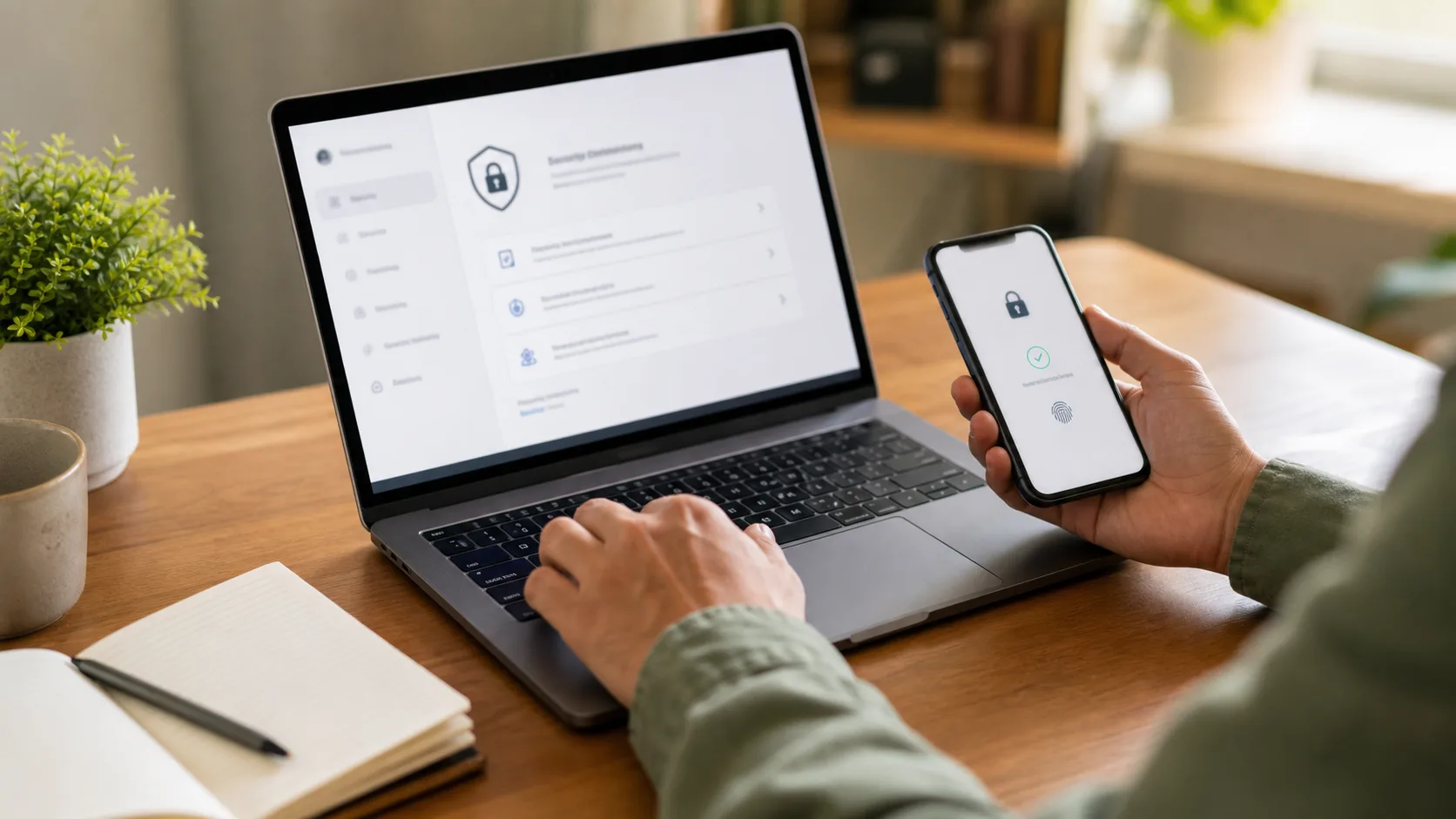
Use a personal phone or computer that you control. The device should have a screen lock, such as a PIN, password, fingerprint, or face unlock. You should also have access to your recovery email and recovery phone before you touch sign-in settings.
- access to the Google Account you are protecting
- access to the recovery email and recovery phone listed on that account
- one trusted personal device that will stay signed in during setup
- a private place to keep backup codes
- enough time to test sign-in before signing out everywhere
You also need a safe place for backup codes. A printed copy stored with important documents is often better than a random screenshot in your photo library. Backup codes are meant for emergencies, so treat them like account keys.
If you are helping someone else, let them type their own password, approve their own prompts, and store their own backup codes. Your job is to guide, not to take control of the account.
Why Lockouts Happen
Account security gets risky when people add stronger sign-in methods before confirming their fallback options.
- turning on 2-Step Verification when the recovery phone is old
- relying on an authenticator app without a plan for a new phone
- saving backup codes but not knowing where they are
- adding a passkey to a shared or unmanaged device
- signing out of every device before testing the new setup
- removing older methods immediately after adding a new one
The goal is not just “more security.” The goal is stronger security that you can still recover from.
Step-by-Step Setup Order
1. Check Recovery Options First
Action: Open your Google Account and review the Security section before changing sign-in methods. Confirm that the recovery email is current and that you can open it. Confirm that the recovery phone number is yours and can receive messages or calls.
Expected result: You know the account can reach you if a sign-in challenge or recovery check appears.
Caution: If either recovery option is wrong, fix that first. Give the account time to accept the change before making several other security changes at once.
2. Stay Signed In On One Trusted Device
Action: Keep at least one trusted personal device signed in while you change settings. This gives you a safer place to review prompts, manage backup methods, and correct mistakes.
Expected result: You have a working place to approve prompts, check settings, and undo a mistake.
Caution: Do not start this process from a library computer, hotel business center, borrowed laptop, or device managed by someone else. Passkeys and account prompts are built around device trust, so the device matters.
3. Turn On 2-Step Verification
Action: Turn on 2-Step Verification from the Google Account Security area. Depending on your account and device, the second step may be a Google prompt, a code, an authenticator app, a security key, or another supported method.
Expected result: The account asks for a second check during sign-in.
Caution: After turning it on, review the available second-step options before closing the page. The setup is not complete until you have at least one fallback method that works when your main phone is unavailable.
4. Create Backup Codes And Store Them Safely
Action: Create backup codes after 2-Step Verification is on. Store them somewhere private and durable.
Expected result: You have an emergency way back in if your usual second step is not available.
Caution: Avoid storing backup codes as a plain screenshot, sending them to yourself in chat, or leaving them in a file named in a way that is easy to find. If you think the codes were exposed, generate a new set.
5. Add A Passkey On A Personal Device
Action: Add a passkey only on a personal device that you control and can unlock securely.
Expected result: You can sign in with the device unlock method, such as fingerprint, face unlock, or screen lock.
Caution: If someone else can unlock that device, they may be able to use the passkey. This is especially important on shared family computers, borrowed laptops, and workplace devices. Before you create a passkey, make sure the device has a strong screen lock and up-to-date software.
6. Add One More Reliable Method
Action: Add another reliable second-step method if it fits your situation. Do not rely on one device as your whole recovery plan.
Expected result: You still have a way to sign in if your main phone, passkey, or prompt is unavailable.
Caution: An authenticator app can work without mobile service, but phone migration needs planning. A hardware security key can be a strong option, but it is not mandatory for every everyday user. If you use a security key, consider having more than one key or another tested fallback method.
7. Test The Setup Before Signing Out Everywhere
Action: Use a private browser window or another personal device to test the sign-in flow before signing out everywhere.
Expected result: You know which sign-in method appears first and where fallback options appear.
Caution: Do not sign out of every device until you are confident that your primary method and at least one backup method work. Check that “Try another way” or equivalent fallback options appear when appropriate.
Alternatives And Tradeoffs: Which Method Should You Use?
| Method | Good For | Watch Out For |
|---|---|---|
| Google prompt | Everyday sign-ins on your phone | Not useful if the phone is lost or unavailable |
| Backup codes | Emergency access when normal second steps fail | Each code is sensitive and typically single-use |
| Authenticator app | Codes without text messages or mobile service | Phone migration needs planning |
| Passkey | Fast sign-in on trusted personal devices | Bad idea on shared or weakly protected devices |
| Security key | Stronger protection for higher-risk accounts | You need a plan if the key is lost |
Special Cases: Shared Devices, Family Help, And Work Accounts
Shared devices are where passkeys can become confusing. A passkey is tied to a device and its unlock method. If the device is shared, the account boundary can feel less obvious to the people using it.
For a family computer, consider using separate operating system user profiles before creating passkeys. For a family member who needs help, avoid setting up their account under your own device profile. Their recovery email, phone, authenticator, and backup codes should remain under their control.
For work or school accounts, your administrator may limit passkeys, 2-Step Verification options, or passwordless sign-in. Follow the organization rules instead of assuming the personal-account flow applies.
Troubleshooting
I lost the phone that gets prompts.
Use another trusted device that is still signed in, a backup code, a recovery email flow, or another second step listed on the account. Once you get back in, remove access for the lost device and review account activity.
I changed phones and my authenticator codes are missing.
Check whether your authenticator app was syncing codes to your account. If not, you may need the old device to transfer codes. This is why phone-switching should happen before the old phone is erased or traded in.
I created a passkey on the wrong device.
Sign in from a trusted device and remove that passkey from your account sign-in options. If the device is shared, also review whether the browser or password manager saved anything related to the account.
My security key is lost.
Use another second step, backup code, passkey, or trusted device to get back into the account. Then remove the lost key from the account. If you depend on security keys, consider keeping a second key in a safe place.
I cannot find backup codes.
If you can still sign in, create a new set of backup codes. When a new set is created, the old set may stop working. Store the new set more deliberately so you can find it during an emergency.
FAQ
What should I test before signing out of other devices?
Confirm that you can complete a fresh sign-in, see a fallback option, and find your backup codes without using the device you are about to remove.
Can I help a parent or family member set this up?
Yes, but keep the account owner in control. They should type their own password, approve their own prompts, and store backup codes somewhere they can access later.
What should I avoid saving in screenshots or notes?
Do not save visible backup codes, recovery email addresses, recovery phone numbers, QR codes, or account identifiers in an unsecured screenshot or plain note.
When is a hardware security key worth adding?
Consider one for sensitive work, public-facing roles, or accounts that would be especially damaging to lose. Keep another tested fallback method in place.
Should work or school accounts follow the same steps?
Use this article as general orientation only. Work and school accounts may have administrator policies that control which passkeys, security keys, or backup methods are allowed.
References
Checked on 2026-05-25 against current Google Account Help pages and public security guidance. Product screens and labels can change, so follow the current instructions shown inside your own account.
Primary product references
- Google Account Help: Sign in with a passkey instead of a password
- Google Account Help: Protecting your personal info with 2-Step Verification
- Google Account Help: Sign in with backup codes
- Google Account Help: Use a security key for 2-Step Verification
Security context
- Google Account Help: Get verification codes with Google Authenticator
- NIST SP 800-63B: Digital Identity Guidelines: Authentication and Authenticator Management
- CISA Secure Our World: Use Strong Passwords