
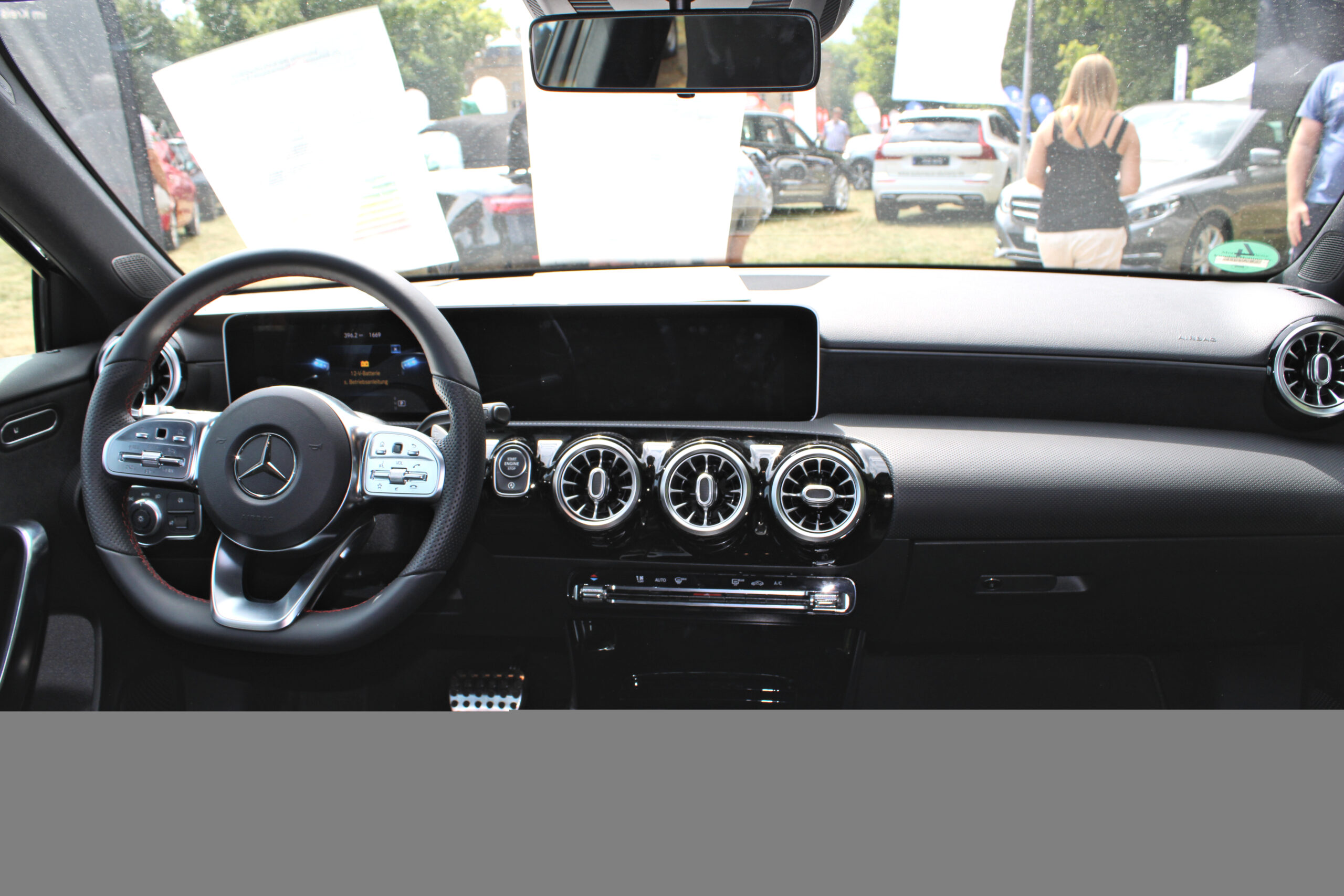
Mercedes A Class connectivity issues can make a short drive feel harder than it should.
The problem may appear as failed pairing, missing phone projection, app errors, or audio without the expected screen.
Before booking service, separate the phone, cable, app, account, and vehicle display variables.
This guide gives you a calm order of checks without promising one universal fix for every A-Class.
Mercedes-Benz A-Class connectivity problems usually involve the link between the car, the phone, the infotainment system, and any connected services tied to the account. Depending on the model year, market, trim, phone, cable, service status, and software version, the exact features and menus can vary.
The practical goal is not to guess the fault immediately. It is to narrow the issue enough that the next step is clearer: retry the connection cleanly, check phone compatibility context, review official guidance, or bring useful notes to Mercedes-Benz support or service.
What Counts As A Mercedes A Class Connectivity Issue?
A connectivity issue is any problem where the A-Class and a phone, app, cable, wireless connection, Bluetooth link, or connected service do not behave as expected. The symptom may be obvious, such as a phone that will not pair. It may also be subtle, such as calls working while phone projection does not appear.
Common reader searches usually fall into a few groups:
- Bluetooth pairing starts but does not complete.
- Apple CarPlay or Android Auto does not appear on the vehicle display.
- Audio plays, but the expected phone-projection view is missing.
- The Mercedes-Benz app or connected-service feature does not reflect the expected vehicle status.
- A connection works one day and fails the next.
- The vehicle display reacts briefly, then returns to the previous screen.
Those symptoms can look similar from the driver seat, but they do not always point to the same cause. That is why a clean troubleshooting order matters.
Why Drivers Search This Before Calling Service
Drivers usually search for Mercedes A Class connectivity issues because the failure sits between several systems. The car, phone, cable, app, operating system, account, and service eligibility can all affect the final experience.
That makes random retrying frustrating. A failed Bluetooth pairing is different from a CarPlay setup problem. A working cable with no projection is different from an app account issue. A connected-service feature that depends on account or market availability is different from a local phone pairing issue.
A useful first move is to identify the visible symptom and then change one variable at a time. That keeps the troubleshooting practical and avoids turning one uncertain problem into several new ones.
Start With The Connection Type
First, identify what kind of connection is failing. Do not treat every connectivity problem as the same issue.
If the problem is Apple CarPlay, compare your setup with Apple’s official CarPlay setup and troubleshooting guidance. Apple also maintains a CarPlay available-models page, which is useful for compatibility context rather than a guarantee for every vehicle configuration.
If the problem is Android Auto, use Google’s Android Auto setup and troubleshooting guidance and Android’s vehicle compatibility information as the baseline. Compatibility pages help frame what should be checked, but they do not replace model-specific vehicle guidance.
If the problem is Bluetooth, focus on basic pairing behavior: whether the phone sees the car, whether the car sees the phone, whether the pairing request completes, and whether audio or calls work after pairing.
If the problem is the Mercedes-Benz app or a connected service, treat it as an app, account, service, and vehicle-status question instead of only a phone-pairing problem. Mercedes-Benz’s app information and owner resources are the safer starting points for feature and service context.
Match The Symptom To The Next Clean Check
The best next check depends on what you see. Use the symptom as a clue, not as proof.
If no screen reacts, start broad. Confirm the phone is awake, the connection method is intentional, and the cable or wireless setup is the one you meant to test. Then repeat the attempt once from a clean starting point.
If the phone reacts but the A-Class screen does not, focus on the vehicle side of the handoff. Check whether the infotainment system is ready for the connection type you are testing, then consult the model-specific owner guidance if the expected prompt never appears.
If the vehicle display reacts briefly and then returns, note the exact sequence. A brief response is useful information because it suggests the car detected something, even if the connection did not complete.
If audio works but the CarPlay or Android Auto view does not appear, separate media audio from phone projection. A working audio stream does not automatically mean the full projection feature is active.
If the issue is intermittent, write down when it happens. A pattern tied to one phone, one cable, one route, one account, or one recent update is more useful than a general note saying "connectivity failed."
Practical Examples That Keep The Test Clean
A clean test changes one thing, then observes the result. That prevents false conclusions.
Example one: if a wired connection is unreliable, test with a known-good cable before changing phone settings, app settings, and vehicle settings in the same session. If the behavior changes only when the cable changes, that is a stronger clue.
Example two: if Bluetooth calls work but phone projection does not, avoid treating the working call audio as proof that CarPlay or Android Auto is fully configured. Calls, media audio, and phone projection can behave differently.
Example three: if the Mercedes-Benz app is the problem, do not start by assuming the vehicle hardware is at fault. App sign-in, account status, service availability, phone permissions, and vehicle communication can all affect what the app shows.
Example four: if a connection fails after a phone software update, check the official Apple or Android guidance again. Phone-side updates can change prompts, permissions, and connection behavior without meaning the car has a permanent fault.
Where MBUX And Connected Services Fit
Many A-Class connectivity complaints are really about the boundary between local infotainment and connected services. Local functions may involve Bluetooth, USB, phone projection, and the infotainment display. Connected services may involve the Mercedes-Benz app, account status, supported features, market availability, and service terms.
That distinction matters because the next step changes. A local pairing problem may be tested in the car with the phone present. A connected-service problem may require checking the app, the account, the service status, and Mercedes-Benz support resources.
For model-specific details, use the Mercedes-Benz owner manuals portal. It is the safer reference point because menus, features, and availability can vary across model years, regions, trims, and software versions.
Mistakes That Make Connectivity Problems Harder To Diagnose
The first mistake is changing too many things at once. If you restart the phone, change the cable, delete pairings, reinstall apps, and adjust settings in one session, you may lose the clue that mattered.
The second mistake is assuming one working feature proves every connection feature is healthy. Bluetooth audio, phone calls, CarPlay, Android Auto, app status, and connected services are related, but they are not the same test.
The third mistake is treating online advice as universal. A menu path, fix, or feature that fits one A-Class model or market may not match another.
The fourth mistake is skipping official compatibility and owner guidance. Apple, Google/Android, and Mercedes-Benz sources are better baselines than a guess based only on a similar symptom.
The fifth mistake is waiting too long to document the pattern. If service or support becomes necessary, clear notes are more useful than a vague description of the problem.
What To Note Before Contacting Support Or Service
If the issue continues after clean checks, prepare a short record before contacting Mercedes-Benz support, the app support path, or a dealer/service department.
Useful notes include:
- A-Class model year and market, if known.
- Phone model and operating system version.
- Connection type tested: Bluetooth, USB, wireless projection, app, or connected service.
- Whether the phone reacts, the vehicle screen reacts, both react, or neither reacts.
- Whether audio, calls, phone projection, and app status behave differently.
- Whether the issue happens every time or only under certain conditions.
- Any recent phone, app, vehicle, or account change you noticed.
These notes do not guarantee a repair outcome. They simply make the conversation more precise and reduce the chance of repeating the same broad test.
When This Guide Should Be Updated
This article should be reviewed when Apple changes CarPlay setup guidance, Google changes Android Auto setup guidance, Mercedes-Benz updates owner resources or app information, or new A-Class software and connected-service behavior becomes officially documented.
It should also be updated if TechNubo publishes a more specific article about one A-Class model year, one phone platform, or one Mercedes-Benz connected-service scenario.
Sources
- Apple: Set up CarPlay with your iPhone
- Apple: If you need help with CarPlay
- Apple: CarPlay available models
- Google: Set up Android Auto
- Google: Troubleshoot Android Auto
- Android: Android Auto vehicle compatibility
- Mercedes-Benz: Owner manuals
- Mercedes-Benz: Mercedes-Benz app
Related articles
- MBUX Mercedes-Benz User Experience Review: What It Does Well and What to Check
- BMW iDrive vs. CarPlay vs. Android Auto
- Audi MMI Infotainment Explained: What Changed, What Works, and What Drivers Should Check
- Nissan Connect App Not Working: Causes and Fixes
FAQ
Why is my Mercedes A-Class not connecting to my phone?
Start by identifying the failed connection type: Bluetooth, CarPlay, Android Auto, the Mercedes-Benz app, or a connected service. Each one points to a different set of checks.
Why does Bluetooth audio work but CarPlay or Android Auto does not appear?
Bluetooth audio and phone projection are not the same function. Audio can work while CarPlay or Android Auto still needs separate setup, compatibility, cable, permission, or vehicle-display checks.
Should I delete the phone pairing and start again?
It can help in some cases, but first note what is failing. If you erase pairings before observing the symptom, you may lose useful diagnostic information.
When should I use the Mercedes-Benz owner manual?
Use the owner manual when you need model-specific guidance. A-Class menus, features, and supported services can vary by year, trim, region, account, and software version.
When should I contact Mercedes-Benz support or service?
Contact support or service when the issue repeats after clean checks, affects a connected service or account, or cannot be matched to official Apple, Google/Android, or Mercedes-Benz guidance.